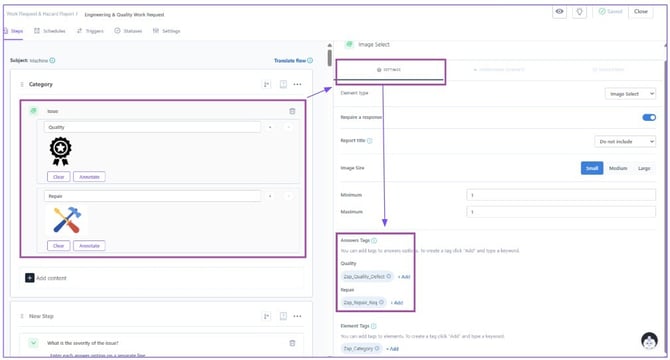
In Zaptic, Answer Tags are essentially labels you can attach to specific answers within a flow element. Answer Tags act like the “glue” that holds your data together for clean reporting - no matter how many tasks, training, sites, languages or answer variations you have.
Here’s how they can tie into Dashboards:
- Categorization of Responses: They allow you to bucket similar answers together — even if the actual wording of the answers is different.
- Filtering in Dashboards: You can filter dashboards by Answer Tag to quickly drill into a specific subset of data without having to sift through unrelated responses.
- Consistency Across Workflows: If multiple workflows collect similar data (e.g., “Yes,” “No,” “N/A”), tagging ensures those responses show up together in the same visual on a dashboard, even when the data originates from multiple different workflows. This allows for concepts like ‘Non-standard conditions’ or ‘Out of Ranges’ to be common across flows despite chosen answer nomenclature.
- Metrics & Aggregations: Tags make it possible to count how often a particular type of response appears without relying on the exact wording of the original answer.
- Cross-Site or Cross-Use-Case Comparisons: In multi-site rollouts, using standardized tags means dashboards can show consolidated metrics and analytics across different teams, lines, or sites. Allowing central teams to pull metrics such as ‘Average non-standard conditions’ or to compare the non-standard conditions between sites.
For customers who don’t yet use Answer Tags, dashboards will display raw answers. Using them enables customers to unify and filter data, which makes trend analysis and comparisons much easier.
Here’s an example to make the link between workflow answers, answer tags, and dashboards super clear:
Example Workflow: Daily Safety Walk
Element: "Are all fire exits clear of obstructions?"
Possible answers for the multiple choice element:
- "Yes"
- "No"
- "Partially blocked"
Without Answer Tags:
- In the dashboard, you’d see the raw answers exactly as written: “Yes,” “No,” “Partially blocked.”
- If someone later edits the workflow and changes “No” to “Blocked” or “Partially blocked” to “Obstructed,” your dashboard will now have different labels for the same meaning — messy data and harder filtering.
With Answer Tags:
- Yes → Tag: Clear
- No → Tag: Blocked
- Partially blocked → Tag: Blocked
Now, even if wording changes, the tag remains the same.
- In the dashboard, you can filter on Blocked to see all problem cases, no matter how the answer was phrased in the workflow.
- KPIs like “% of Exits Clear” are calculated from the tags, so your data stays consistent and comparable over time.
Adding Answer Tags
- You can tag choices within questions such as multi-select and dropdown. Answer Tags are essentially labels you can attach to specific answers within a workflow step so that the data collected can be grouped, filtered, or visualised more meaningfully in dashboards and reports.