Video released on 05/09/2023
Ad-Hoc Actions
One of the most used functionalities in Intellect is the ability to create actions against reports. This is useful for use cases such as defect management, as it lets you create follow-up actions in a way where everyone assigned can clearly see the originating issue.
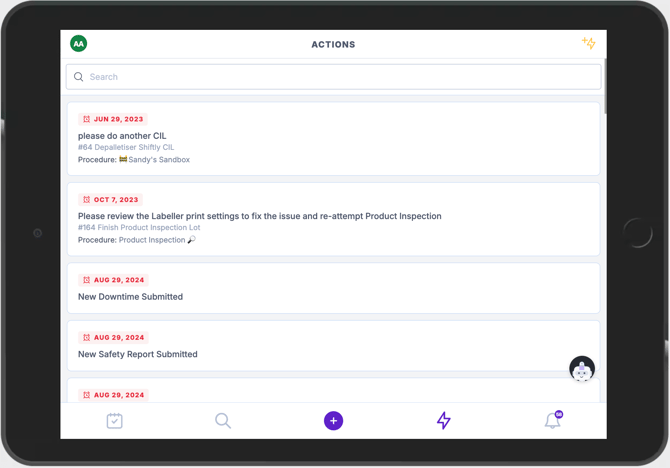
From the Actions page in the App, actions can be created and assigned to individuals or teams as standalone items. This page also shows a view of all the actions you've created for others, making it easier to track and see their progress.
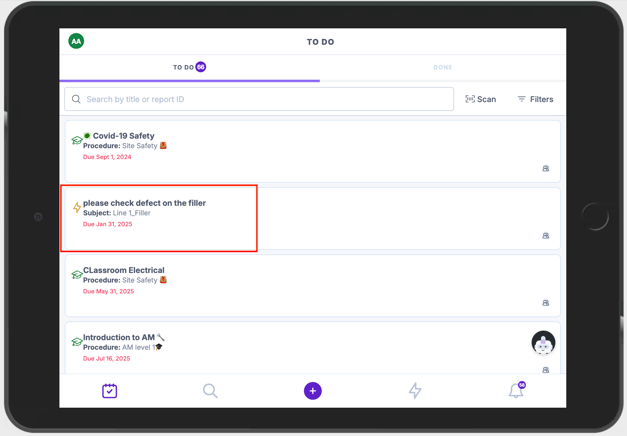
When a new action is raised, the assigned party is notified by email, and the action also appears on their To Do list.
Creating an Action
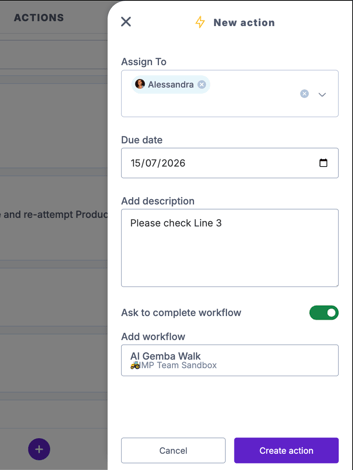
When raising an action, you'll choose:
-
- Who it's assigned to — an individual or a team.
- Assignment type (teams only) — if assigned to a team, choose whether the action goes to every member individually ("per person" — e.g. an action assigned to a 5-person team creates 5 separate actions, one per member), or once per team ("once per team" — a single action that any one member of the team can complete).
- Action type — a Simple action (the user enters text and can optionally add supporting media or documentation) or a Workflow action (the user is taken through a pre-configured step-by-step workflow attached to the action — for example, a "Please complete a 5S audit of the area" action can have a 5S audit template attached).
- Unit (optional) — attach the action to a specific piece of equipment, area, or other unit. This gives ad hoc actions more context and lets them be filtered by location in task manager boards.
Once raised, the action appears in the audit trail for that report, alongside comments and status changes.
Assigning Actions from a Report
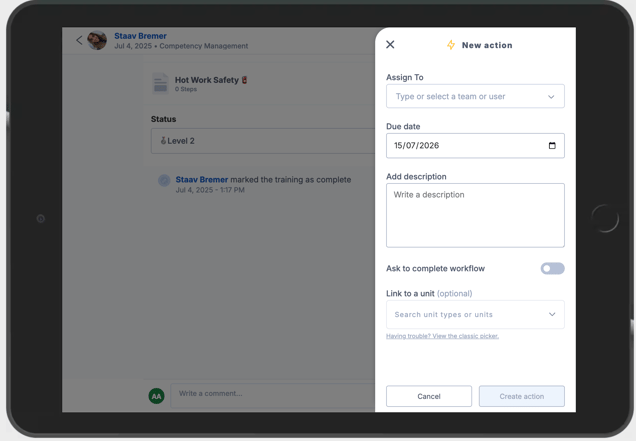
From the completed report page (also known as the report post page), an action can be raised using the lightning bolt symbol — using the same action menu described above.
Completing an Action
The action appears on the To Do list of the person or team it was assigned to.
Open the "History" of the action to see the data from the report it was raised against, in a single click — helpful for understanding the issue before solving it.
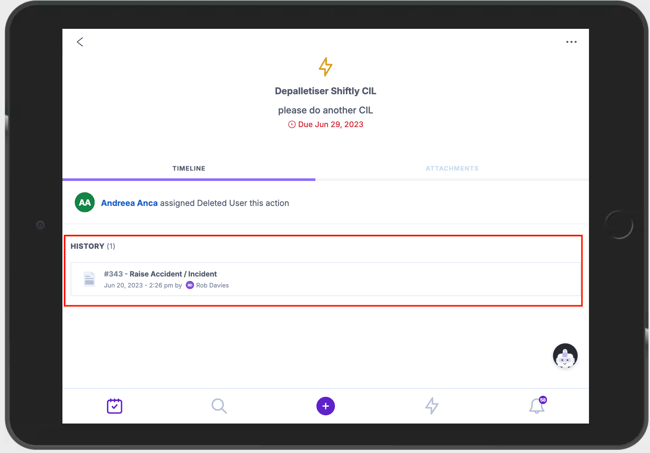
To view the originating report in more detail, click "Go to report."
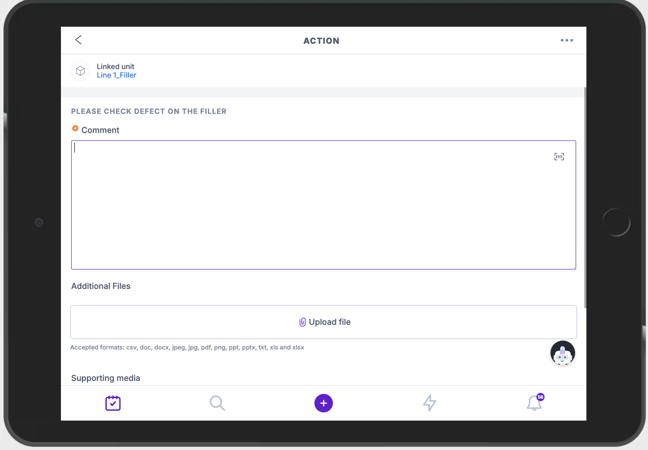
If the action is not requiring a workflow to be completed, to close it you will need to add a comment explaining what you've done, along with any additional media or documents required.