
This article explains in detail how confidential reports work. Confidential Reports is a new feature released in 137 on the Monday the 2nd December.
Why should I use this?
This feature is a great way to restrict the visibility of reports containing sensitive information (safety incidents for example) to certain individuals. It can also be used to keep training records or knowledge checks confidential to the trainee and certain nominated people.
Setting up access - who can see confidential reports
A new permission has been introduced, called "Confidential Reports". This permission can be granted to anyone.
Only users with the "Super User" permission can enable this and it is required to:
- Be able to see confidential reports
- Mark reports as confidential
- Unmark reports as confidential
How to mark reports as confidential
Reports can be marked as confidential manually or automatically, both in the portal and in the Zaptic app:
1. Automatically, using a trigger
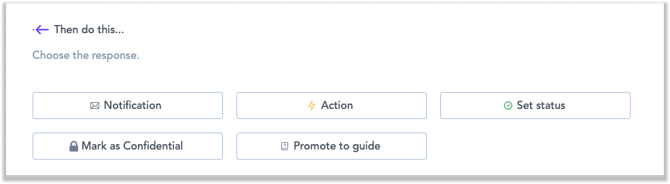
This is a great way to mark reports with a certain answer, or all reports from a task automatically as confidential using the new option “Mark as confidential”. A new option has been introduced in triggers:
2. Manually, in the portal
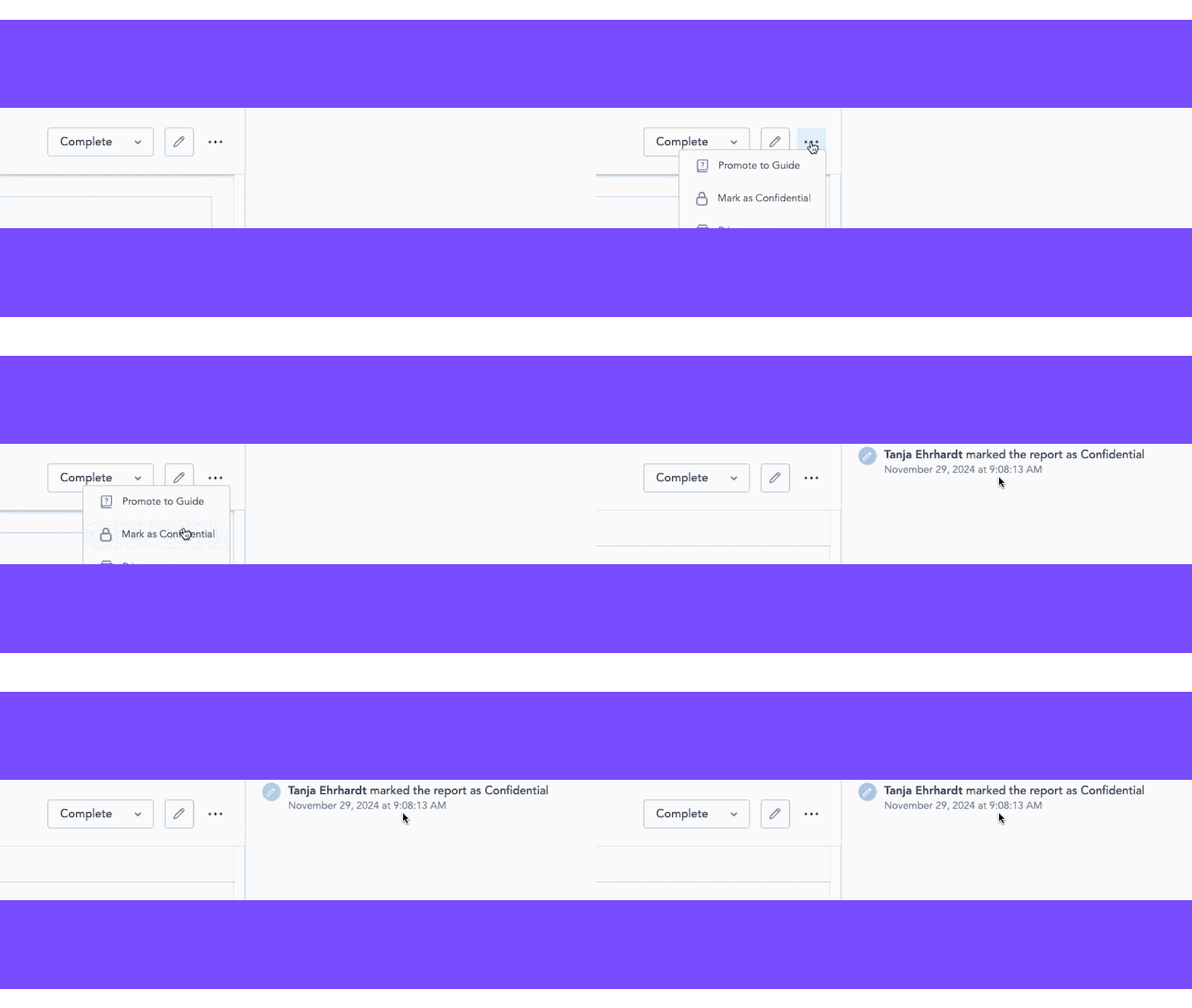
When viewing the report, click the “Options” button and “Mark as confidential”.
3. Manually, in the app
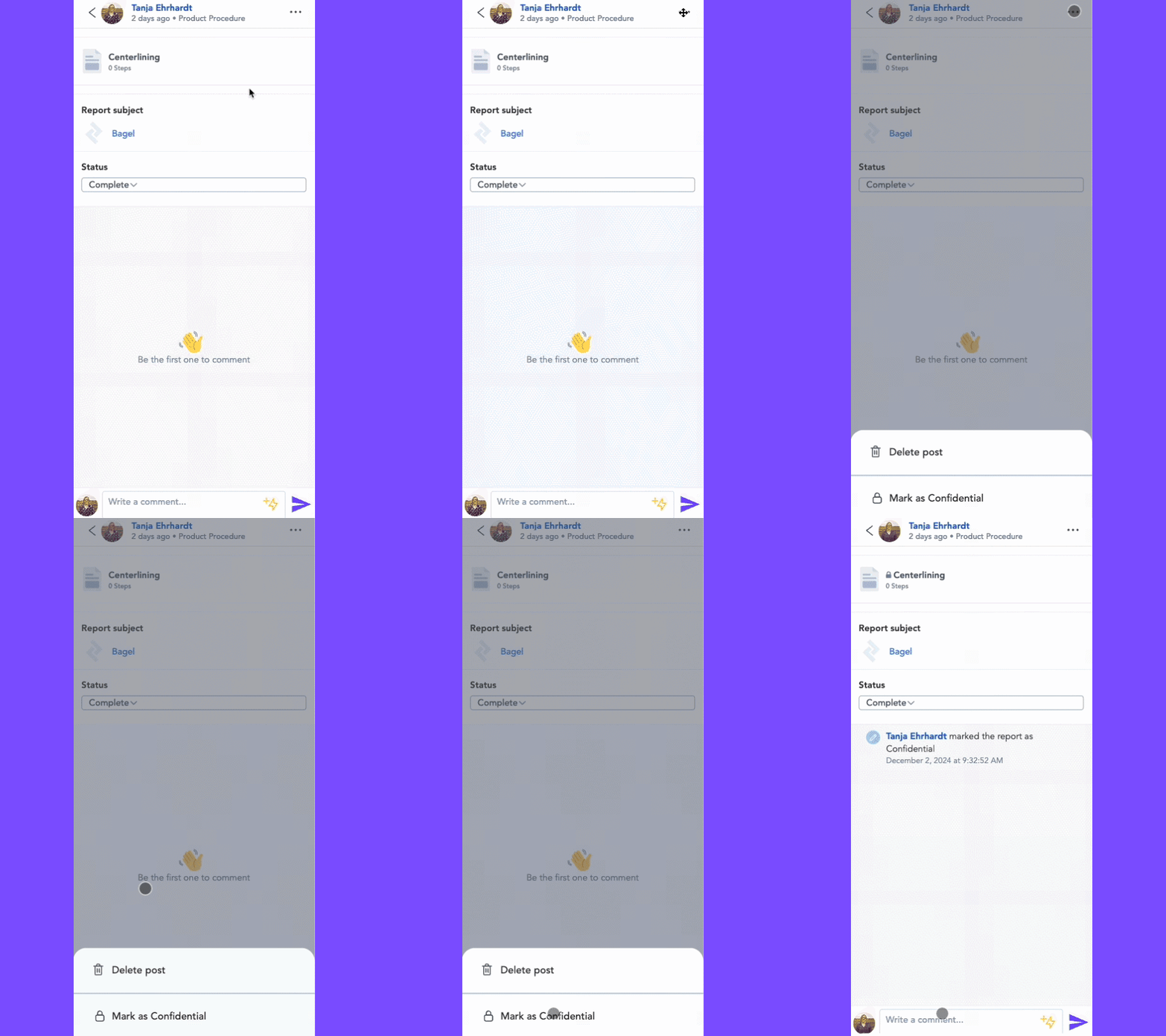
When viewing the report, click the “Options” button and “Mark as confidential”.
FAQ
What happens if I don’t have permission to access confidential reports?
The reports will not appear for anyone who does not have permission to view them - either in the portal or the Zaptic app.
What happens when the permission is revoked?
Users will continue to have access to confidential reports until they log out and back in for the permission change to take effect - it is therefore advised that devices that share accounts are not left logged in for a long time.
How are confidential reports shown on the boards?
Any data within the confidential report shown on the board will be blank. For example, the description of a confidential report is omitted on the task manager board (in this example report 4382 is a confidential report). The URL button to show the report will also be disabled.

Will confidential reports affect calculations and aggregations on the board?
No, they only restrict visibility on the boards, calculations relying on counting the number of reports will not be affected. (For example, showing % of reports submitted or awaiting approval).
Boards performing calculations on answers derived from reports (for example a board summing up entries of a number element) would be affected, as any answers from confidential reports would not be included in the calculations.
Can I see my reports without permission for confidential reports?
The author (person who submitted it) will continue to have access to the report even if it been marked confidential and if they don't have the "Confidential Report" permission - they will not be able to unmark or mark their own reports as confidential however.