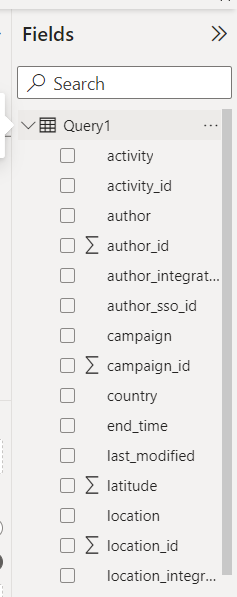
A copy of your Zaptic data is stored in a PostgreSQL database hosted on AWS. We call this database a BI database, and it’s mostly just a copy of your production data. Using a separate “BI” database that is separate from the production database allows you and your boards to query production information without the risk of impacting the production database. The login we’ve provided you is for a read-only user, so don’t worry about accidentally changing any data. Any questions regarding this document can be directed to Daniel at daniel@zaptic.com.
As for connecting to your BI database, we recommend downloading pgAdmin (link). Below are instructions for connecting:
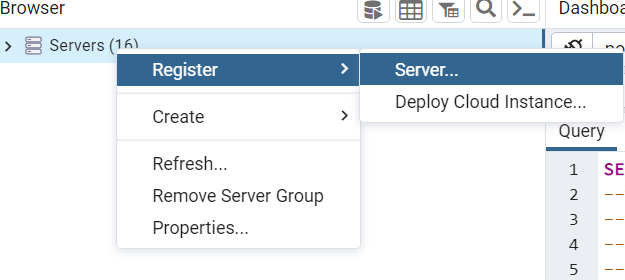
After you’ve installed pgAdmin, right click “Servers” on the left hand pane, then go to Register > Server…
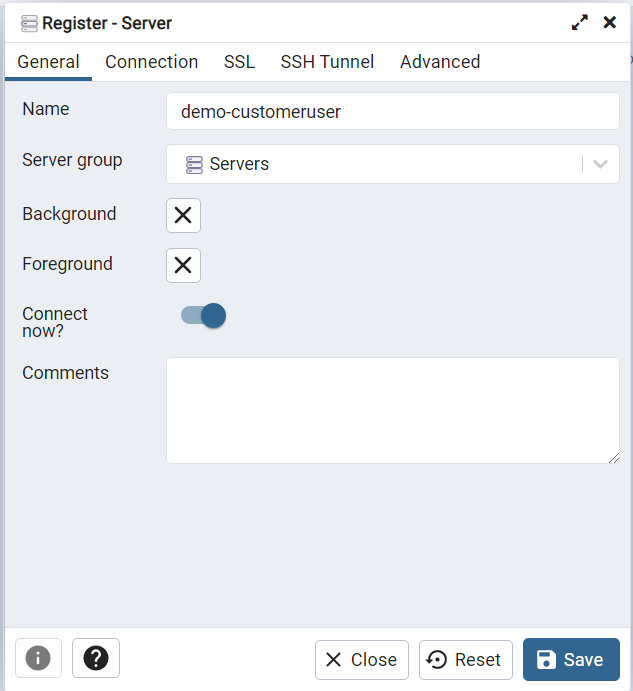
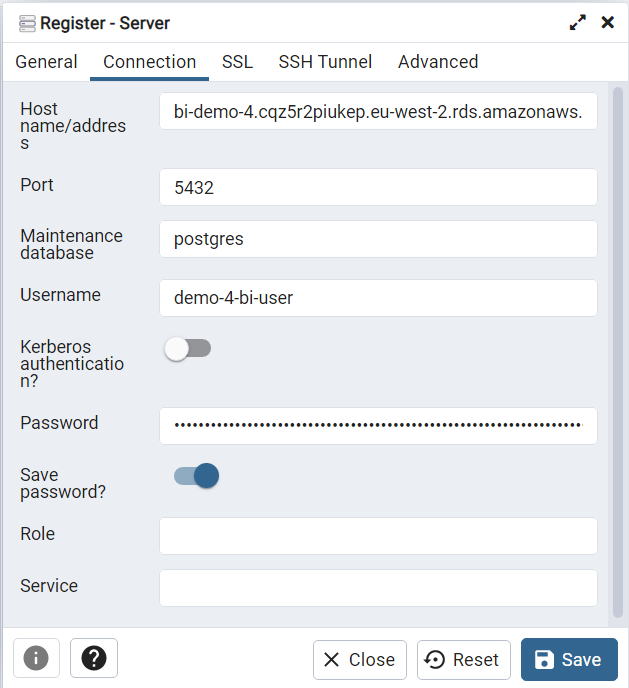
Inside the server registration popup, enter the following. The parameters in red will have already been provided to you by the Zaptic BI team.
- bi-example-eu-west-2.cqz5r2piukep.eu-west-2.rds.amazonaws.com
- Port: 1234(example)
- Maintenance Database: Example
- Login credentials will be sent separately
Leave everything else as default, and turn on Save Password if you don’t want to have to enter in the password every time you connect.
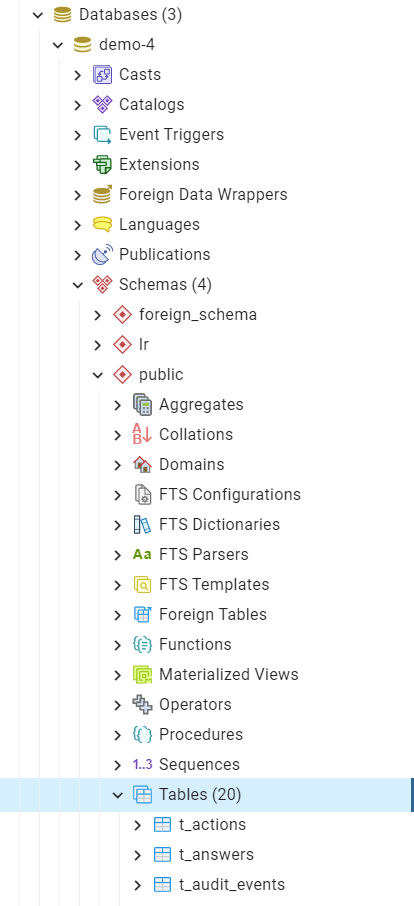
Upon hitting Save, you’ll be connected to your BI database. In the Object Explorer panel on the left side, you can drill down to the tables you’ll be interacting with by going to Databases >> [Customer name] >> schemas >> public >> tables.
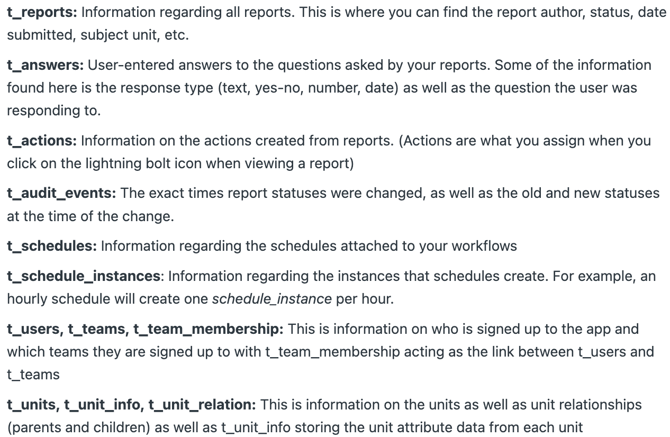
Connecting This Data in Power BI
We can pull this data into Power BI in real time by following the below steps:
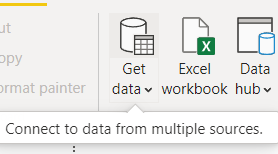
To Connect hit Get Data:
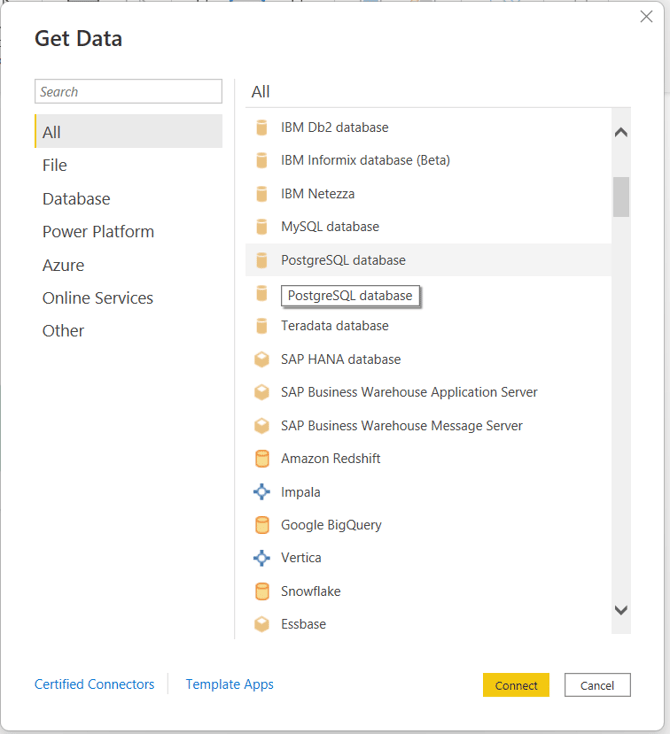
This loads up the below menu and you will be able to see all the different connectors you can use to connect to data from different sources - we will connect using PostgreSQL Database:
Then to pull in the data in realtime we fill in this with the credentials we have provided above as well as your query - remember to tick DirectQuery to pull the data in real time:
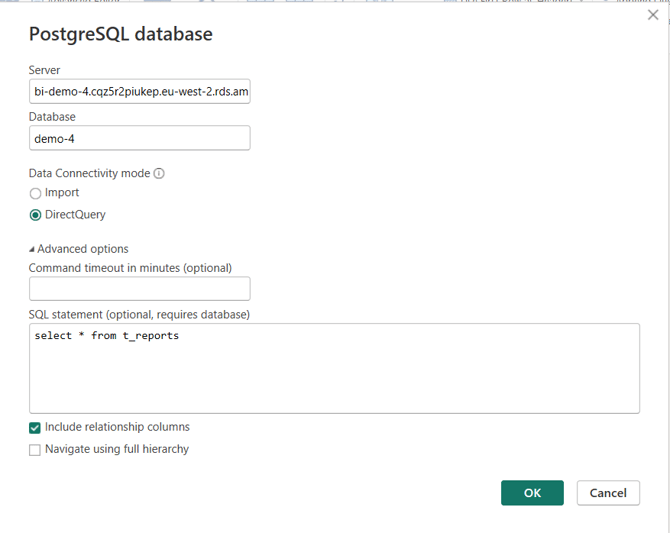
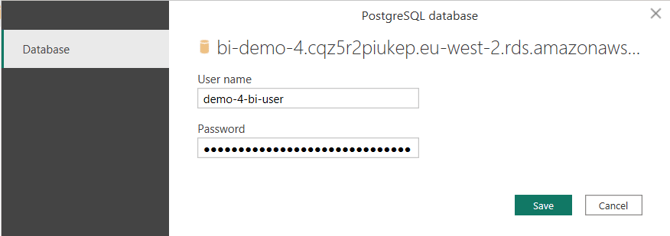
You will need to enter the above credentials to connect to the dataset and allow the query to run - this is done as below:
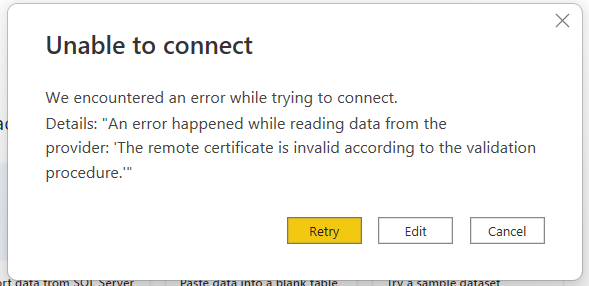
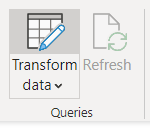
If so hit Cancel and hit Transform Data:
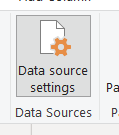
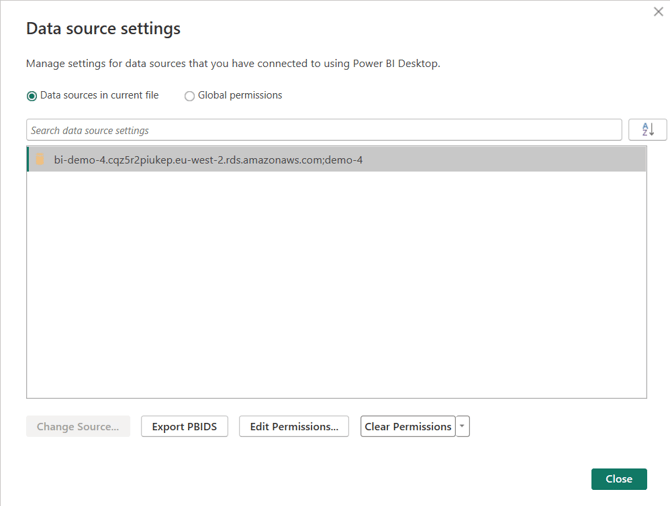
Then click data Source Settings:
Then find the data source:
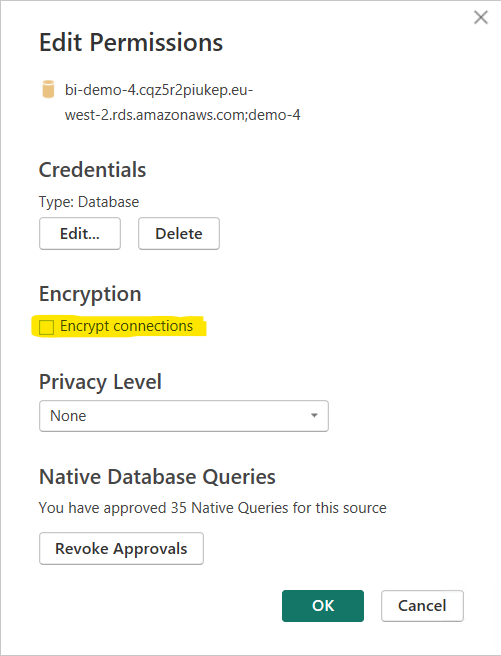
And untick Encrypt Connection under Edit Permissions:
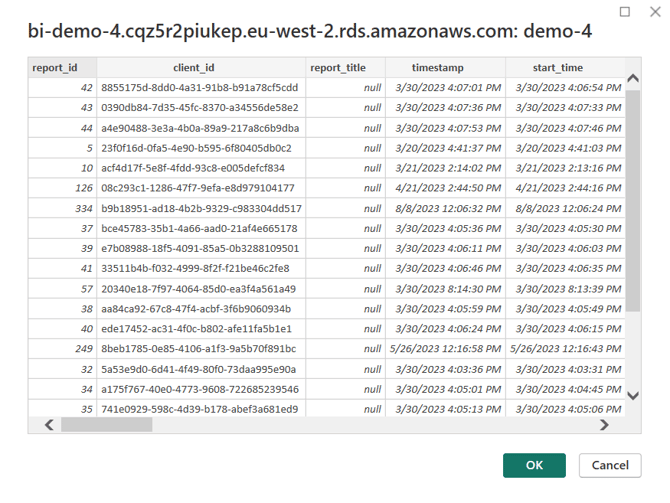
Then repeat how we connect to the data (end of page 3) and you’ll see a preview of the data and then hit load:
You should then see the data you have pulled in on the right and then you’re ready to create your dashboard!