
It is used to store the Units, Unit Types, data attributes, parent-child relationships, identification codes, and other master data that support workflows, reporting, scanning, guides, Boards, integrations, and App navigation.
Video released on 04/06/2025
What is Data Management?
Data Management is the area of the Portal where your operational data is stored and maintained.
This often reflects the way your site is structured. For example, a manufacturing site may be organised by site, area, line, machine, product, SKU, or asset. In Intellect, each of these can be represented in Data Management as unit types (folders).
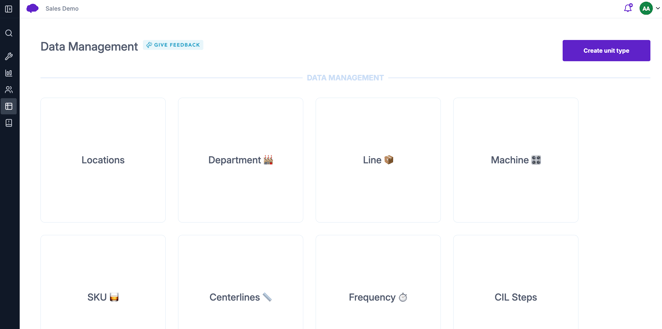
Data Management can also hold standard lists or master data used by workflows. These may not always be physical assets. For example, you may use Data Management to store defect categories, Centerline checks, cleaning steps, product specifications, or inspection types.
The data stored here can then be used across Intellect to make Tasks, Reports, Guides, Boards, and integrations more contextual.
Why Data Management matters
Data Management gives Intellect the structure it needs to connect work, knowledge, and reporting to the right operational context.
Without good Data Management, users may still be able to complete Tasks, but the information captured may be harder to search, filter, analyse, and act on.
When Data Management is well structured, Intellect can show users the right Units, display the right contextual information, connect Reports to the correct Timelines, and make Boards and integrations more reliable.
Key terminology
| Term | Meaning |
|---|---|
| Unit Type | A category of Units, such as Lines, Machines, Areas, Products, SKUs, or Centerline Checks. |
| Unit | A specific item within a Unit Type, such as Line 1, Filler 1, Packaging Area, or SKU 12345. |
| Parent Unit | A Unit that sits above another Unit in the structure. For example, a Line can be the parent of a Machine. |
| Child Unit | A Unit that sits below another Unit in the structure. For example, a Machine can be the child of a Line. |
| Data Attribute | A piece of information stored against a Unit, such as target speed, minimum value, maximum value, owner, or product code. |
| Identification Code | A code stored against a Unit, often used for QR code or barcode scanning. |
| Intellect ID | A unique system-generated identifier used to identify existing records. Older exports or screenshots may refer to this as a Zaptic ID. |
| Unit Timeline | A chronological view of activity linked to a Unit, such as Reports, comments, updates, and other events. |
Unit Types and Units
A Unit Type is the category or folder in which we add individual units.
A Unit is the individual item inside that category.
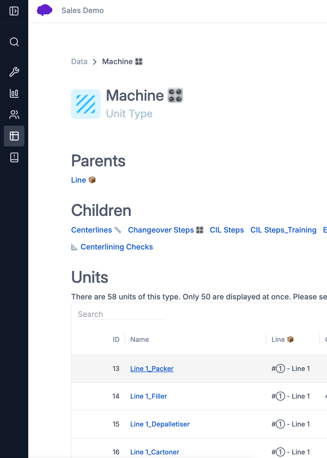
Example 1: If the Unit Type is Lines, the Units might be Line 1, Line 2, and Line 3.
Example 2: If the Unit Type is Centerline Checks, the Units might be Filler Bowl Pressure, Capper Torque, Label Position, and Conveyor Speed.
Parent and child relationships
Parent-child relationships define how Units are connected in Data Management and in Intellect. They help Intellect understand how your operational structure fits together.
%203%20-%20Copy.png?width=670&height=596&name=Data%20Management%20(newer)%203%20-%20Copy.png)
Example: A site contains areas. An area contains lines. A line contains machines.
This could be represented as: Site > Area > Line > Machine
In this structure, the Line is the parent of the Machine, and the Machine is the child of the Line.
These relationships are useful because they allow Intellect to filter and display information in the right context.
Data attributes
Data attributes are pieces of information stored against a Unit.
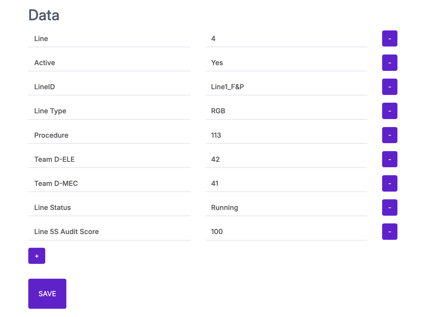
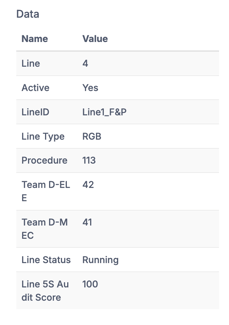
They are useful when the same type of information needs to be reused across workflows, Reports, Boards, or in integrations.
Example 1: A Machine Unit may store its target speed, criticality level, equipment owner, or lubrication type.
Example 2: A SKU Unit may store its product code, pack size, case quantity, allergen information, or target weight.
Instead of adding this information manually into every Task, the Task can reference the data stored against the relevant Unit dynamically.
This makes content easier to maintain. If the target value changes, the data can be updated in a few clicks in Data Management.
Identification codes and QR code scanning
Identification codes are used to connect a Unit to a QR code or barcode.
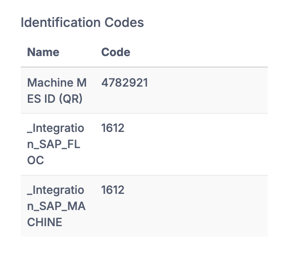
This allows users to scan a code in the App and open the correct Unit or access relevant work.
Example: A QR code is placed on Filler 1. When an operator scans the code in the App, Intellect can open the Filler 1 Unit page or show information linked to that Unit.
This is useful when users need quick access to information at the point of work, without searching manually.
Identification codes should be unique within the relevant Unit Type so Intellect knows which Unit the scan should open.
How Data Management supports the App
Data Management affects what users can find and interact with in the App.
When Units are configured correctly, users can search for a Unit, open its page, review recent activity, access linked Guides, view relevant Tasks, and contact nominated experts where configured.
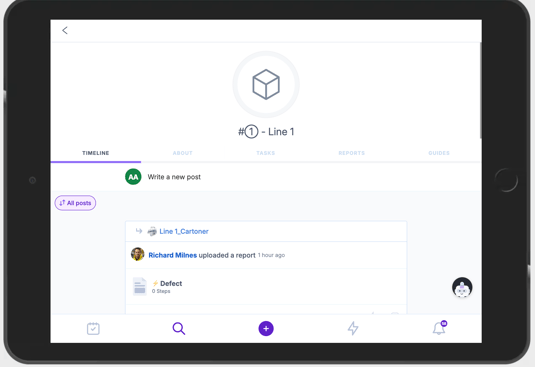
Example: An operator searches for Filler 1 in the App. From the Unit page, they may be able to see recent Reports on the Timeline, access Guides linked to that machine, start relevant Tasks, or use Call an Expert to contact the right support person.
This gives the user a single place to understand the operational context for that Unit.
How Data Management supports workflows
Data Management is often used when building Tasks and Training flows.
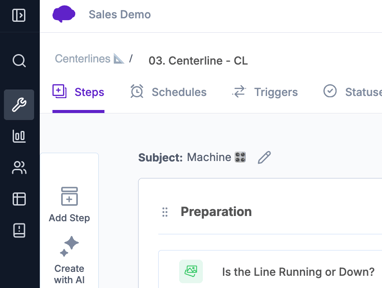
It can help users select the correct Unit, display contextual data, filter answer options, create Report Subjects, and repeat sections of a flow using content loops.
Report Subject - A CIL Task uses Machine as the Report Subject. When the operator selects Filler 1, the completed Report is linked to Filler 1 and can appear on that machine’s Unit Timeline.
Unit Select Elements - A defect reporting Task asks the operator to select the affected Machine. The list of Machines comes from Data Management, which helps avoid free-text entries and makes reporting easier.
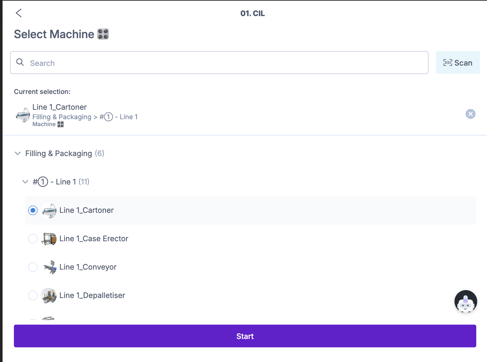
Unit selection can be configured so users only see relevant options to the report subject.
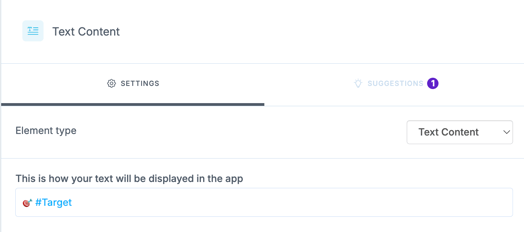
Data Attribute display - A Centerline Task displays the target value stored against the selected check. If the operator is checking pressure, the Task can show the correct pressure target from Data Management.
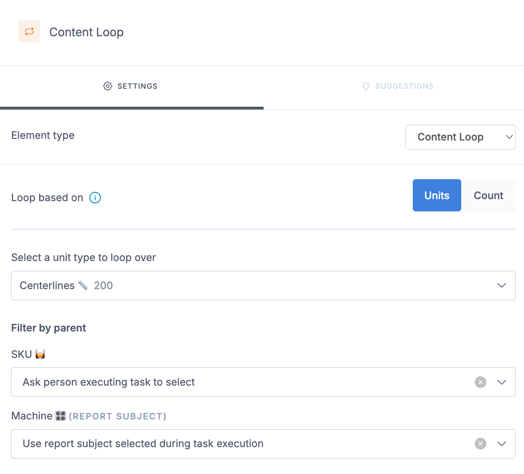
Content Loop - A content loop repeats the same set of questions for multiple Centerline checks. The list of checks comes from Data Management, and each check can bring its own target value, limits, and unit of measure into the flow.
Viewing and filtering Unit tables
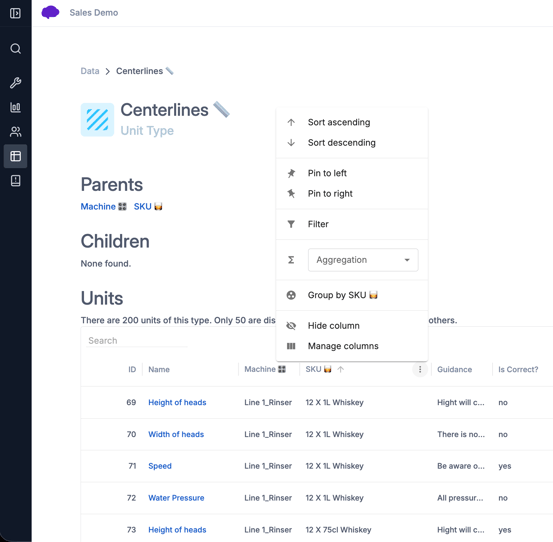
Units are managed in table-like views in Data Management. These tables can be used to search, filter, sort, review, and update Unit information.
Creating Units
Units can be created manually or in bulk.
Manual creation is useful when adding one or a small number of Units. Bulk upload is better when creating many Units at once, such as during a site setup or master data refresh.
Creating a single Unit Type
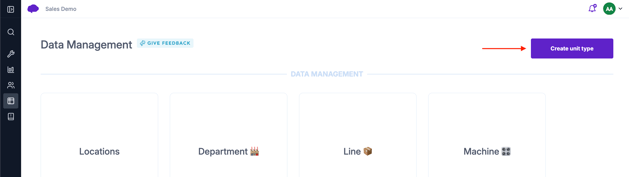
To create a new Unit Type:
-
- Open Data Management in the Portal.
- Select Create Unit Type.
- Add a clear name for the Unit Type.
- Configure any parent Unit Types if required.
- Save the Unit Type.
Creating a single Unit
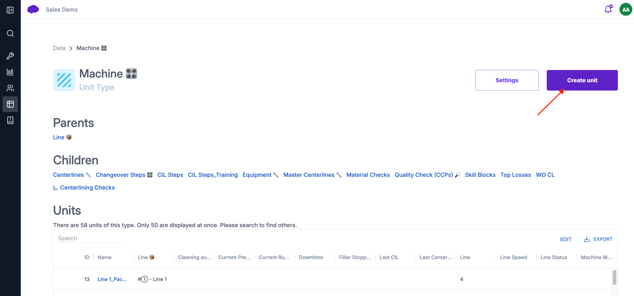
To create a single Unit:
-
- Open the relevant Unit Type.
- Select Create Unit.
- Add the Unit name.
- Add any parent Units where required.
- Add any relevant data attributes.
- Add any identification codes if the Unit will be scanned.
- Add an image if useful.
- Save the Unit.
Editing Units
Existing Units can be edited manually, directly from the table, or through CSV or Excel upload.
%208.png?width=670&height=387&name=Data%20Management%20(newer)%208.png)
When editing one unit at a time, you can click on Edit in the table, select the cell you'd like to modify, make the change and Save.
Pasting from clipboard
-
- Click “Edit” on the right hand side of the table
- Highlight the entire row(s) for the unit(s) you wish to duplicate
- Press Ctrl+C or Cmd+C on your keyboard to copy the contents to clipboard
- Click “Insert from clipboard”
%2012.png?width=670&height=322&name=Data%20Management%20(newer)%2012.png)
Bulk Uploads
Updating Units using CSV or Excel
For larger updates, export the existing table first and use the export as your update template.
When updating existing Units, keep the Intellect ID column unchanged. This allows Intellect to match each row in your file to the correct existing Unit.
%2013.png?width=670&height=399&name=Data%20Management%20(newer)%2013.png)
Adding new Units using CSV or Excel
Bulk upload can also be used to add new Units.
When adding new Units, include the required information such as the Unit name, parent information, data attributes, and identification codes where needed.
You do not need to provide an Intellect ID for new Units because Intellect creates one when the Units are added.
The Intellect ID is generated automatically after the Unit is created.
This is different from updating existing Units. When updating existing Units, the Intellect ID is important because it tells Intellect exactly which existing Unit should be updated.
Assigning columns during upload
When uploading a CSV or Excel file, Intellect will usually try to match the columns in your file to the columns in the Data Management table automatically.
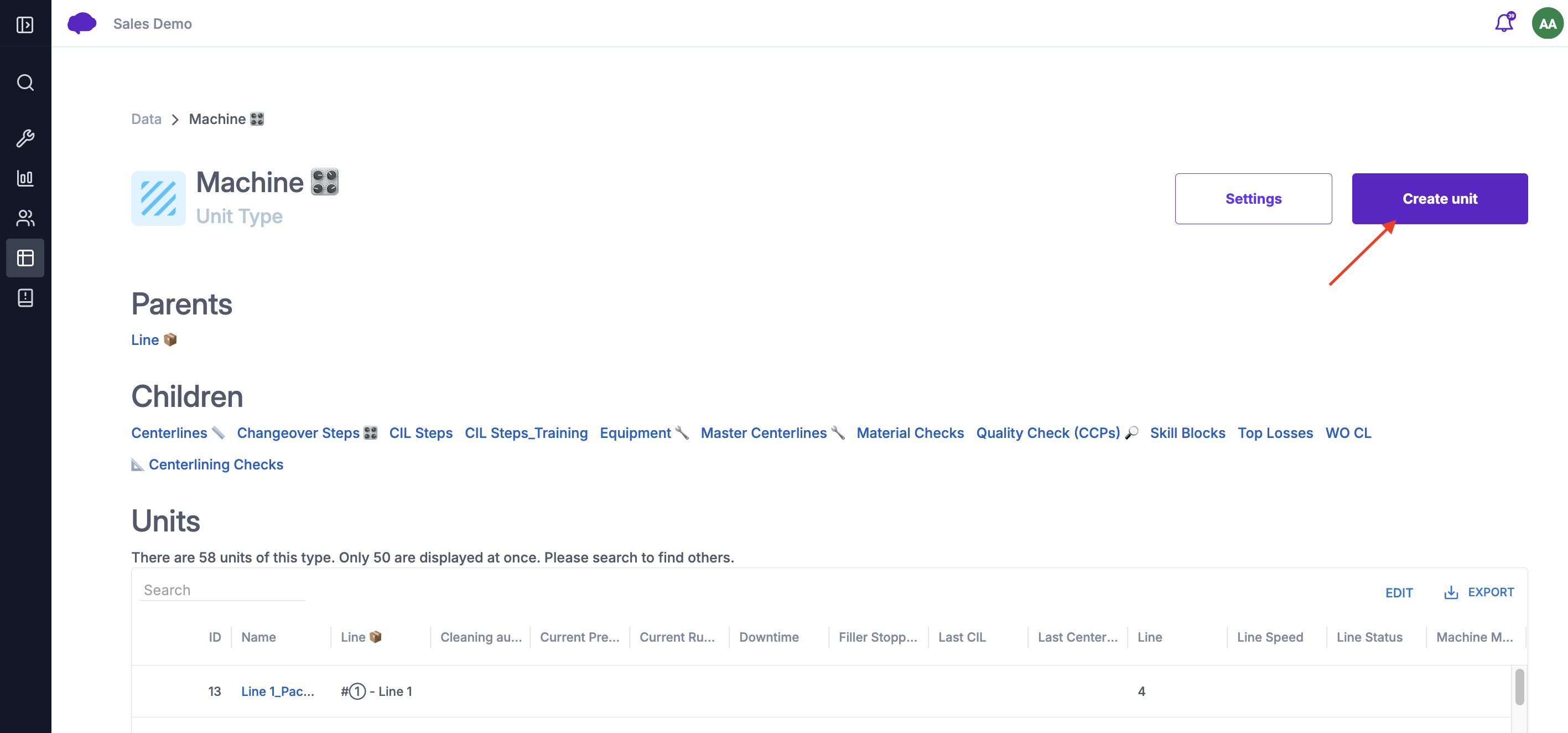
Columns may need to be assigned manually if:
-
- Use first row as headers is unticked
- the column names in the file do not match the existing columns in the table
- new columns are being added
- Intellect cannot confidently match the uploaded column to an existing field
Each column you want to import should be assigned to the correct column header.
-
The Name column is required. This is the name of the Unit. It is how the Unit will be referenced in Data Management and how users will search for or recognise the Unit in the App.
-
Data attribute columns contain additional information about the Unit. This information can support workflows, data attribute routing, reporting, Boards, integrations, and content loops.
-
Parent columns are required when the Unit Type has parent relationships. Parents tell Intellect where each Unit sits in the structure.
-
Select <None> for any column you do not want to import. When adding new data, setting a column to <None> means that column will not be brought into Intellect.
When updating existing data, setting a column to <None> means the existing values in Intellect will remain unchanged.
Using parent names or parent IDs in uploads
When a Unit Type has parent relationships, uploaded files need to tell Intellect which parent each Unit belongs to.
This can usually be done using the parent Unit name or parent Unit ID.
Using IDs is often more reliable because names must match exactly.
Example: The unit type Machine has the parent of Lines. Meaning each machine will have a parent in 1 line. When adding Machines to the unit type, we will need to specify the dedicated line parent of each unit.
If there are multiple Units with similar names, using the parent ID reduces the risk of linking the Machine to the wrong parent.
Unit event history and audit trail
Data Management includes a Unit timeline conmtaining event history that shows changes made to Units.
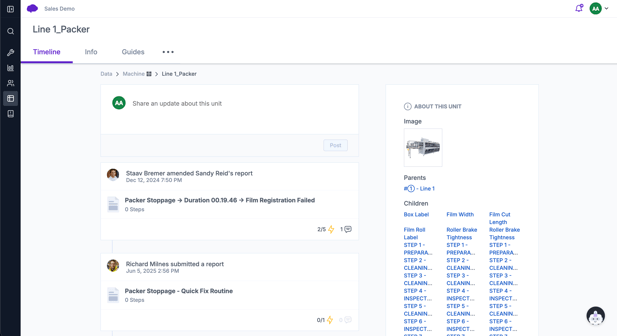
This helps users understand what was changed, when it changed, and who made the change.
Deleting Units and Unit Types
Deleting master data should be handled carefully because Units may be linked to historical Reports, Guides, schedules, Boards, integrations, QR codes, and Unit Timelines.
Individual Units can be deleted from the relevant Unit page where this is available.
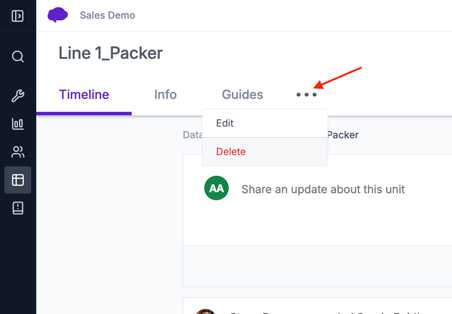
For bulk deletion, contact Intellect Support with the relevant Intellect IDs of the Units that need to be deleted.
If a full Unit Type needs to be deleted, contact Support with the instance name and Unit Type name.
Example: A site wants to remove several duplicate Machines from Data Management. Before deleting them, the team should confirm whether those Machines are linked to historical Reports, active workflows, QR codes, or Boards. If bulk deletion is required, they should provide Support with the correct Intellect IDs.
Call an Expert
Call an Expert allows nominated experts to be linked to Units.
%2019.gif?width=670&height=670&name=Data%20Management%20(newer)%2019.gif)
This helps operators contact the right person when they need support.
Example: A Machine has a nominated engineering expert. When an operator is completing work related to that Machine, they can access the expert contact options and reach out for support.
The available contact options depend on the expert’s user profile setup, such as email, phone, WhatsApp, Microsoft Teams, or a custom contact link.
Call an Expert is useful when specialist knowledge is needed at the point of work.