
Guides: Your Knowledge, All in One Place
Guides allow you to attach relevant, contextual information directly to a task, including Standard Operating Procedures (SOPs), work instructions, videos, images, and other supporting documentation.
By making this information available alongside the task itself, Guides help operators work more efficiently, reducing the time spent searching for documentation and ensuring critical information is always at their fingertips.
All Guides are stored in a centralized knowledge hub—the Guides Home tab. From here, you can create, search, organize, and manage your entire knowledge library across procedures, units, and operations, ensuring information is easy to find, maintain, and share.
Navigating Guides Home
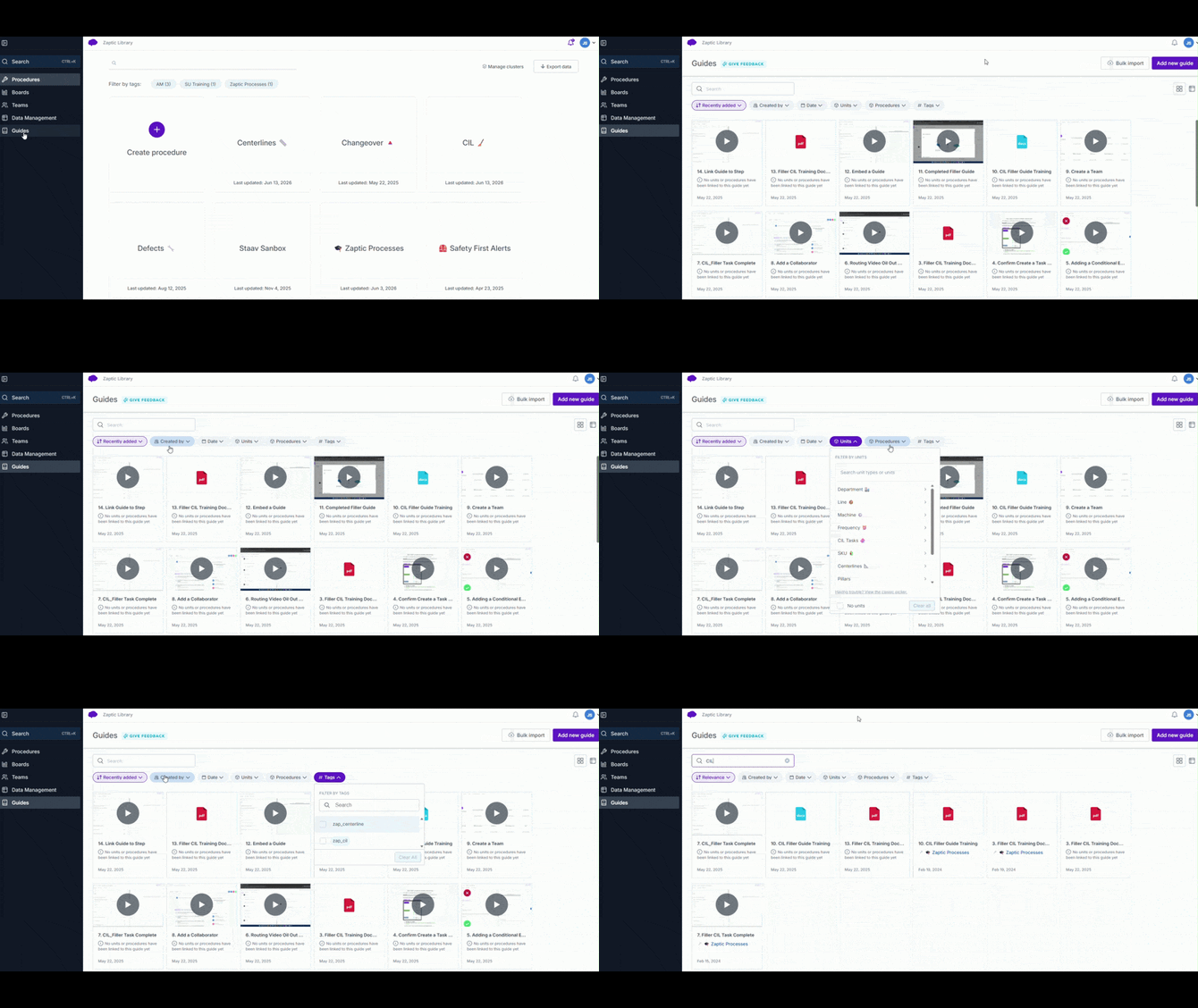
Guides Home displays all your guides in one of two views: Icon or Table View
To switch between views:
-
-
- Open the Guides Home tab.
- Click the view toggle in the top-right of the guides list.
- Select icon view or table view.
-
-
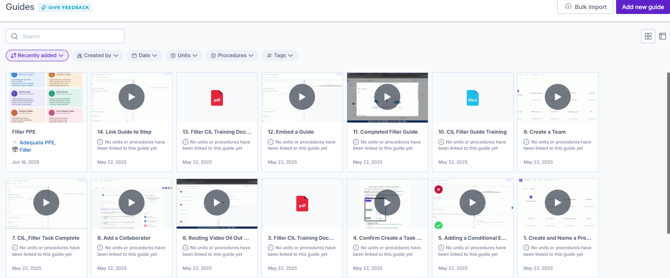
Icon view – shows each guide as a card with a preview thumbnail. Best for visually browsing your guides.
-
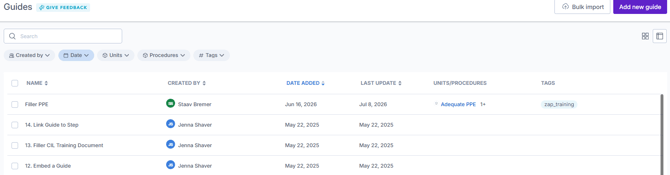
- Table view – shows guides as a compact list with columns for details such as tags and linked units/procedures. Best for managing many guides at once and required for bulk actions.
Searching and filtering guides
What you can search
The search bar in Guides Home looks at more than just the guide's title. It matches against:
-
- Title – the name of the guide
- Description – the summary text added to the guide
- Content – the text inside the guide itself
This means you'll find the right guide even if you only remember a key phrase from inside it, rather than its exact name.
To search:
-
- Open the Guides Home tab.
- Type a keyword or phrase into the search bar.
- Results update to show every guide whose title, description, or content matches.
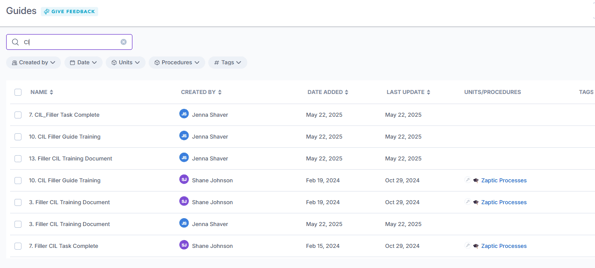
Search and filters can be combined — for example, search for "changeover" and filter by a specific line to find that line's changeover guides.
Filtering your results
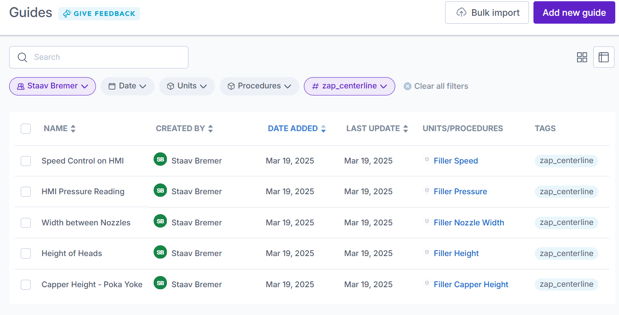
To narrow the list further, you can filter guides by attributes such as:
-
- Created By - show only guides by a specific creator.
- Date – show only guides within a specific timeframe
- Linked unit – show guides linked to a particular machine, line, or area
- Linked procedure – show guides attached to a particular procedure
- Tags – show only guides with a specific tag
To filter:
-
- Choose the attribute(s) you want to filter by (created by, date, unit, procedure or tag).
- Select one or more values. The list updates to show only matching guides.
Create and Edit Guides
Guides can be created from Guides Home or directly within a Procedure.
Create a Guide from Guides Home
Creating guides from Guides Home is ideal when you want to:
Link a guide to multiple Units and/or Procedures.
Create reference material that is used across different areas of your operation.
Manage and update guide content from a single location.
Build a library of reusable knowledge and documentation.
If you're already working within a Procedure, you can also create a guide there to support that specific workflow.
💡 Top tip – Web Guides
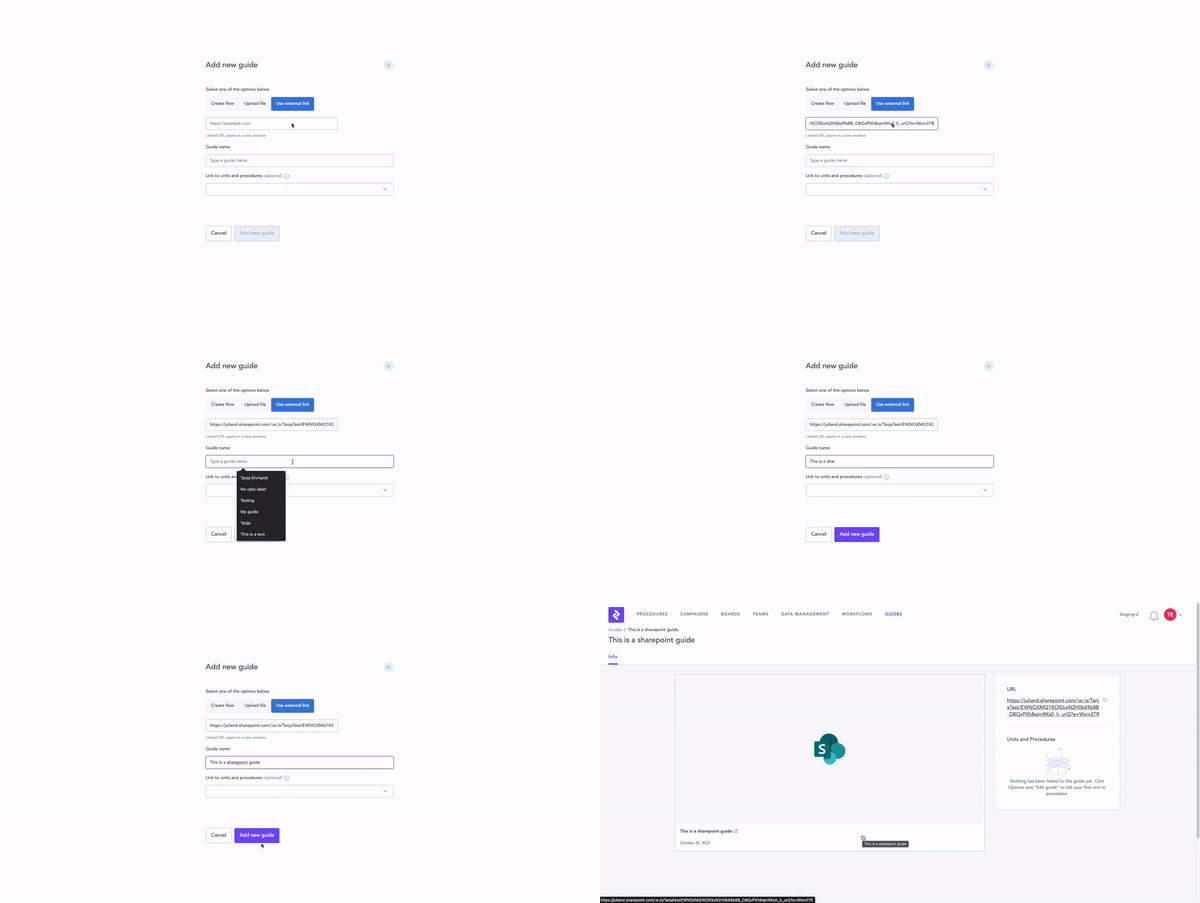
Use the External Link option to hyperlink to content hosted outside IntellectIQ, such as SharePoint documents, LMS training materials, SOPs, or QMS documentation. This allows operators to access the most up-to-date version at the point of use without maintaining duplicate copies.
To create a guide:
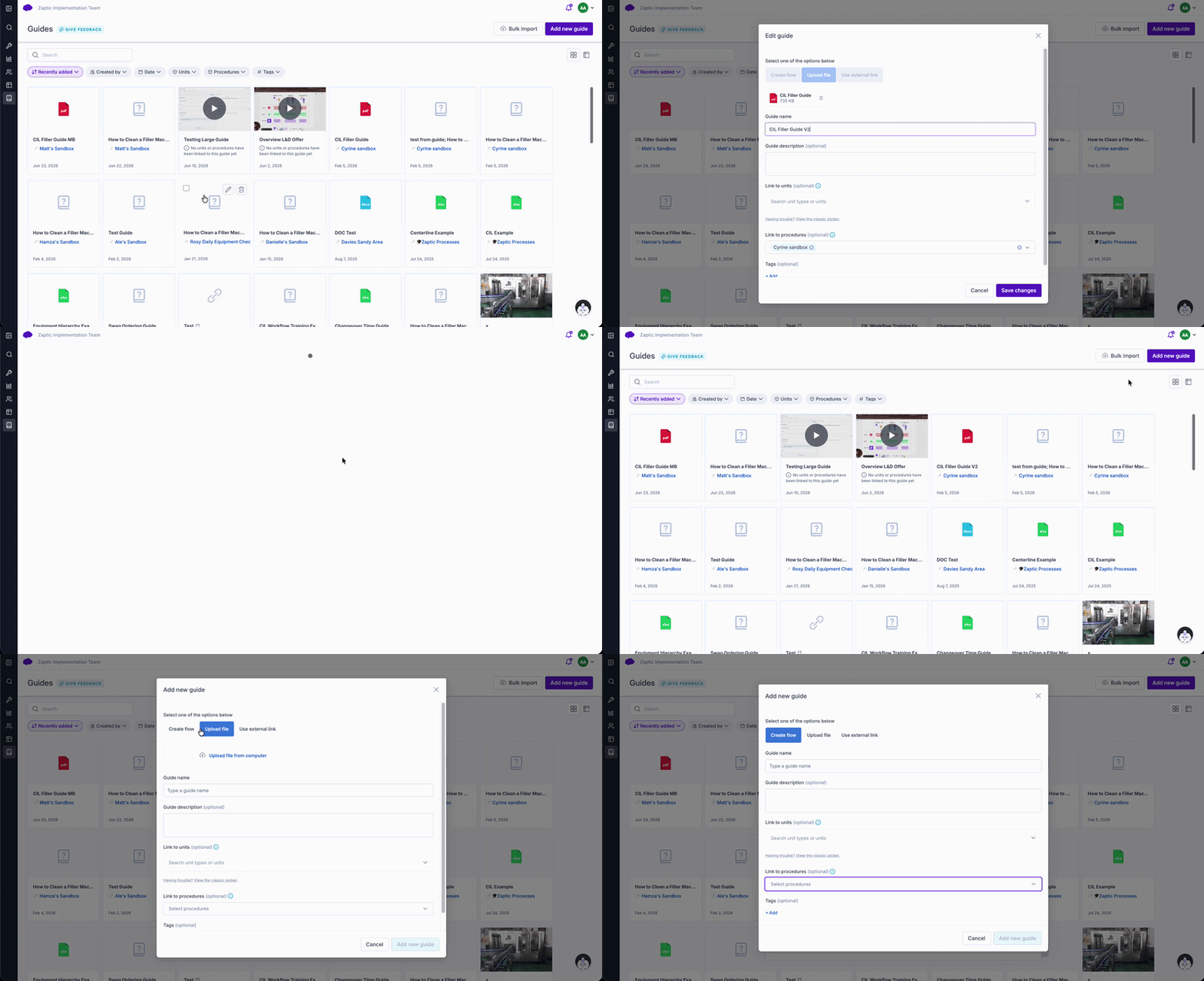
Open Guides Home.
Click Add New Guide.
Choose how you would like to create the guide:
Create Flow – build an interactive guide using the same flow builder used for Tasks and Training.
Upload File – upload a file from your computer, such as a PDF, image, or presentation.
External Link – link to content hosted elsewhere, such as SharePoint.
Enter a Title.
Add a Description to help users understand the guide before opening it and improve search results.
Link the guide to the relevant Units and/or Procedures.
Click Save.
Writing Effective Guide Descriptions
A good description helps users quickly identify the correct guide and makes guides easier to find when searching.
Aim to include:
-
What the guide is for.
-
When it should be used.
-
The machine, process, or task it relates to.
Examples of effective descriptions
✅ Machine Setup Guide
Step-by-step instructions for changing over the Filling Line 3 capper machine, including tooling requirements and startup checks.
✅ Troubleshooting Guide
Common causes of low vacuum alarms on Packaging Line 2, with recommended operator actions.
✅ Safety Guide
Lockout-tagout requirements for maintenance activities on the palletizer, including isolation points and verification steps.
Less effective descriptions
❌ Machine Guide
❌ Instructions
❌ SOP
These descriptions provide little context and make it harder for users to determine whether they have found the correct guide.
💡 Tip: Include the machine name, line number, process name, or activity being supported. This makes guides easier to find when users search for equipment, procedures, or keywords.
Create guides in bulk
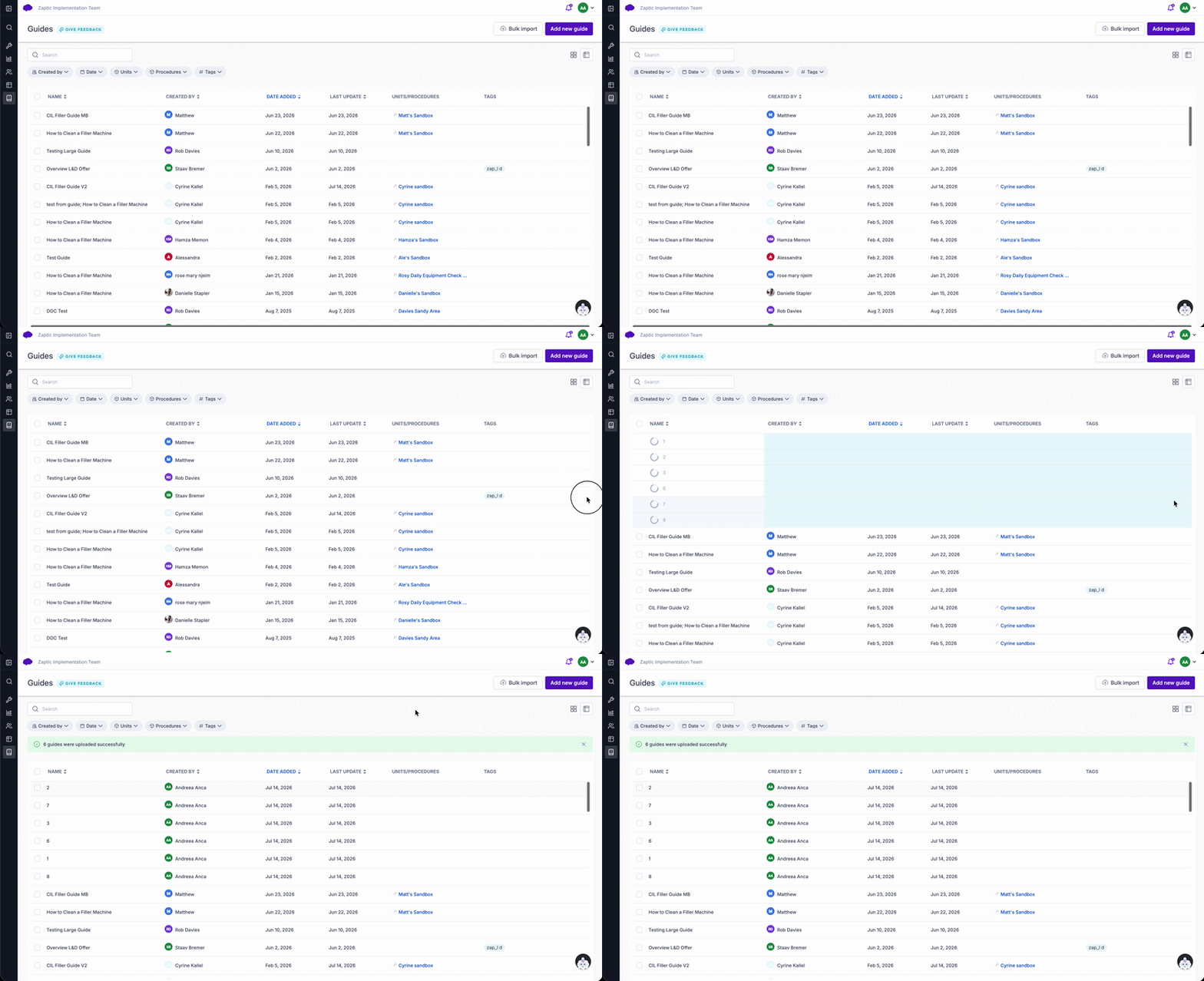
Save time by uploading multiple files at once — each file becomes its own guide.
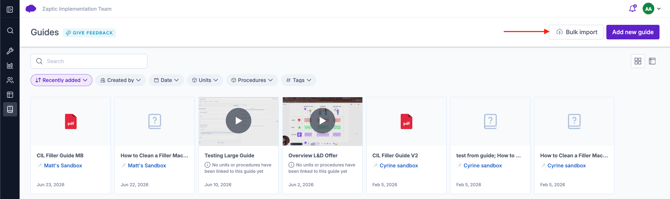
In Guides Home, click the bulk import button.
Select multiple files to upload.
Each file is created as a separate guide, ready to link and tag.
Working with multiple guides (bulk actions)
Save time managing multiple guides at once with these bulk features:
Bulk import – Upload multiple files simultaneously to create them as guides in one go.
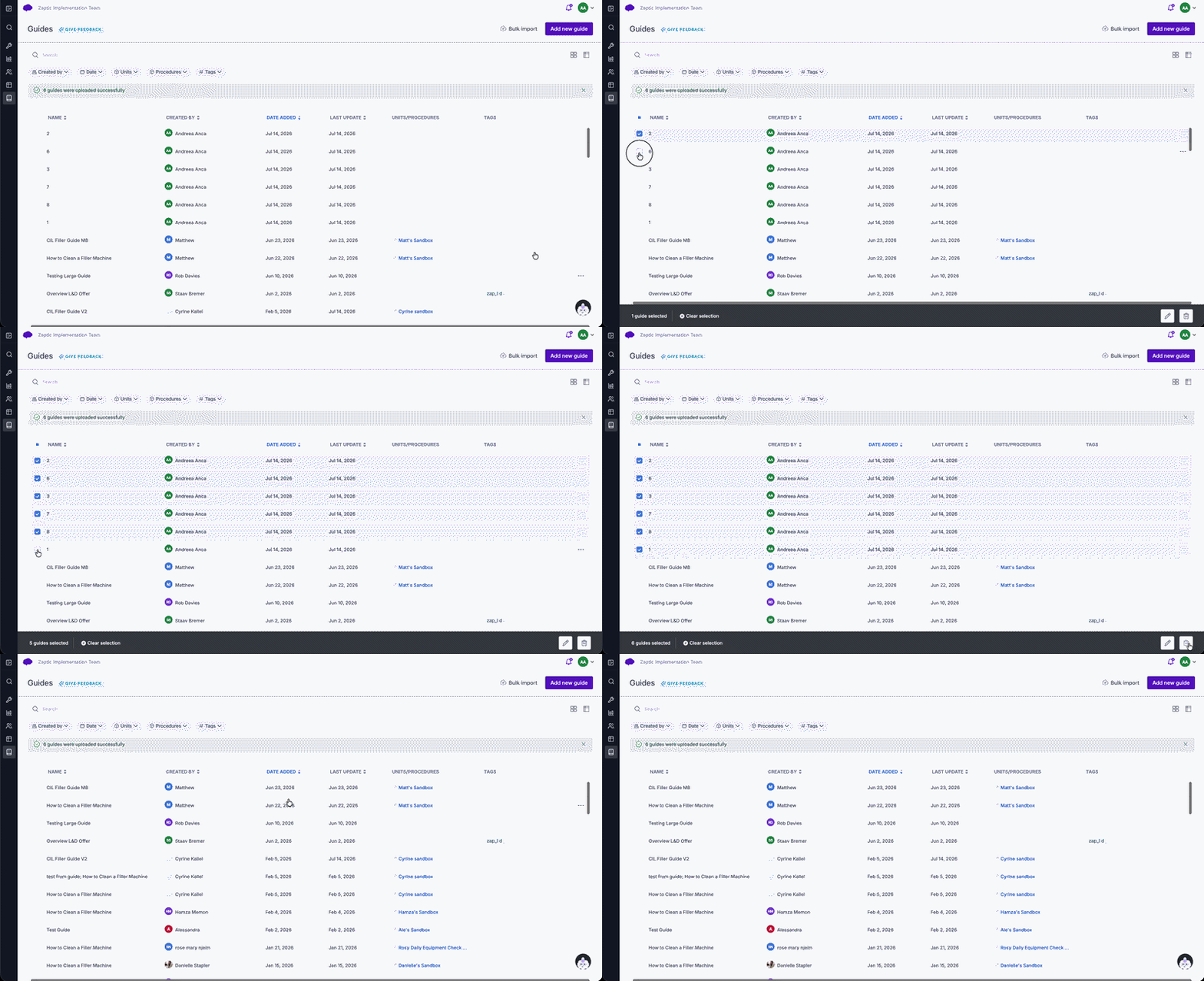
Bulk delete – Switch to table view, select the checkboxes for the guides you want to remove, and select the delete icon.
Bulk edit – Add tags or link guides to units and procedures for multiple guides at once, using the same table view and checkbox selection.
Bulk actions require table view (see Navigating Guides Home above).
Bulk delete
Switch to table view.
Tick the selection boxes next to the guides you want to remove.
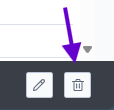
Click the delete icon and confirm.
Bulk edit (tags and links)
Switch to table view.
Tick the selection boxes next to the guides you want to update.
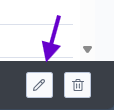
Click the edit icon.
Add tags, or link the selected guides to units and procedures, in one go.
Switch to table view.
Tick the selection boxes next to the guides you want to remove.
Click the delete icon and confirm.
Create guides from the shop floor
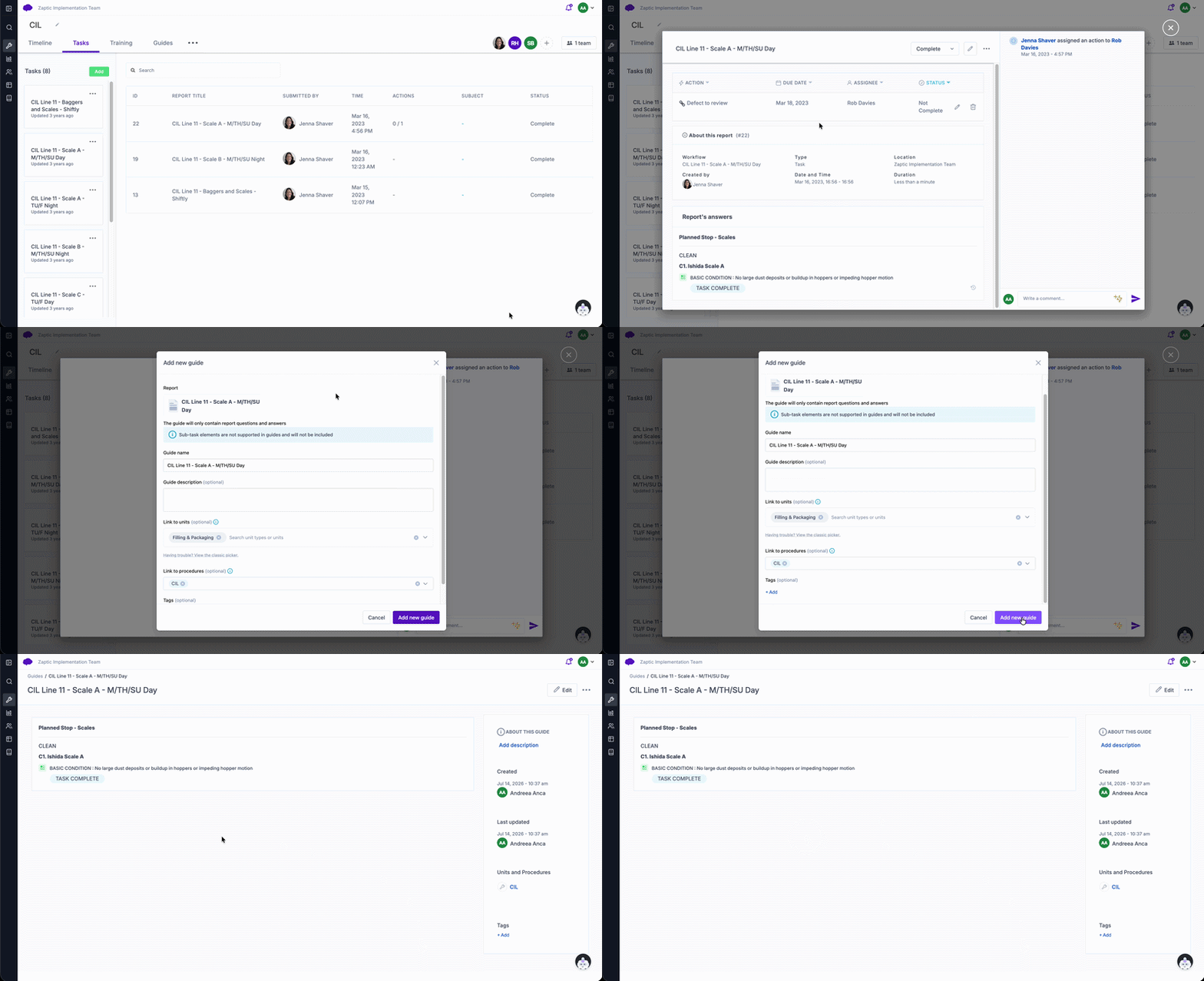
You can capture knowledge directly from the shop floor and turn it into a guide:
Set up a simple task that captures text and media (e.g. photos or video) from operators.
Open the completed report.
Click Convert to guide — the report content becomes a guide with one click.
Linking guides to units and procedures
A single guide can be linked to multiple procedures, machines, or lines at once — create the content once and reuse it everywhere it's relevant.
Open the guide (from Guides Home or wherever it lives).
Go to its linking options.
Select the units and/or procedures to link.
Save.
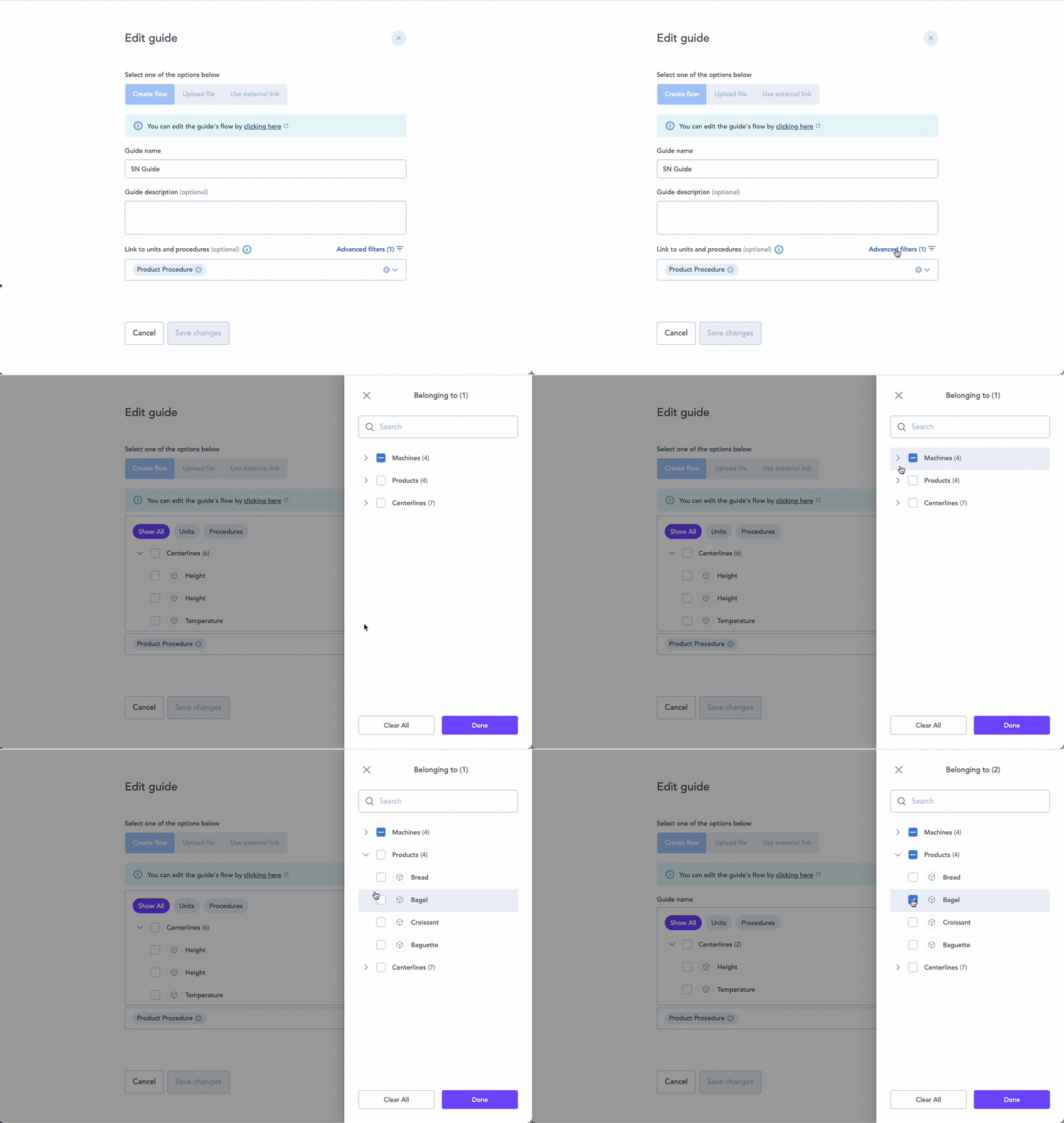
Finding units faster: when linking, use the advanced filters to filter units by their parent unit — for example, show only the machines on a particular line.
Keep Guides Organized and Up to Date
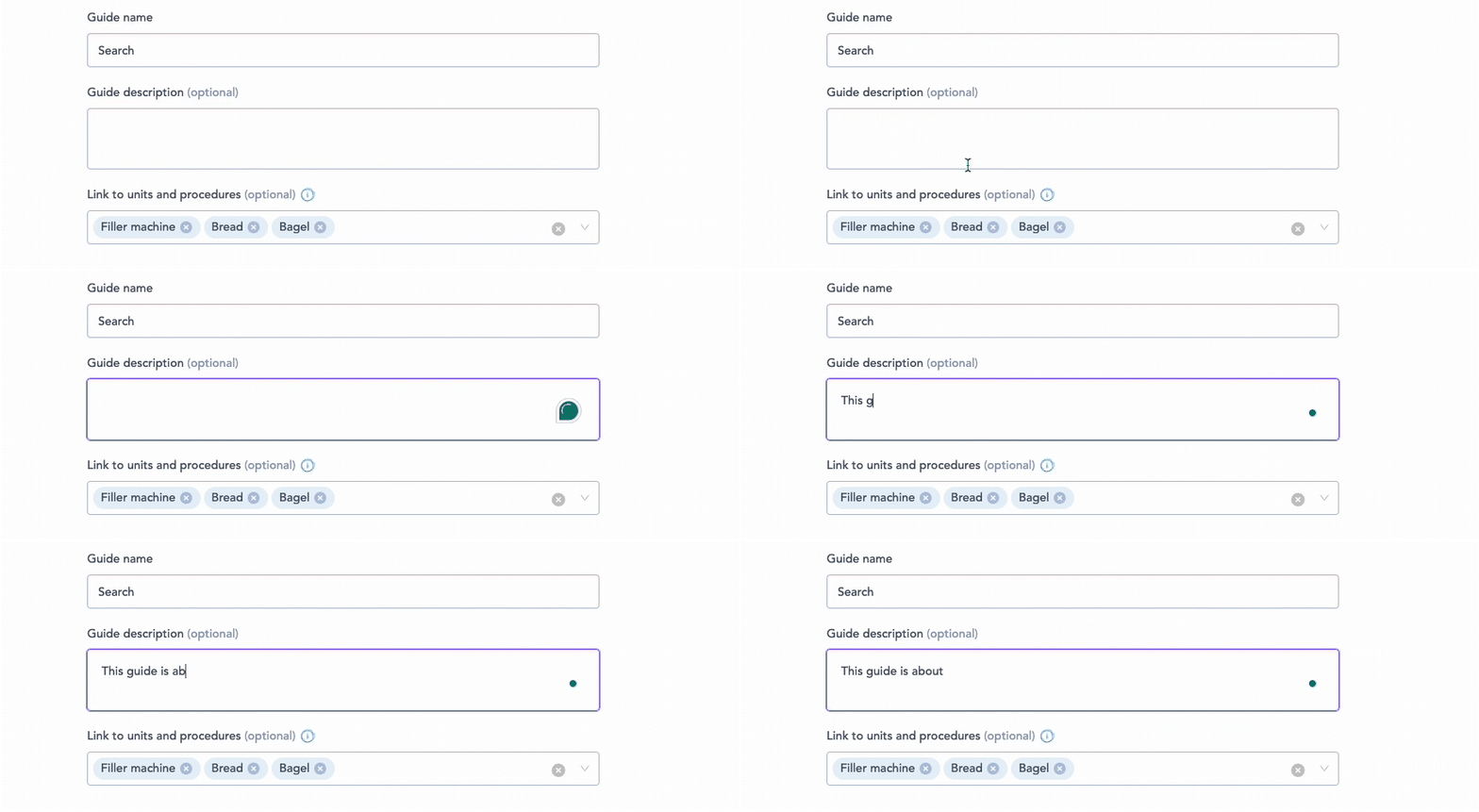
Guide descriptions – Add a description so others understand what a guide covers without opening it.
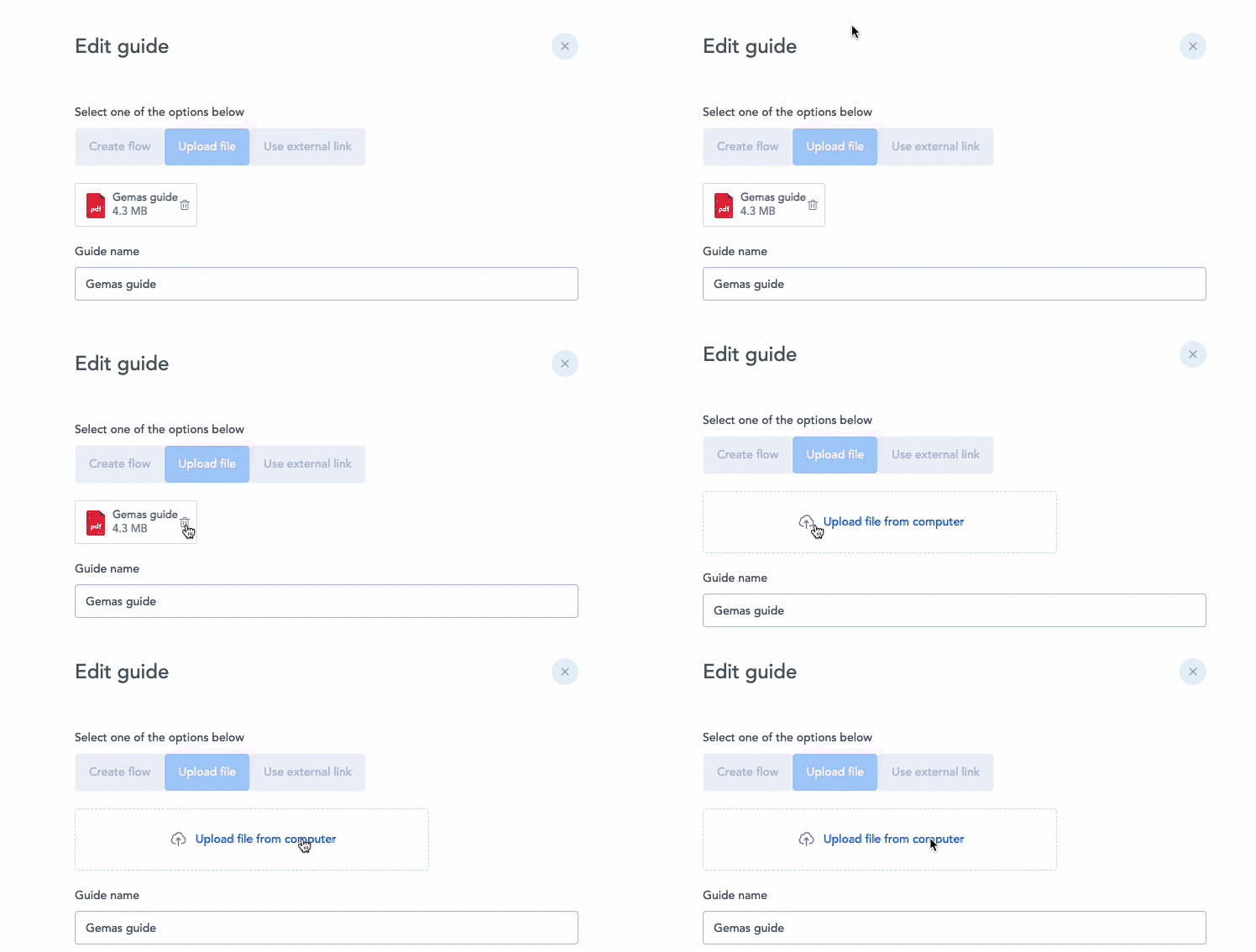
Replace files – Swap out a guide's file to keep content current, without recreating the guide from scratch.
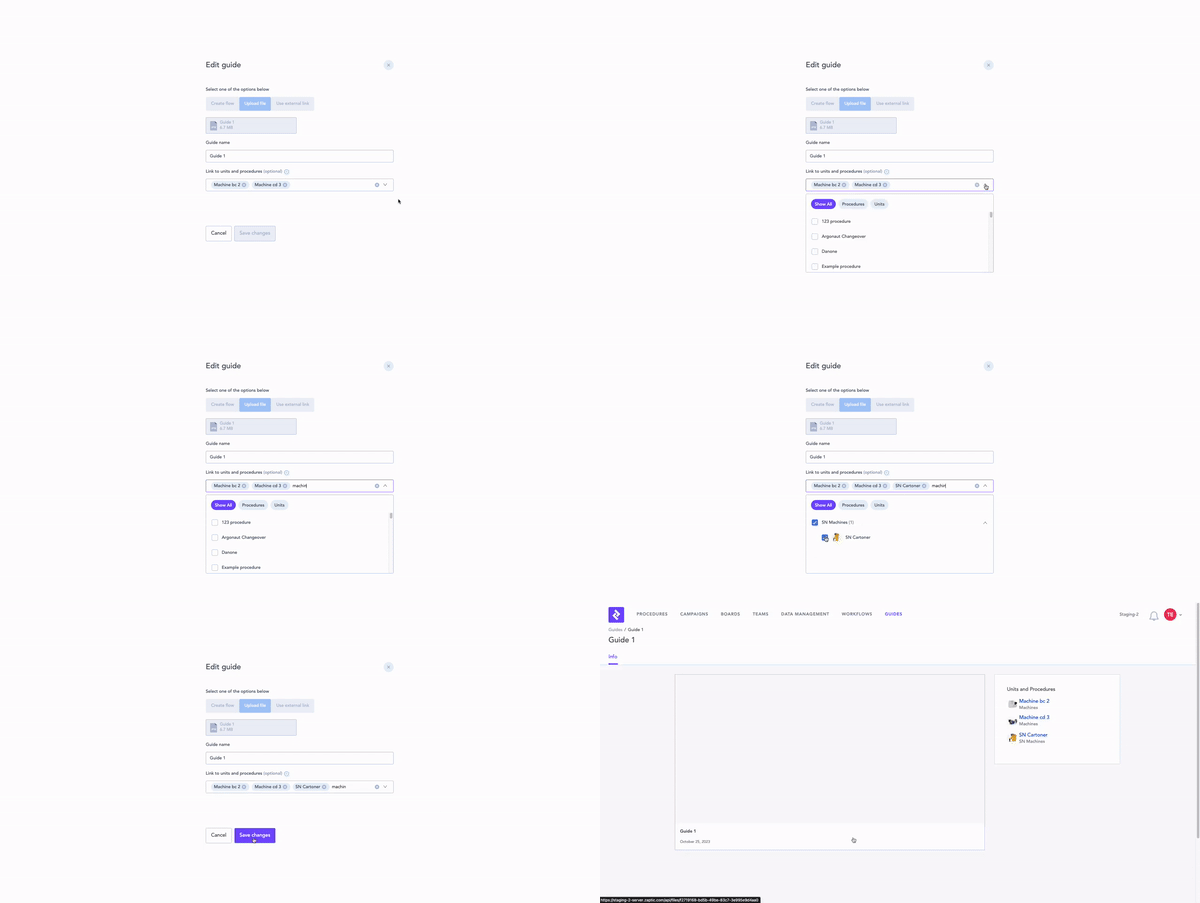
Link one guide to multiple units or procedures – Create a single guide and link it to several procedures, machines, or lines at once.
Advanced filters for linking – Filter by parent unit to find and link the right units to a guide quickly.
Web Guides
If your training content, OPLs, and SOPs already live in another system, bring them into IntellectIQ with a simple web link — no need to maintain duplicate copies, and no risk of them falling out of sync.
Using guides in tasks and training
Embed a guide in a step
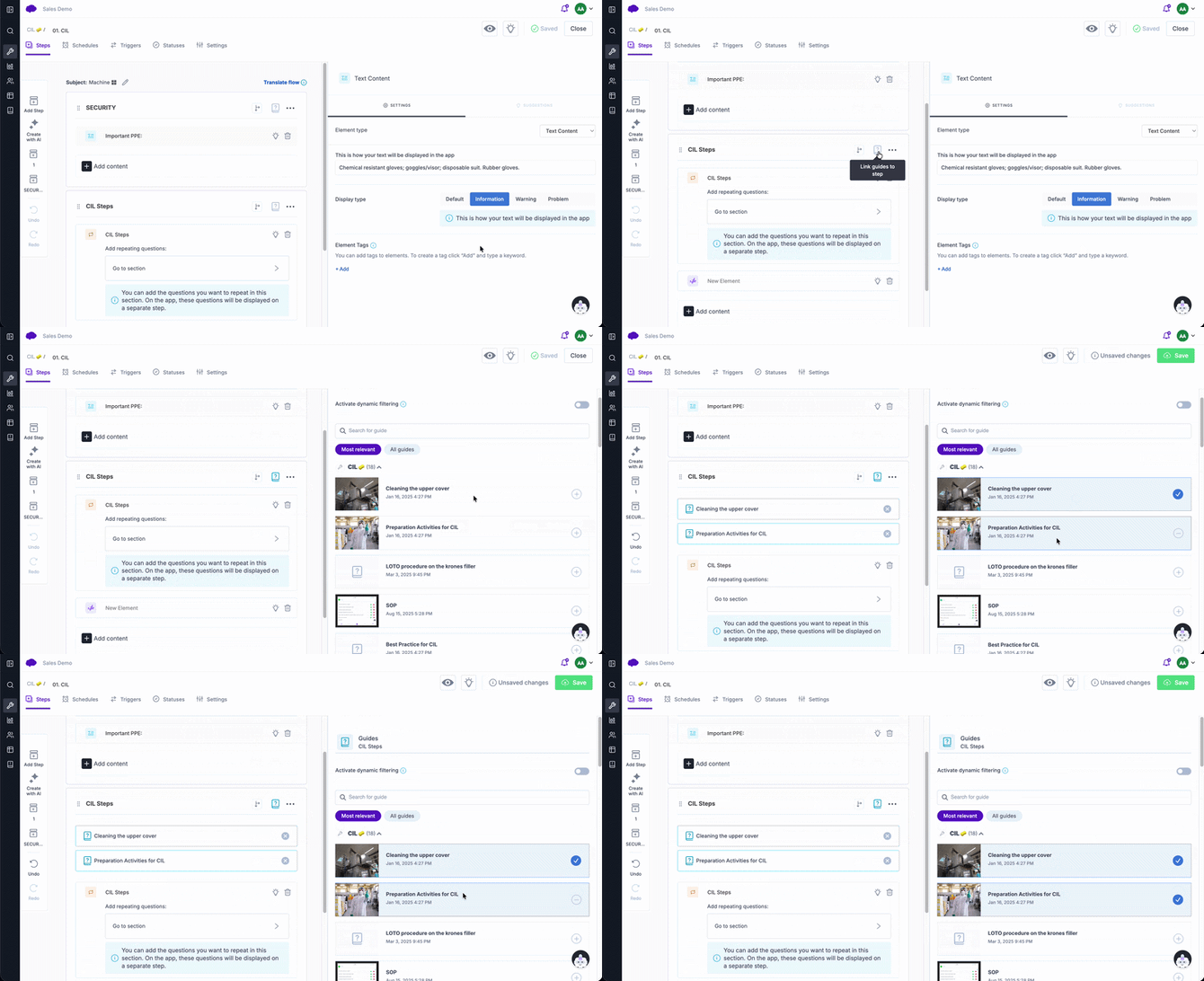
After creating a guide, you can embed it directly into tasks and training using the "One click help" module. The guide is displayed inside the task itself, so operators see the relevant documentation right in Zaptic instead of hunting for paper manuals.
Open the Procedure and go to the step where you want the guide.
Add the One click help module.
Select the guide(s) to attach.
Save the procedure — don't forget this step, or your embedded guide won't appear.
Dynamic guide filtering
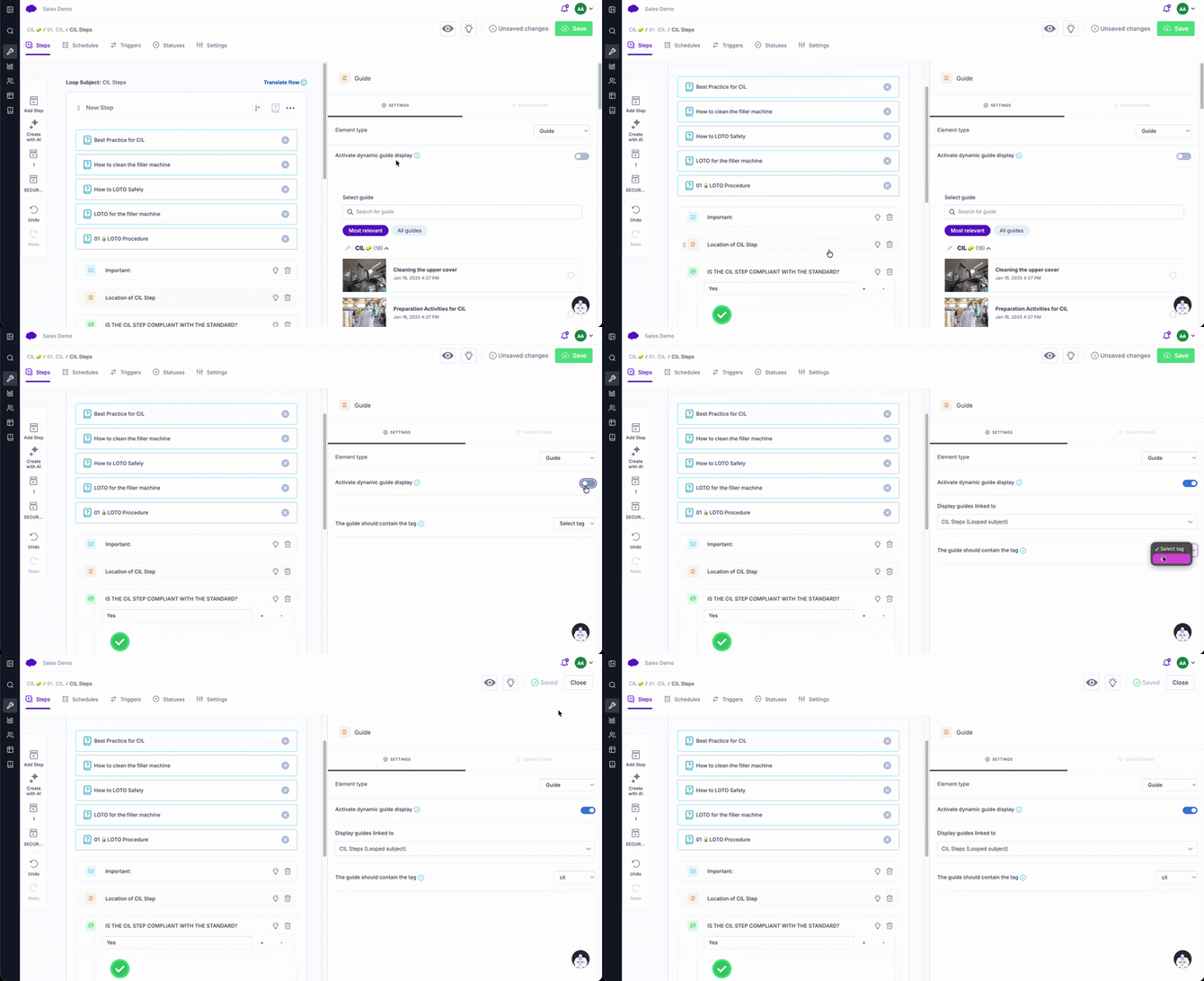
If a step has many guides attached, enable dynamic filtering to cut out the noise. This filters the guides shown to the operator based on the report subject — such as the specific machine or product they're working on — so they only see what's relevant.
You can also dynamically surface the right guide based on tags in flows and content loops, saving you time when building tasks.
How operators see guides in the Zaptic app
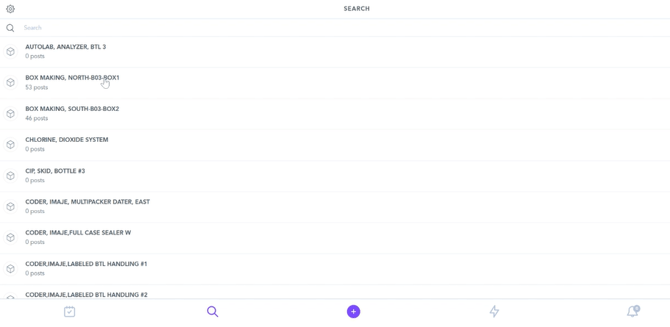
How a guide appears in the app depends on how you linked it:
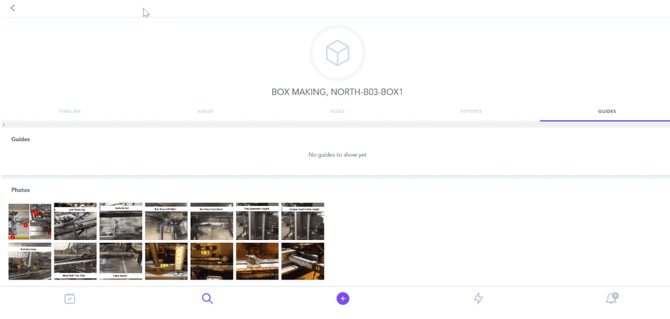
Unit-based guides: the operator searches for the unit (e.g. a machine) in the Zaptic app and sees all guides available for that unit.
Procedure-based guides: the operator sees the guide within the task, at the step where it's embedded.
‼️ Something to consider: When creating a new guide, think about how it will be used in the field. This will help you decide whether to create it within a Procedure or within Data Management.