
You can assign actions from the Report page or from the Actions page:
Report page:
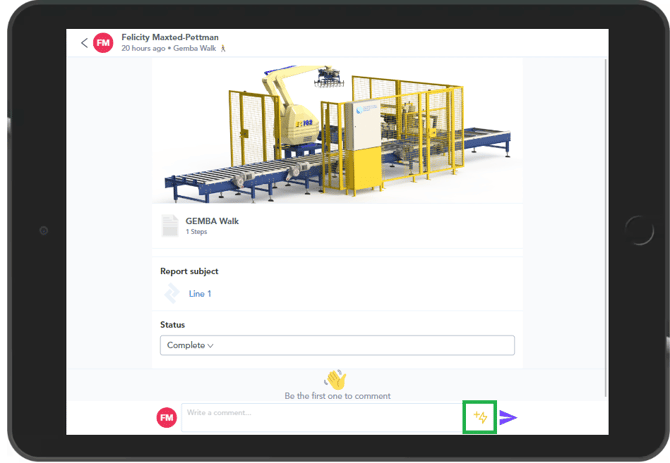
1. From the report audit trail page, select the lightning-bolt icon to begin creating an action against the chosen report:
2. The first box on this page allows you to select who this action will be assigned to. Actions can be assigned to an individual or a whole team, and you can select the recipient by search or by using the drop-down.
Pressing the  next to the name will remove that assignee:
next to the name will remove that assignee: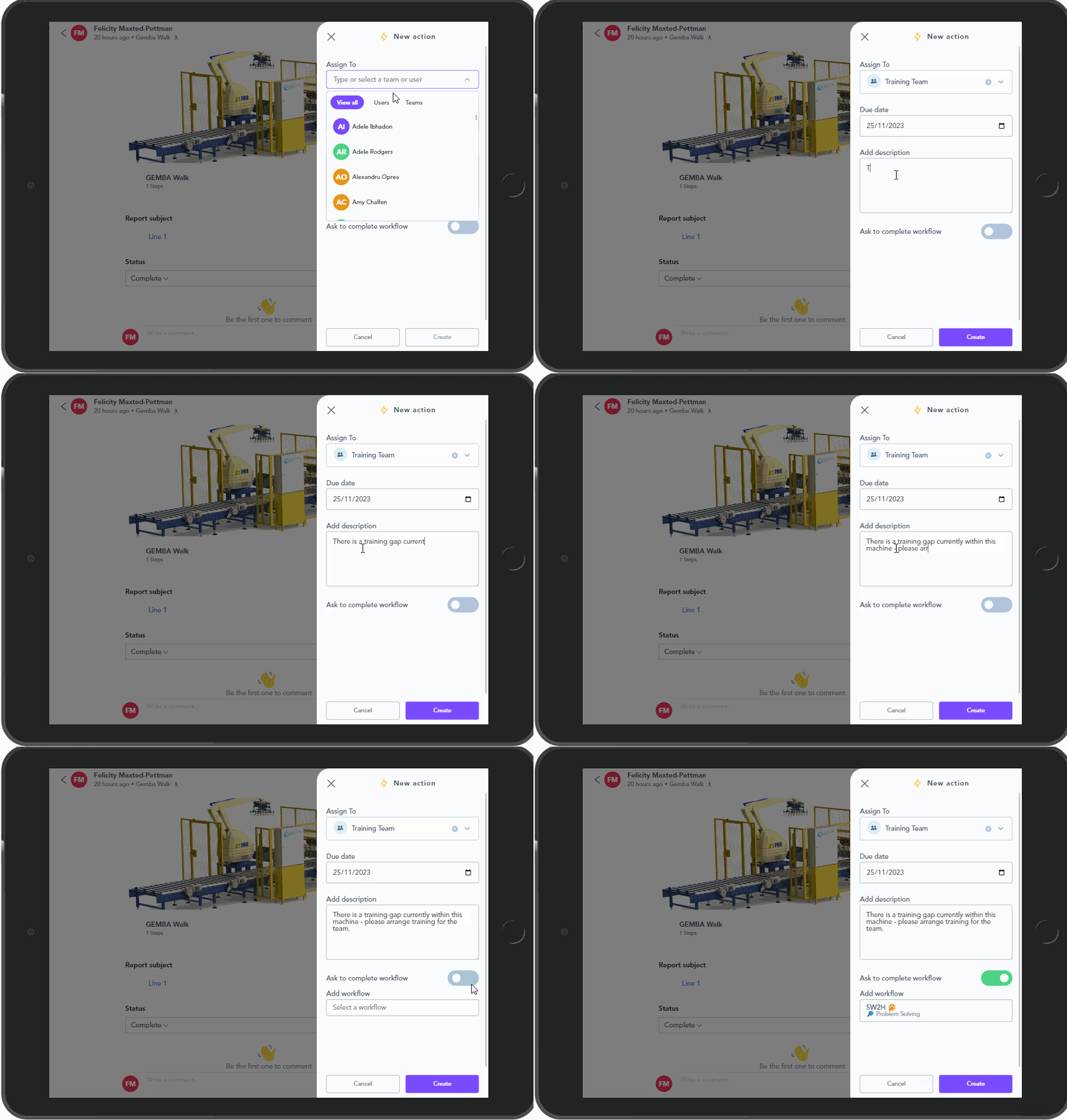
3. For a simple text-based action, you then select a due date using the Calendar icon  and type out the description of the action to be taken in the provided box:
and type out the description of the action to be taken in the provided box: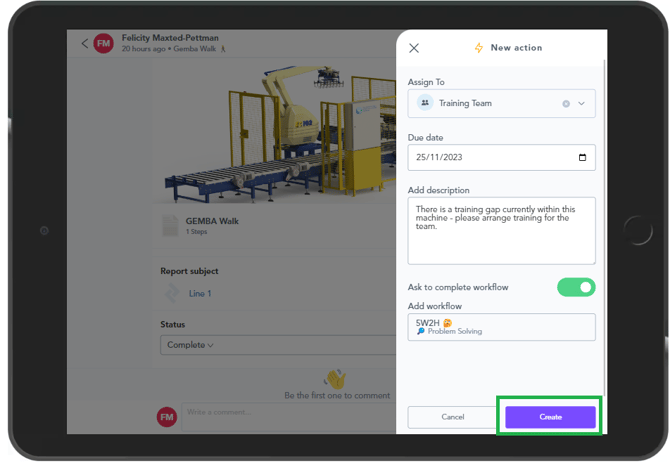
4. You can also assign an action that requests the completion of a workflow, by enabling the switch for this function and then selecting the desired workflow from the new box that appears:
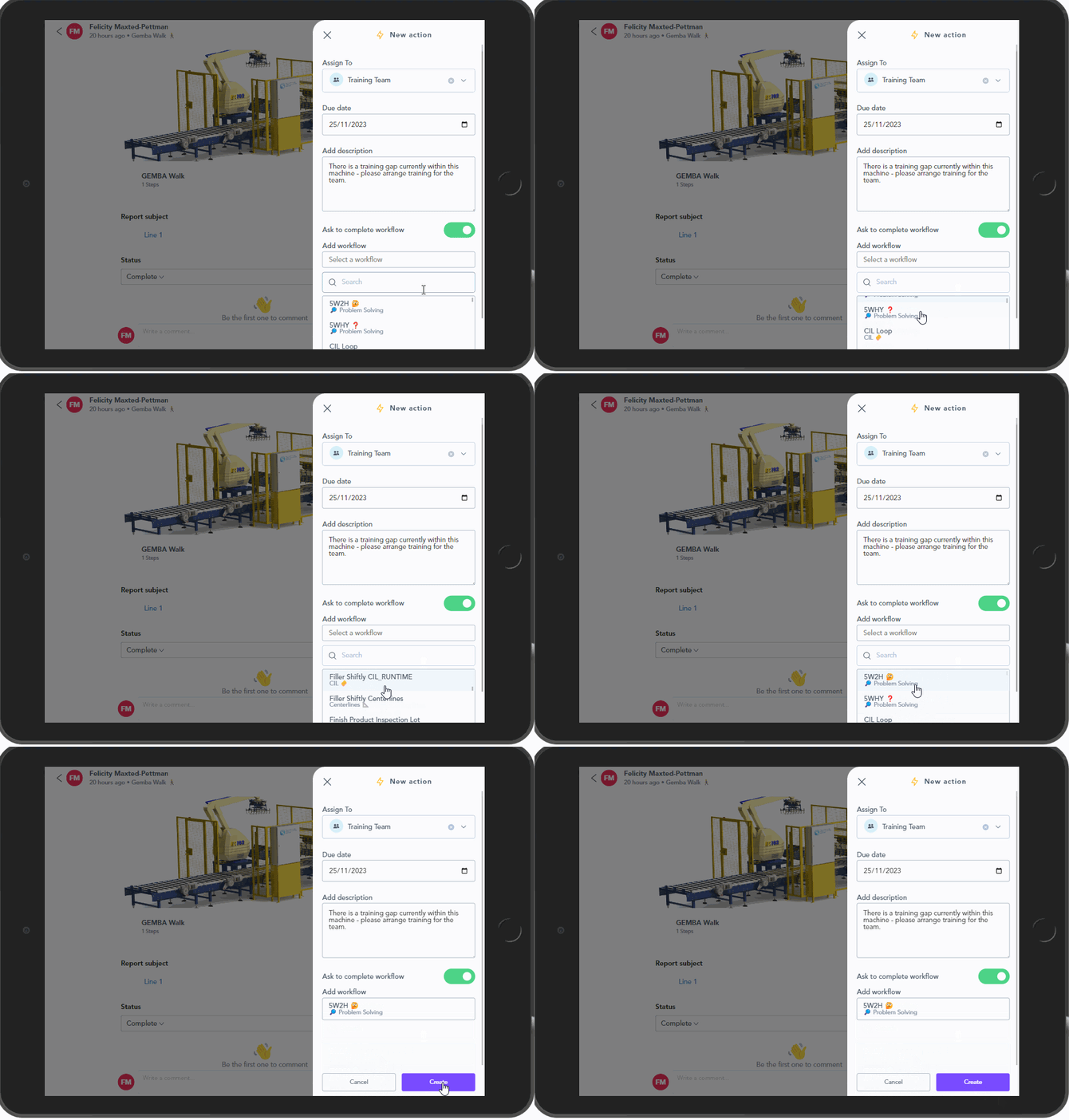
5. Clicking Create will add this Action as a Task in this person or team's To Do list. They will also receive a notification.
Actions page:
To assign an action from the Actions page:
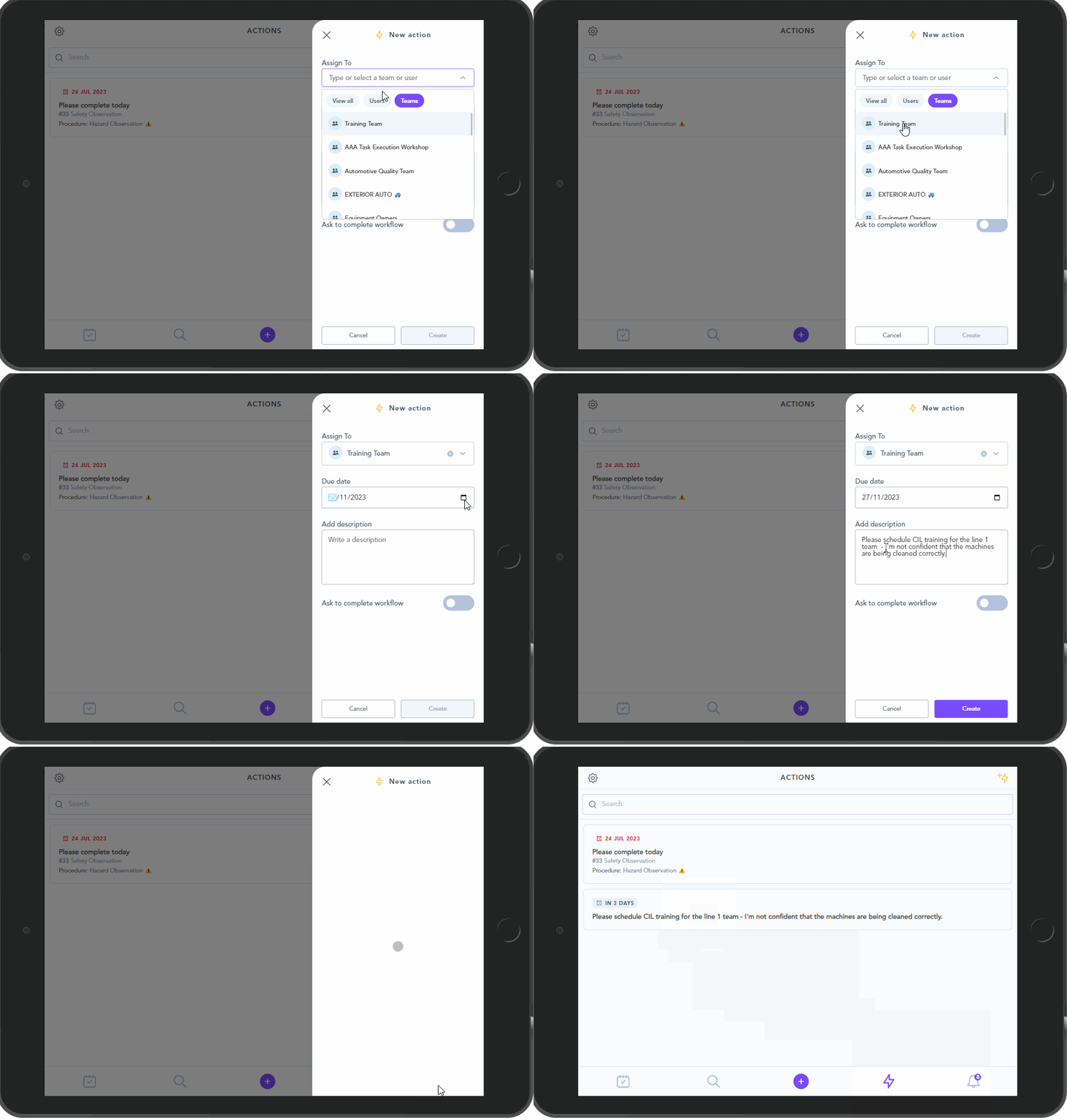

2. On the Top right hand corner you'll see this button
3. The first box on this page allows you to select who this action will be assigned to. Actions can be assigned to an individual or a whole team, and you can select the recipient by search or by using the drop-down. Pressing the  next to the name will remove that assignee.
next to the name will remove that assignee.
3. For a simple text-based action, you then select a due date using the Calendar icon and type out the description of the action to be taken in the provided box.
4. You can also assign an action that requests the completion of a workflow, by enabling the switch for this function and then selecting the desired workflow from the new box that appears:
5. Clicking Create will add this Action as a Task in this person or team's To Do list. They will also receive a notification.