
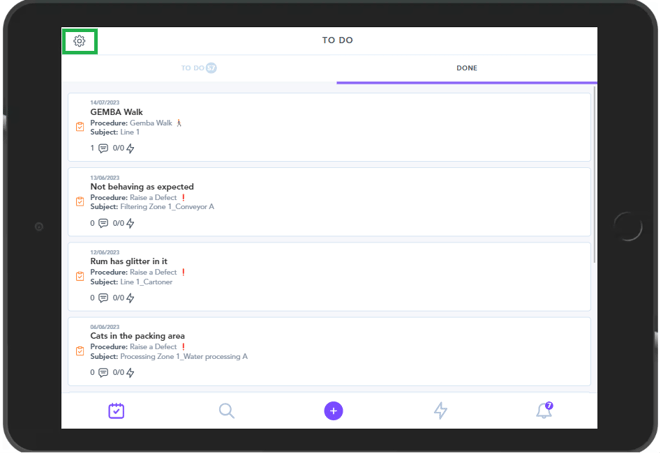
1. In order to change your password within the app, you first need to navigate to the settings cog found at the top-left of the to-do list page:
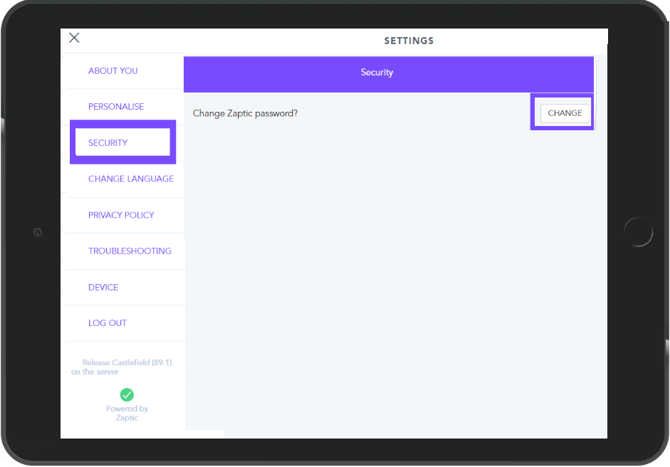
2. Navigate to the security section, and select the 'change' password button. This will then request your existing password and allow you to change this to a new one -
3. Please note: If you are using Single Sign on (such as Microsoft or OKTA) your password is controlled centrally and you will need to contact your IT department to reset your password as Zaptic cannot do this for you.