Closing tasks within the Zaptic app begins from the to-do list. From there, users can view their scheduled tasks and any ad-hoc tasks they started that are in-progress.
Completing the task
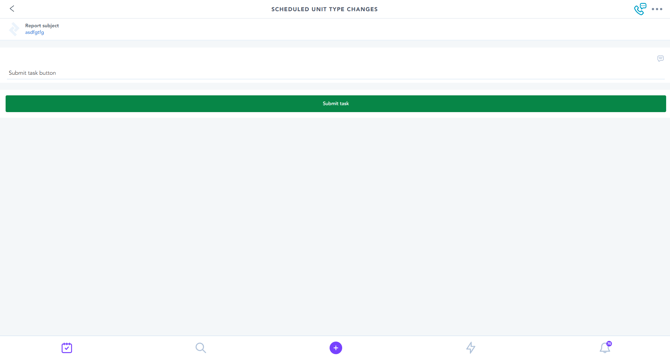
The primary way for users to close tasks is to complete them - especially for tasks scheduled to them for completion.
To ensure a task is completed correctly the user should:
- Work through all the mandatory elements of the task
- Once ready, the user finishes the task by pressing the 'submit task' button
This will finalize the task and send it through to the portal, removing the task from the users to-do list.
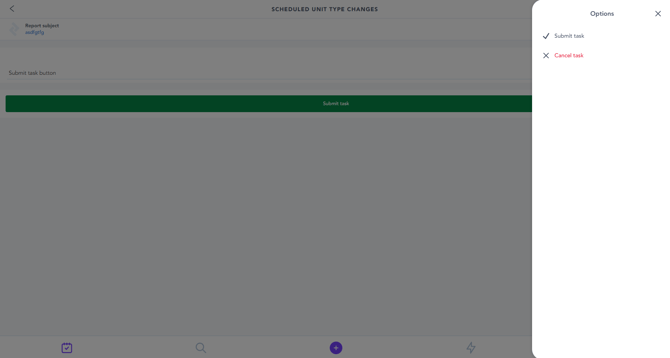
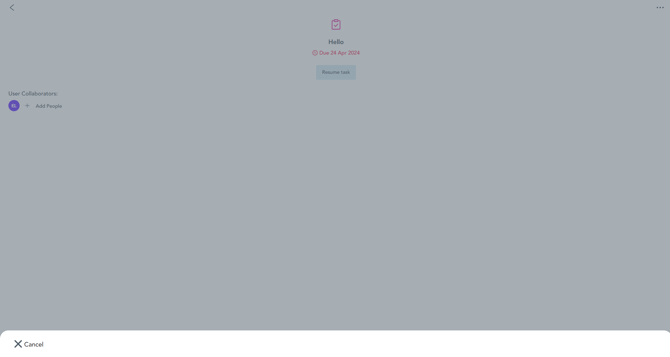
If a task cannot be completed, users can cancel it from their to-do list. This can be done in two ways:
- Within the workflow by pressing the three dots in the top-right corner, and selecting 'cancel task'
- From within the resume task page when selecting an in-progress task, pressing the three dots in the top-right corner, and selecting 'cancel task' from the bottom
Workflow authoring tip
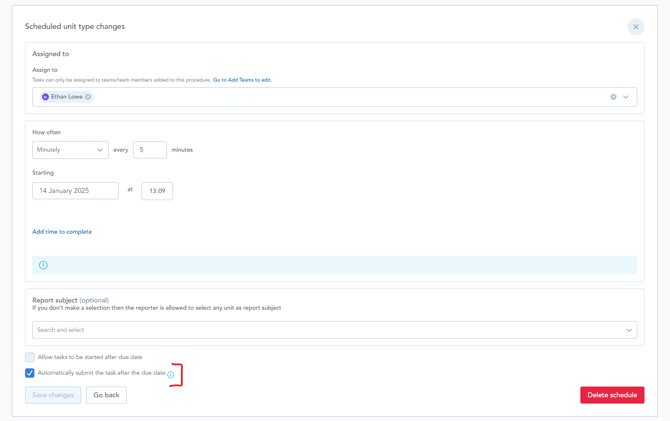
When creating schedules you can use the Automatically submit the task after the due date to ensure that tasks do not remain in the to-do list for longer than necessary.