A users' to-do list can be filtered within Zaptic based on a number of options;
- Who a Task is Assigned To
-The Type of Task
-When it is Due (for example, Today for today's shift).
-You can also search by Line or Machine:
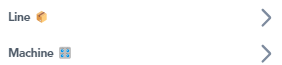
By default, Zaptic will remember the filters selected by the operator. This means that if the operator always works on line 1, they do not need to re-select/re-fitler to this line every shift. However, if the line 1 operator moves to line 2 for a one off shift, they will need to clear and reselect the appropriate line in their to-do list filter.
A quick overview of to-do list filters can be seen here, with a more detailed OPL below -
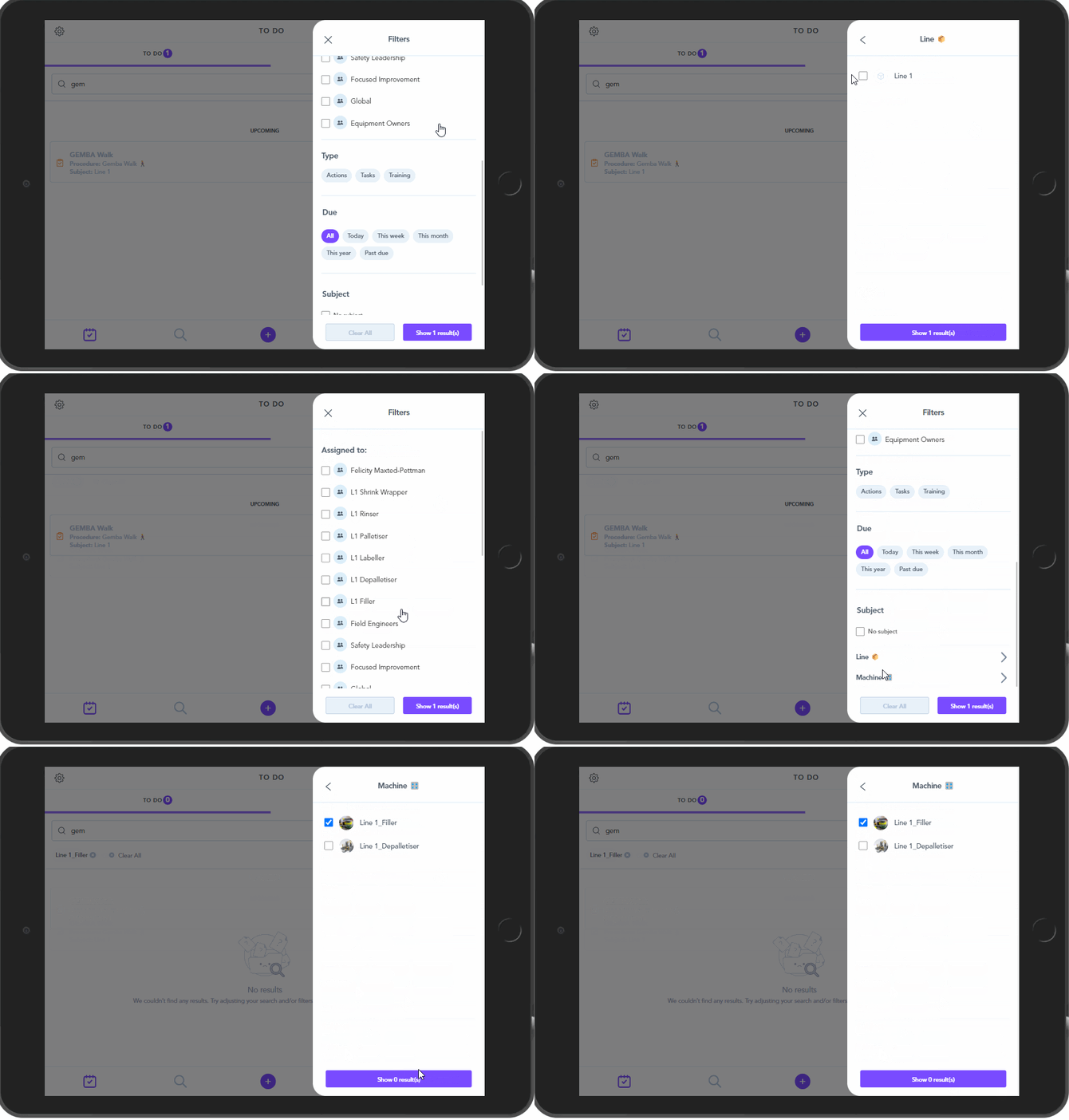
This OPL will be split into 3 sections :
A - How to add a new filter
B - How to remove/clear a filter
C - How to change a filter
A - How to add a new filter :
1. New operator logs into Zaptic and lands on the To-Do list. By default, they see all CILs for all stations on all lines.
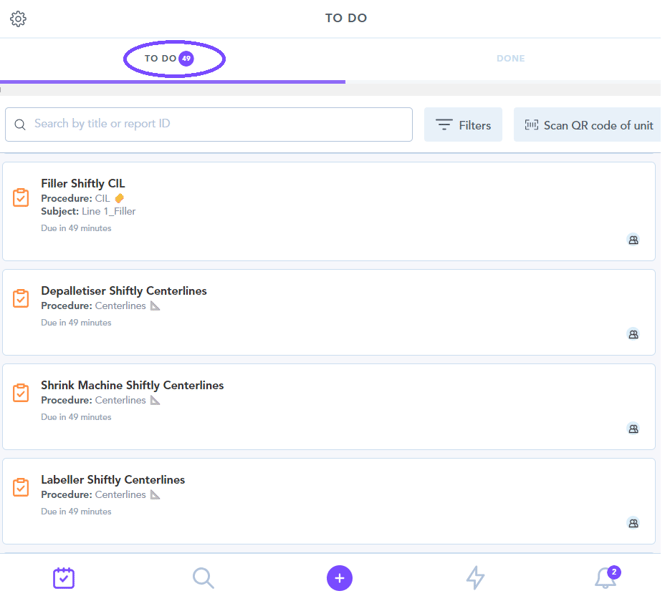
2. Press the filter button to open the filter tab
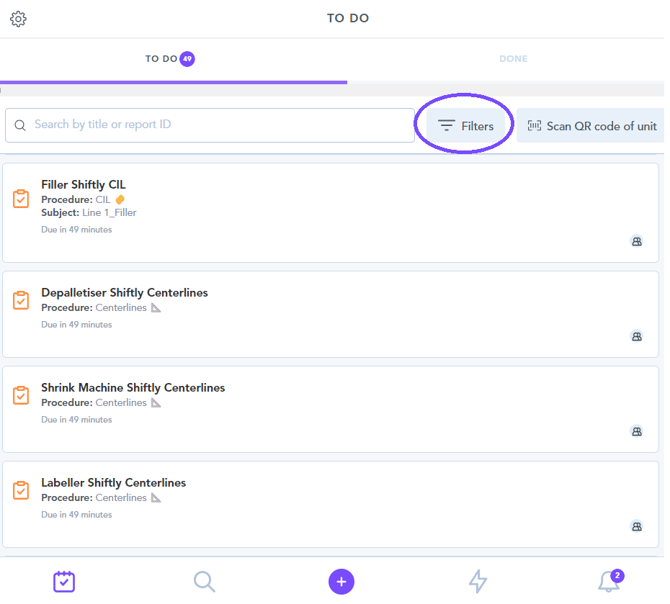
3. Filter by selecting the line you’re working on from the “Assigned to” options then click “Show results”
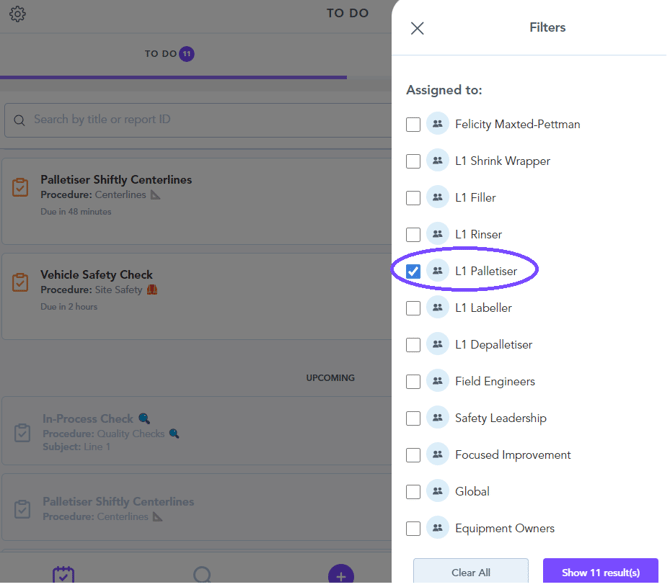
4. Your To-Do list is now filtered to the CILs for your line
B - How to remove a filter :
1. The purple counter shows that you have filters (1 or more) selected. Press the filter button to open the filter tab.
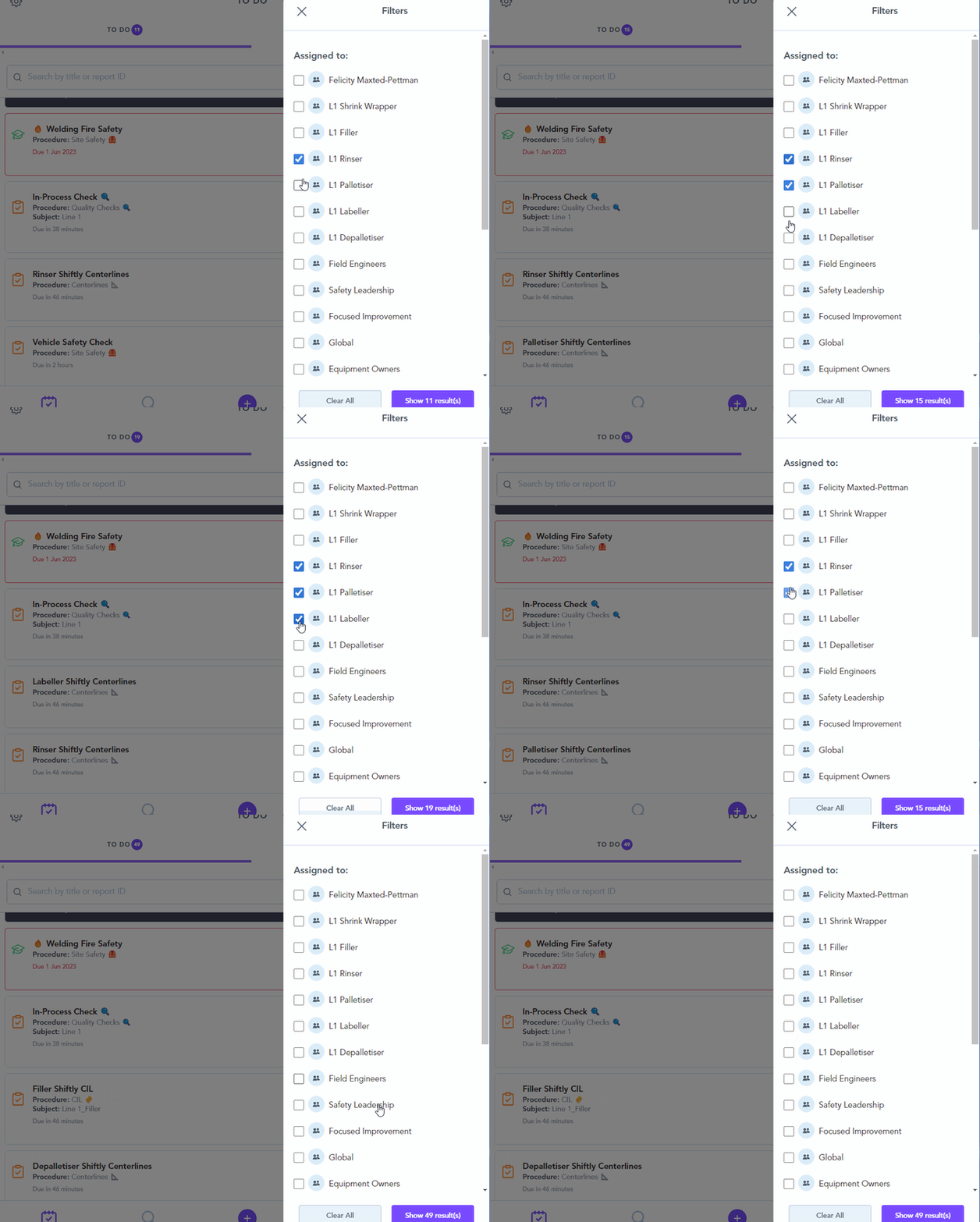
2. To remove a filter, press clear all or manually deselect your options :
3. To save the unfiltered view press Show results :
C - How to change a filter:
1. The purple counter shows that you have filters (1 or more) selected. Press the filter button to open the filter tab.
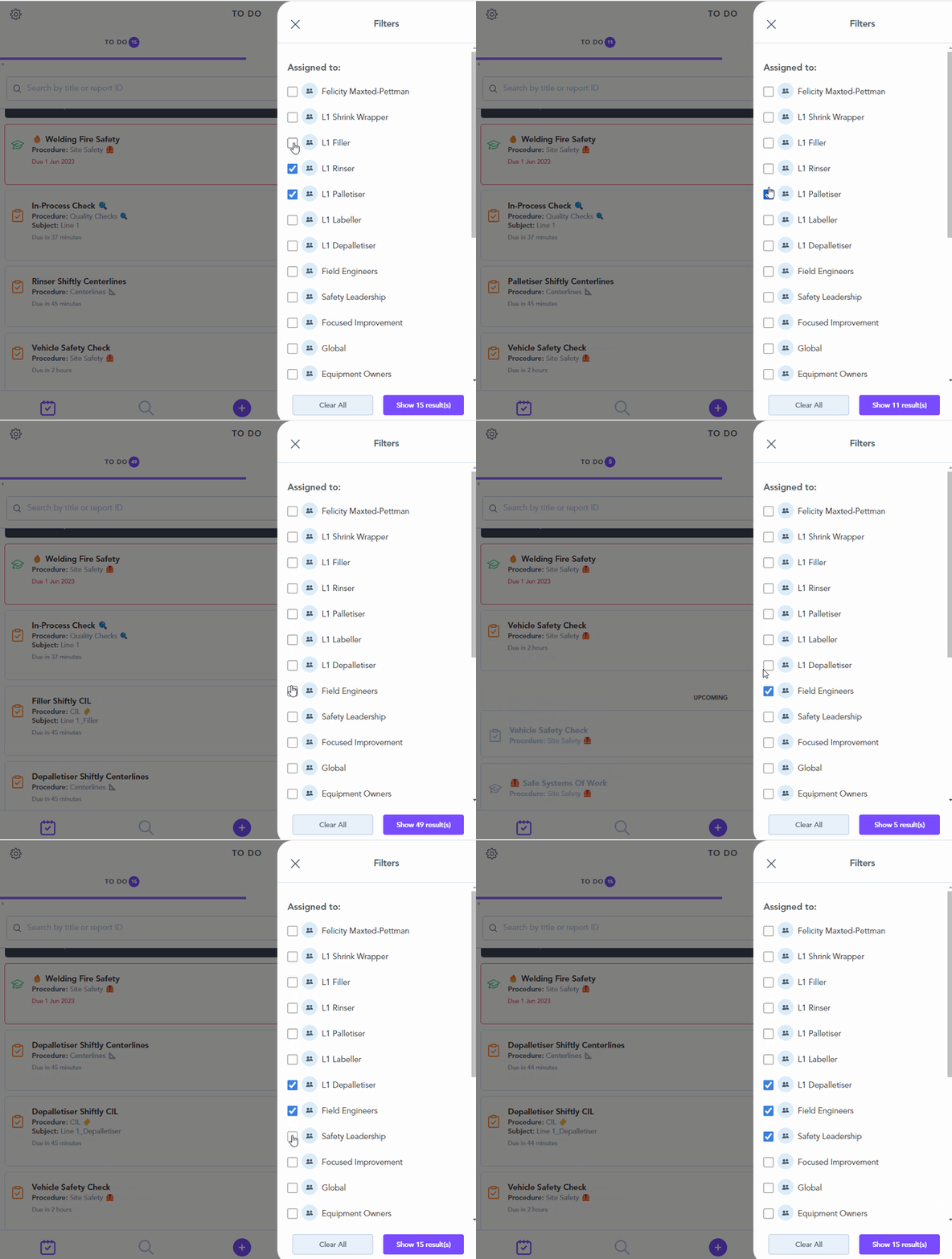
2. De-select any existing filters by pressing the clear all button or manually deselecting.
3.Select your new filter(s) and press show results to save