
When you have taken a photograph or uploaded an image from your camera roll, you can Annotate this using this button .
.
Select Annotate in the bottom right hand corner:
You will be given the chance to insert Text, Draw something or add in a shape :
:
Adding in Text:
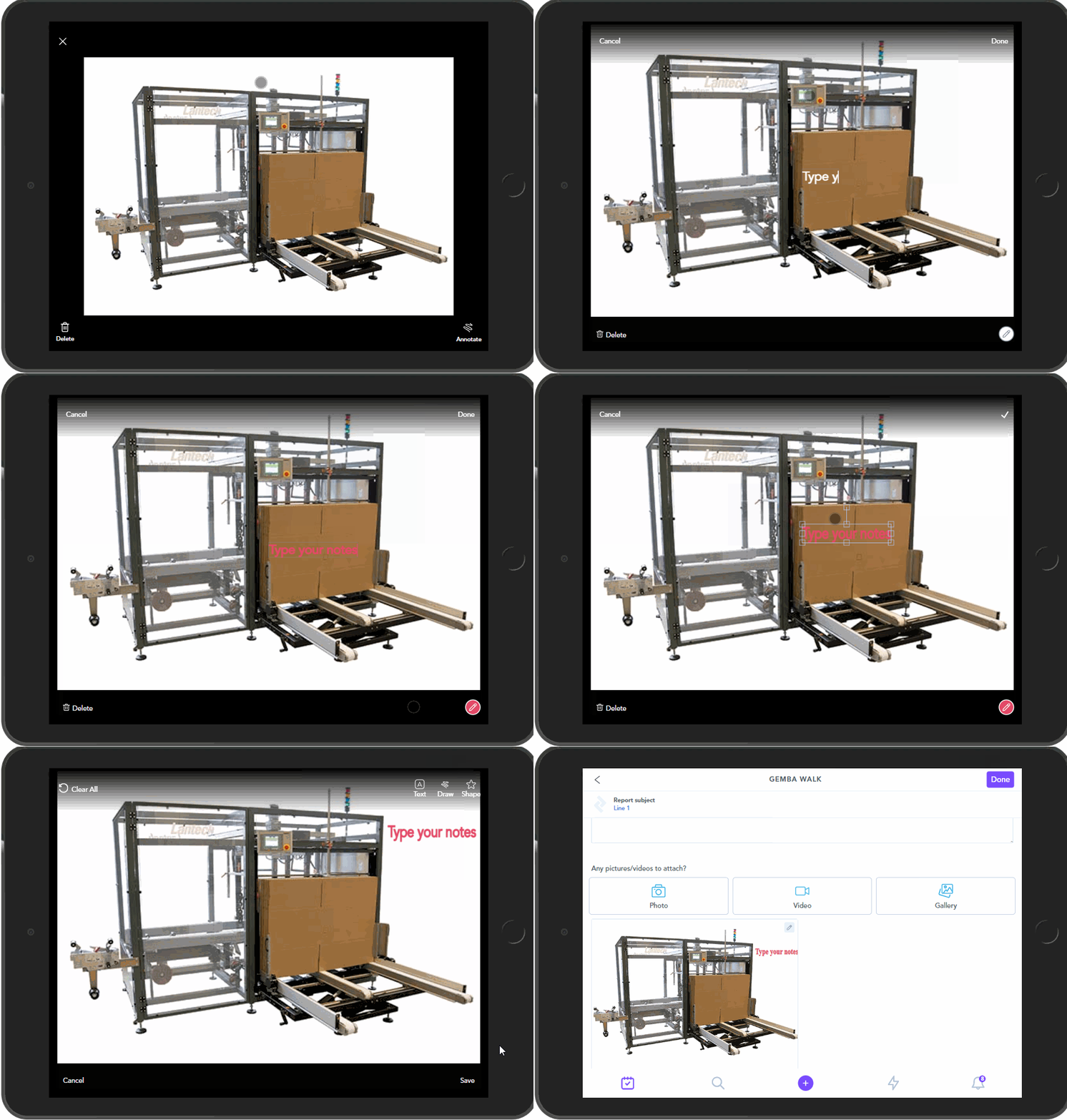
If you click 'Annotate' you can type your notes. It will default to White as the font colour.
You can change the colour of your text using this icon in the bottom right hand corner:
Once you have chosen the tick icon, it will allow you to move your text around the screen,
Not happy with how your notes appear? You can use this button to Clear All the comments:

Drawing on your image:
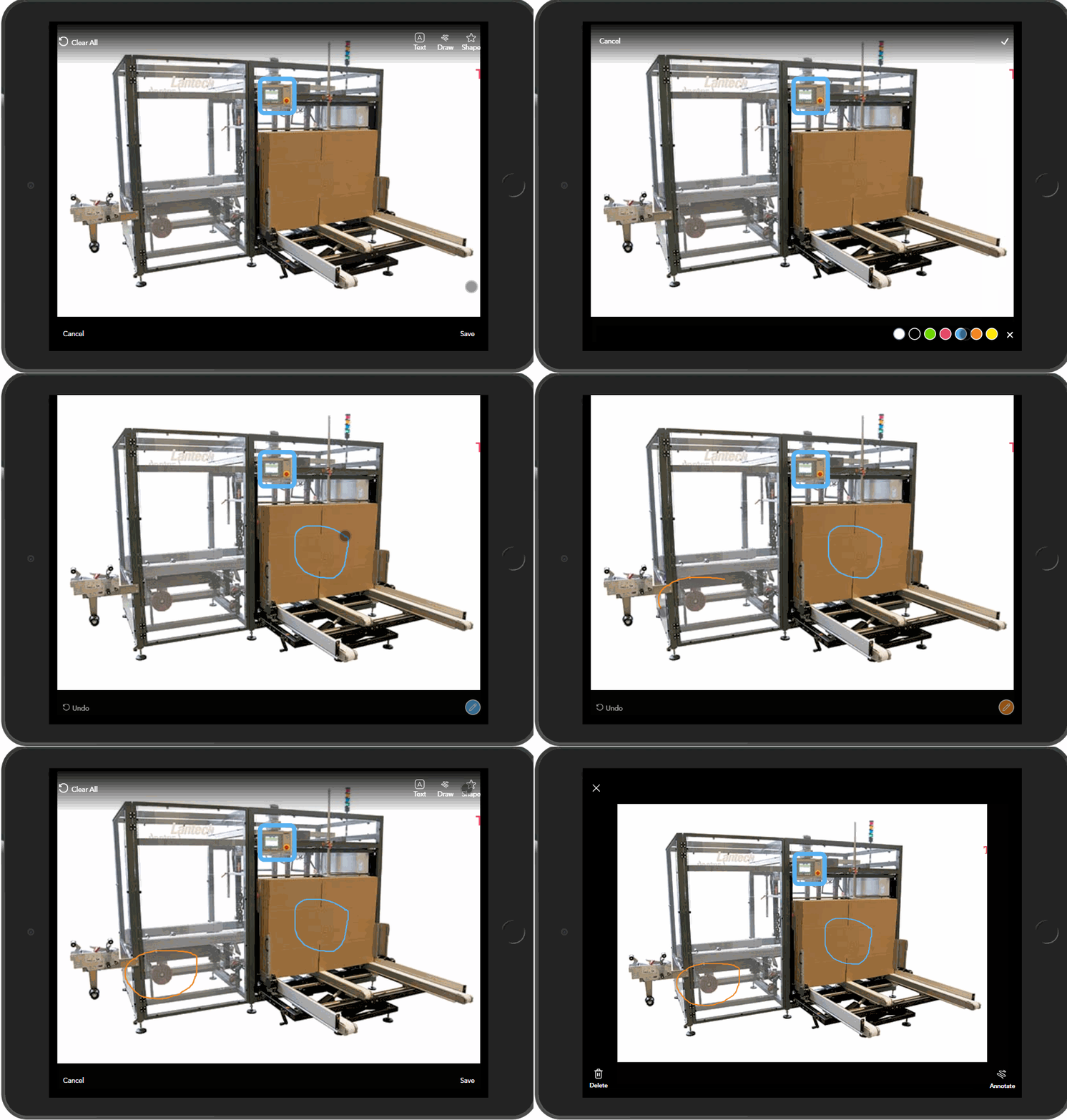
If you click 'Annotate' you can choose to draw on your image. It will default to White as the font colour.
You can change the colour of your pencil using this icon in the bottom right hand corner:
Once you have chosen the tick icon, it will allow you to move your drawing around the screen,
Not happy with how your drawing appears? You can use this button to Clear All:
Adding in shapes:
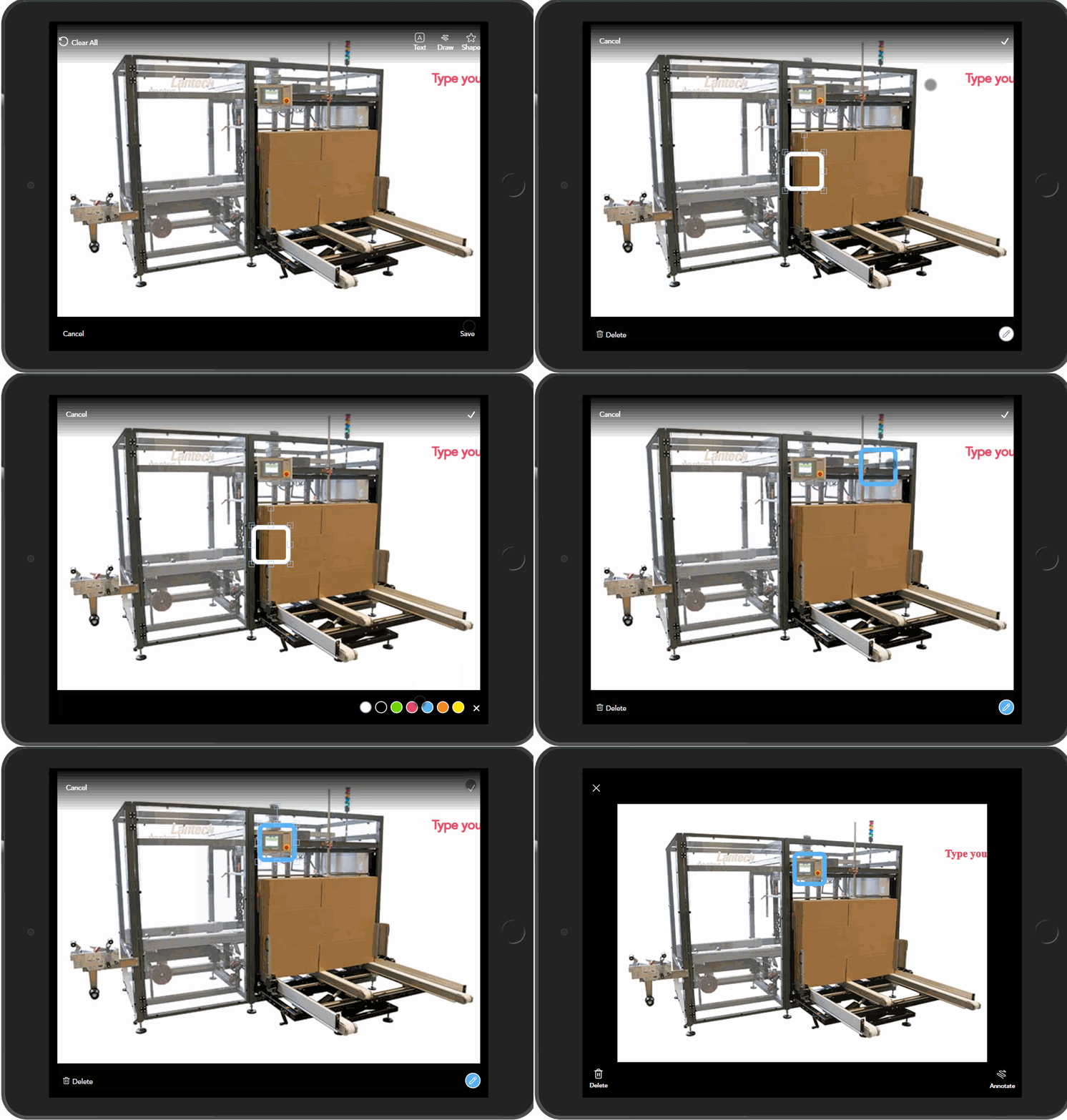
If you click 'Annotate' you can choose to add a shape in. Select your preferred shape. It will default to White as the font colour.
You can change the colour of your shape using this icon in the bottom right hand corner:
Once you have chosen the tick icon, it will allow you to move your shape around the screen,
Not happy with how your shapes appear? You can use this button to Clear All: