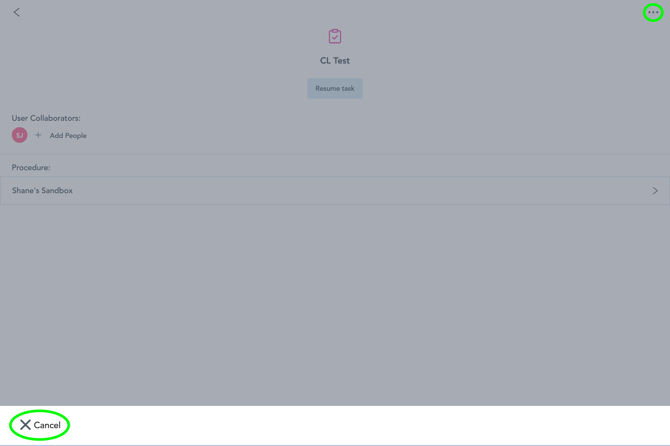
If you have started a task that no longer needs to be completed, you can remove this from your to-do list within the Zaptic app.
Please be aware that this will remove the in-progress report from your to-do list and may reflect as a missed scheduled instance on any dashboards configured based on your completion of a scheduled task.
Starting the task
Tasks must be started before they can be cancelled and removed from the to-do list.
To do this, select the task in your to-do list and pick a report subject in order to begin completing the workflow.
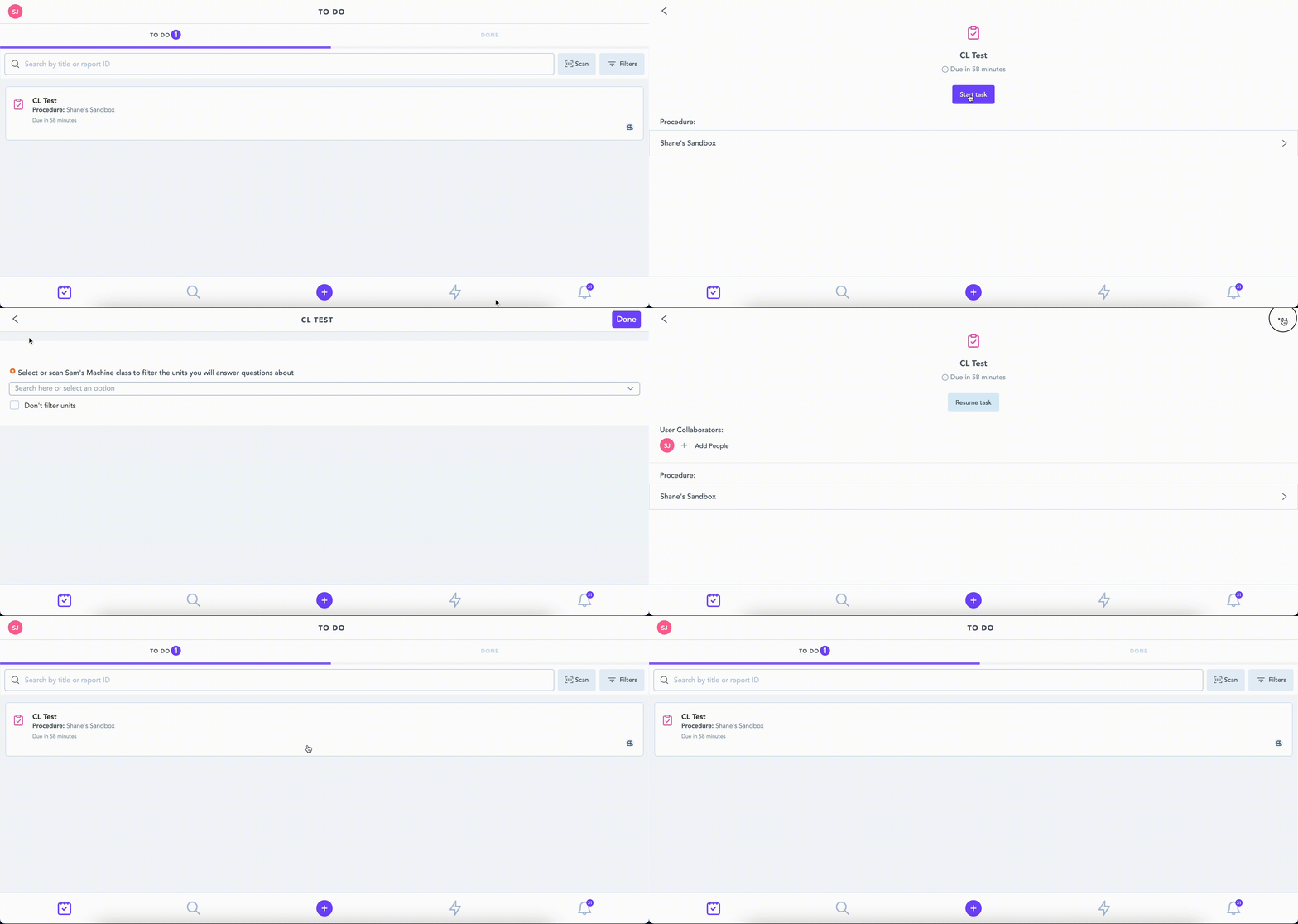
Remove the task from your to-do list
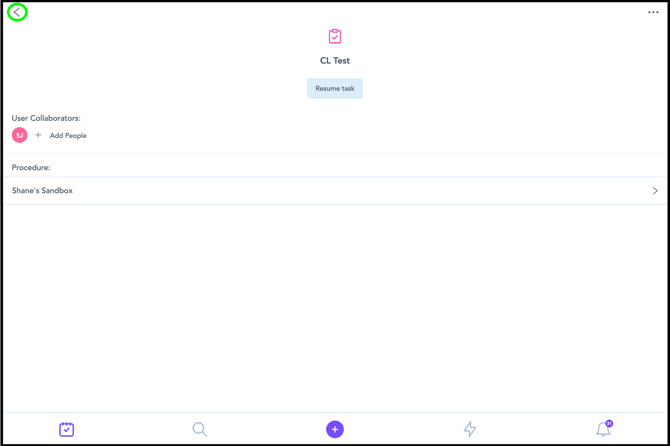
Once started, you can press the back arrow in the top left of the interface to return to the report timeline. A second press of this button will also return you to your to-do list.
If navigating from the to-do list, you can simply select the in-progress report which will take you to the report timeline.
From here, you need to select the three dots in the top right corner in order to display a bar along the bottom of the page which will enable you to cancel the task.
After pressing the cancel button, this task will be removed from your to-do list and you will no longer be able to resume that report.