
This article provides troubleshooting support for CSV file errors encountered during the bulk upload users process. This guidance may also help resolve other formatting issues encountered when using excel.
To learn how to bulk upload users, please refer to this article - How to bulk upload new users
Issues related to language-specific characters
What does this problem look like?
When opening, the file may display characters differently than intended. Language-specific characters may appears as different symbols, and text may become unreadable.
This can occur as .CSV files when you export data are in UTF-8 format. By default, Microsoft Excel uses ANSI encoding which causes many special characters, such as Chinese Characters/Logograms, to display incorrectly.
How to resolve?
You can change your settings in excel to resolve this.
- In Excel, navigate to Data > Find the Get & Transform Data block in the header bar> Import Data/Import from text and choose 65001 Unicode (UTF-8) > Preview and load the data
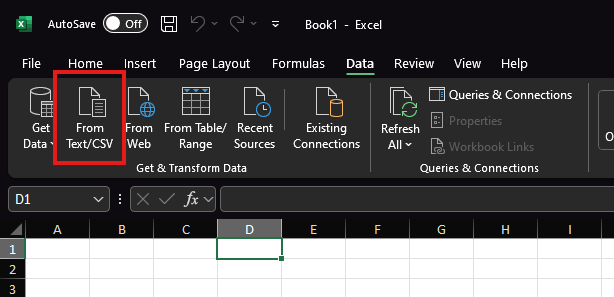
- Once the data is loaded correctly, navigate to export from the file menu > change file type > save as another file type > Chose to save the file as CSV UTF-8 (Comma delimited)
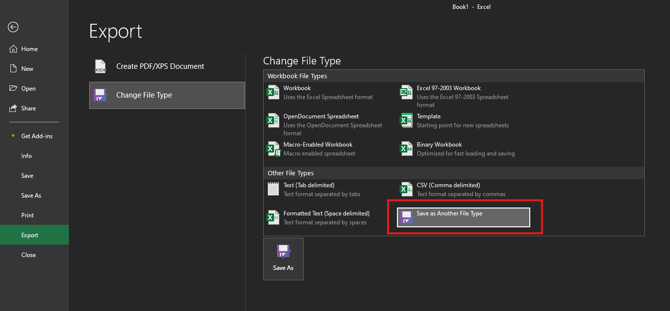

- This should save the file with the correct formatting which can then be shared and reopened while preserving the necessary format.
Issues related to column-merging/incorrect cell layout
What does this problem look like?
Cells may merge together into a single cell, with cell partitions not displaying correctly. This can occur due to the CSV not being parsed into columns correctly.
How to resolve?
You can find additional information on how to resolve here. You can use the data tab to set Text to Columns or you may find that importing the data as CSV in the UTF-8 format will resolve.
Additional Troubleshooting
You can find some additional troubleshooting on reformatting files here.