
Video released on 21/06/2024
Overview: Procedures
A Procedure is a folder-like structure that brings together related Tasks, Training, Guides, Reports, and Timeline activity. Procedures are commonly used to organise work by use case, department, area, line, asset, or process.
Examples of Procedures include:
-
- CIL
- Defect Handling
- H&S
- Training
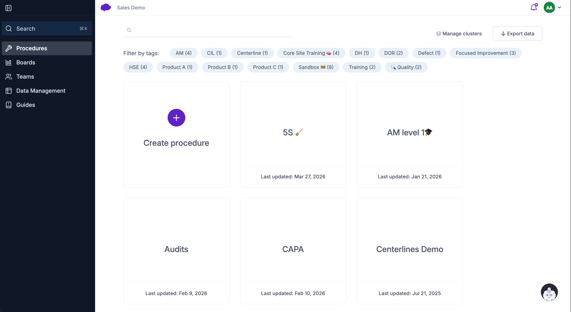
What you can do in Procedures
From the Procedures area, users with the correct access can:
-
-
Create new Procedures
-
Open and manage existing Procedures
-
Organise Procedures using tags
-
Review recent Procedure activity from the Timeline
-
Create and manage Tasks
-
Create and manage Training
-
Add or link Guides
-
Assign Procedures to Teams for App access
-
Add Collaborators for Portal editing access
-
Review submitted reports from the Task page
-
Export simple report data for analysis
-
Procedures help keep related operational content in one place, making it easier for Super Users and managers to maintain standard work and for frontline teams to access the right tasks in the App.
Procedure structure
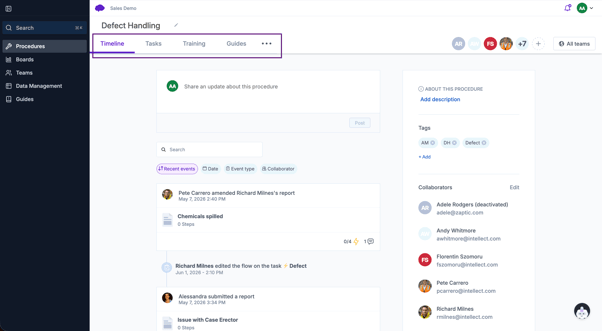
Each Procedure can include the following areas:
| Area | What it is used for |
|---|---|
| Timeline | Shows recent activity related to the Procedure, such as submitted reports, comments, status changes, updates, and collaboration activity. |
| Tasks | Contains the operational workflows that users complete in the App or Portal. Completing a Task creates a Report. Submitted reports are shown in a table within the Task page. |
| Training | Contains training workflows used to train, assess, or qualify users. Completing Training creates a training record against the user. |
| Guides | Contains supporting knowledge such as SOPs, OPLs, images, videos, work instructions, or linked documents. |
Creating a Procedure
- Open the Procedures area in the Portal.
- Select Create Procedure.
- Add a clear Procedure name.
- Add a description if helpful.
- Add relevant tags if the Procedure should be grouped or filtered with similar content.
- Add Tasks, Training, or Guides depending on the use case.
- Add Collaborators if other users need to help build or maintain the Procedure.
- Assign the Procedure to the relevant Teams when it is ready for users to access in the App.
A Procedure should be named in a way that is easy for administrators and frontline teams to understand. For example, use names that reflect the site, line, department, use case, or operational process where appropriate.
Collaborators vs Teams
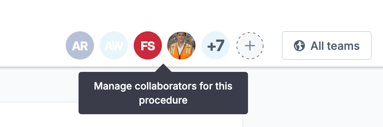
Procedures use two important types of access: Collaborators and Teams.
| Access type | What it controls |
| Collaborators | Users who can access and edit the Procedure in the Portal. Collaborators are usually Super Users, SMEs, managers, or administrators who build and maintain the content. |
| Teams | Groups of users who can access the Procedure in the App. Assigning a Procedure to a Team makes the Procedure available to the users in that Team. |
In simple terms:
- Add Collaborators when someone needs to help build or maintain the Procedure.
- Assign Teams when frontline users need to complete the Procedure in the App.
A user may be both a Collaborator and a member of an assigned Team, depending on their role.
Organising Procedures with tags
Procedure tags help organise and filter Procedures in the Portal.
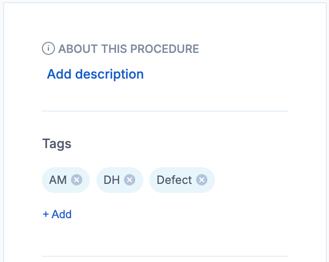
Tags are useful when you have many Procedures and need to group them by:
Site, Department, Line, Asset, Use case, Process type, Region, Project phase
For example, you could tag Procedures with labels such as:
Safety, Quality, CIL, Centerline, Line 4, Packaging, Pilot, Global Standard
Once tags are added, users can filter the Procedures list to quickly find the content they need.
Clusters and ad hoc task organisation
Clusters help organise ad hoc work in the App, making it easier for operators to find the right task quickly.
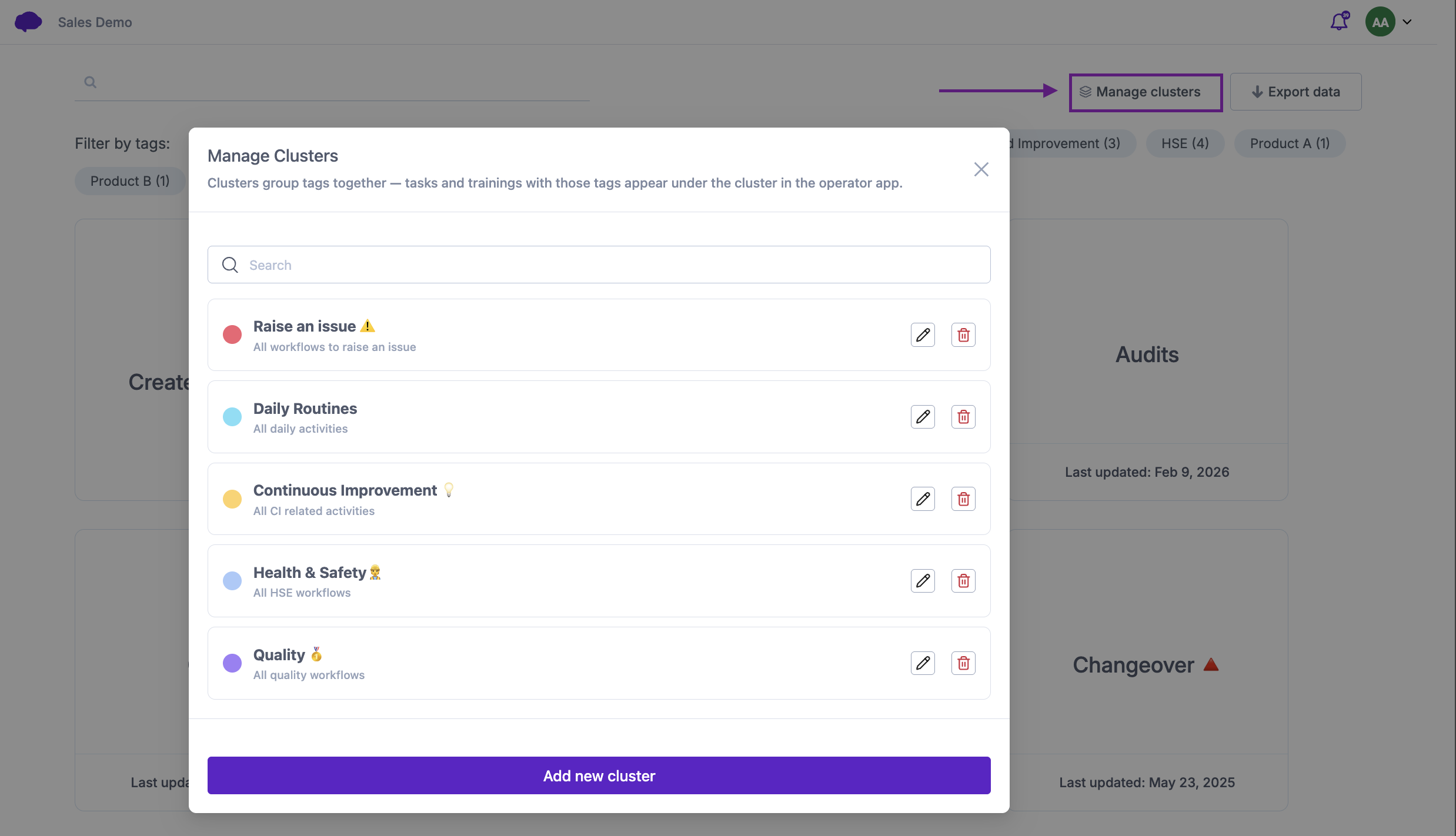
Admins can use tags to group related work into clear buckets in the ad hoc menu. For example, instead of operators scrolling through a long list of tasks, tasks can be grouped into categories such as:
-
- Daily Tasks
- Report a Problem
- Safety
- Quality
- Maintenance
- Cleaning
- Changeover
Any work that does not match a defined cluster is automatically grouped under Other, so tasks are not lost.
Clusters are especially helpful when a site has many ad hoc tasks available to operators and needs a cleaner, more intuitive App experience.
Exporting Procedure data
The Export Data option allows users to export submitted data from selected Procedures for a chosen date range.
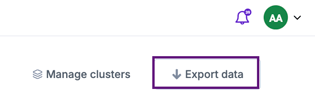
This export is useful when you need to:
-
- Review submitted answers outside the platform
- Carry out basic analysis
- Share raw report data with another team
- Investigate submitted results
- Support operational reviews
The export provides simple report data from the selected Procedures. It does not include full action data or action follow-up detail.
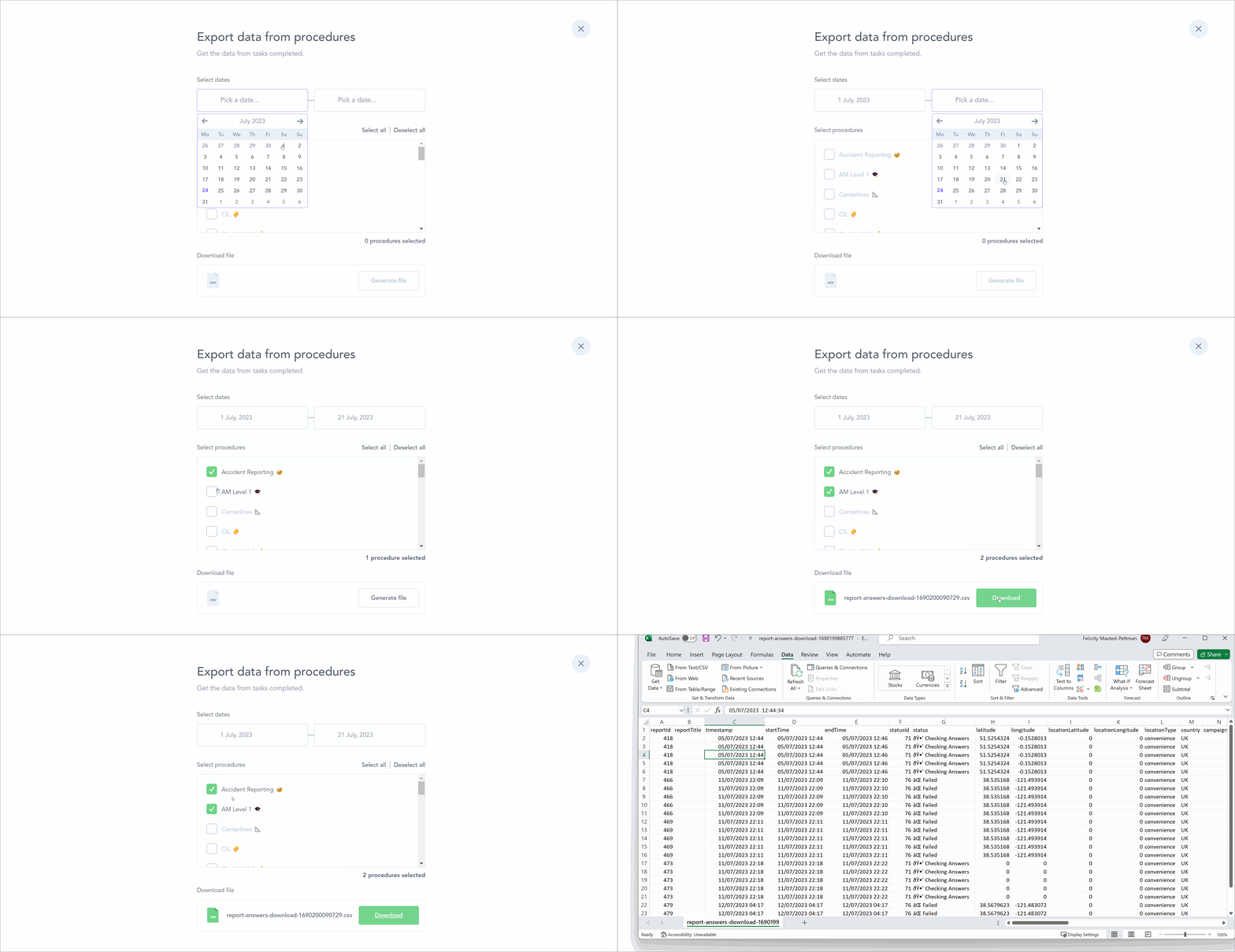
Procedure exports are downloaded as CSV files. Sometimes CSV exports may contain emojis or special characters that do not display correctly when opened directly in Excel. If this happens, import the CSV into Excel instead of opening it directly.
Reviewing Procedure activity
The Procedure Timeline shows recent activity connected to the Procedure.
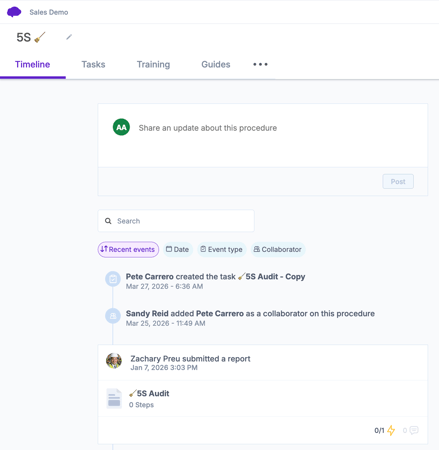
Depending on the configuration and user access, the Timeline can show activity such as:
-
- Submitted reports
- Comments
- Status changes
- Procedure updates
- Team or collaborator activity
The Timeline is useful when you need to understand what has happened recently within a Procedure, especially when multiple users or shifts are contributing to the same process.
You can also use filters to narrow down Timeline activity, for example by date, recent events, or collaborators.
Reviewing submitted reports from the Task page
Reports are created when users complete Tasks or Training.
Within a Procedure, submitted reports for operational Tasks are accessed from the Task page. The submitted reports table shows reports linked to the Procedure’s tasks, making it easier to review how tasks have been completed over time.
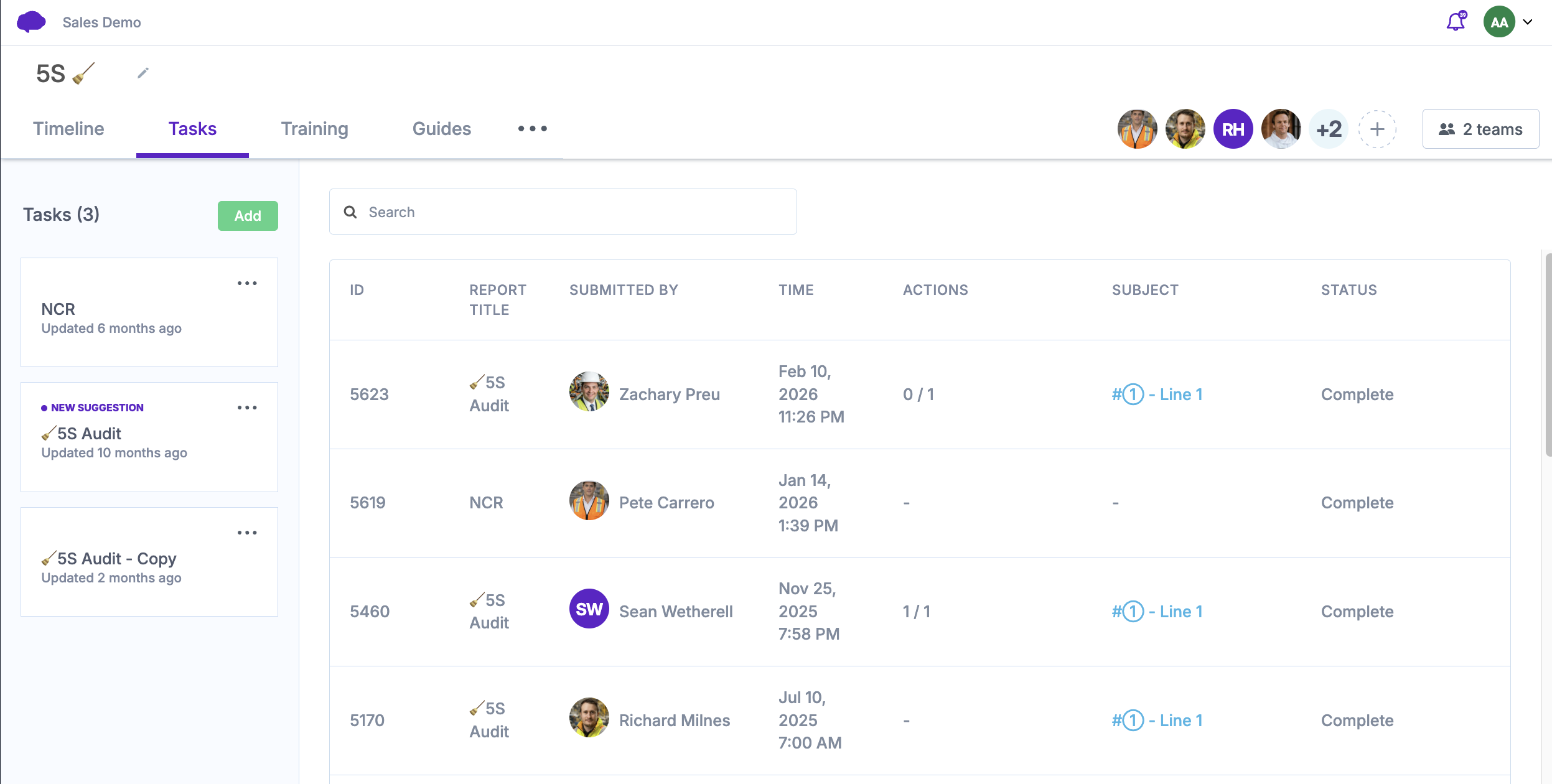
From the submitted reports table, users with the correct access can open individual reports to:
-
- Review submitted answers
- Check who submitted the report
- See when it was submitted
- Review comments and status history
- Add comments
- Change report status, where permitted
- Assign follow-up actions, where permitted
Reports are useful for supervision, auditing, troubleshooting, and continuous improvement.
Recommended best practice
-
- Use clear and consistent Procedure names.
- Add descriptions where the purpose of the Procedure may not be obvious.
- Use tags to make Procedures easier to filter and manage.
- Use test Teams while building or validating new content.
- Assign live Teams only when the Procedure is ready for frontline use.
- Keep related Tasks, Training, and Guides together where possible.
- Use Clusters to make ad hoc tasks easier for operators to find.
- Review submitted reports regularly to identify issues, trends, and improvement opportunities.
- Keep Procedures up to date as processes, standards, or site requirements change.