
Video released on 24/06/2024
Unit QR Codes
To offer a faster way to open unit information in the Intellect App, you can use the QR code feature. This lets operators scan a QR code to bring up unit-relevant content.
-
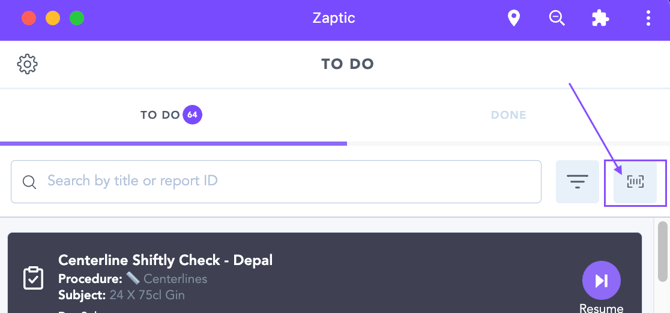
- If an operator scans from their To Do list page, the code brings up the unit-specific tasks they need to complete.
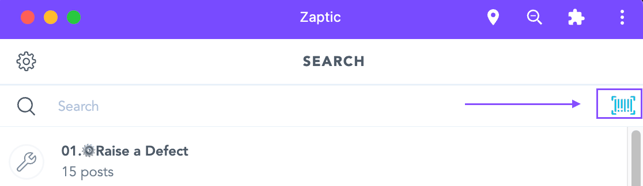
- If they scan from the Search page instead, it opens the Unit content page, with all guides, tasks, and information for that unit.
A QR code can be made up of any combination of alphanumeric characters — if a unit doesn't already have one, you can just create one yourself. Note that the QR code itself (the physical code and its design) is generated outside of Intellect; Intellect only reads the value and matches it to the unit's assigned ID Code.
Preparing the Data Behind the QR Codes
First, assign an Identification Code (ID Code) to each unit you want to create a QR code for. You can add this by going into Settings and entering an ID Code for each unit, or by bulk update. ID Codes must be unique per unit.
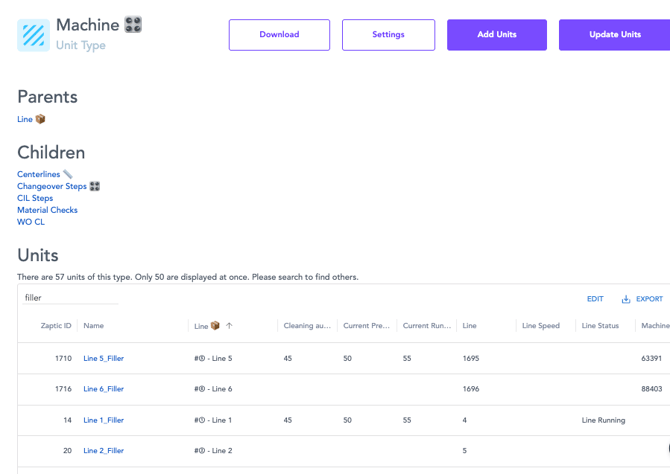
Once your data is prepared, take the ID Codes you've assigned and use them to generate your QR codes.
Enabling the QR Code Functionality
In Data Management, select the unit folder you want to enable the functionality for. Then, in Settings > App Settings, check the box for the intended ID Code column.
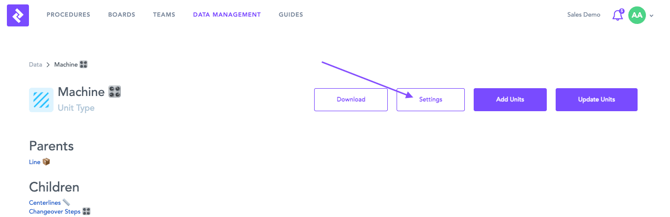
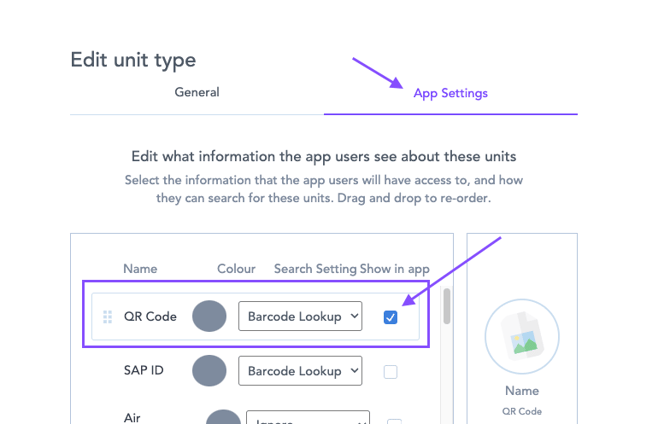
❗ Important: You can only have one ID Code per unit type.
This links scanning in the app to the ID Code assigned to each unit. Once set up, print your QR codes and share them with your operators.
Scanning Within Task Execution
You can also scan QR codes and barcodes directly within a task, in two ways:
-
- A text input element can capture a scanned value as a text answer — useful for recording serial numbers, batch codes, or equipment IDs without manual entry.
- Unit select scanning can be configured to restrict selection by scanned code, so operators can only select the unit that matches what they scanned — confirming the correct component rather than just selecting one.
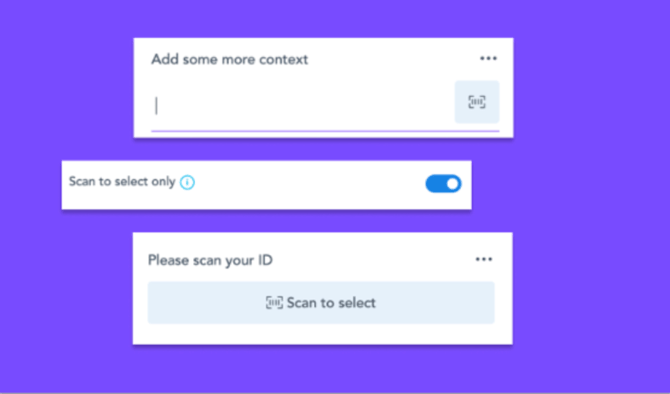
This is particularly useful for verifying equipment during inspections or confirming the correct component during changeovers.