
The first article explains how to create a basic Task, add steps, add elements, and understand core concepts such as Report Subject and Report Title.
This article focuses on more advanced configuration options in Flow Builder. These options help you control how a Task behaves, how guidance is shown to users, how repeated structures are managed, and how element settings affect the user experience and submitted Reports.
This article is split into three areas:
| Area | What it covers |
|---|---|
| Advanced flow behaviour | Routing, step guides, and reusable step templates. |
| Advanced elements | Guide elements, links, sections, subtasks, and an introduction to content loops. |
| Element settings | Required responses, answer options, number settings, Report Title behaviour, Answer History, and conditions. |
These features should be used to make Tasks clearer, more contextual, and easier to maintain. They should not be added only for complexity.
Advanced flow behaviour
Advanced flow behaviour controls how the user moves through the Task and how supporting information is made available during execution.
This includes routing, step guides, and reusable step templates.
1. Routing
Routing controls where the user goes next in a Task.
It is used when different answers should send the user to different steps in the flow.
Routing is useful when the process changes depending on the answer given by the user.
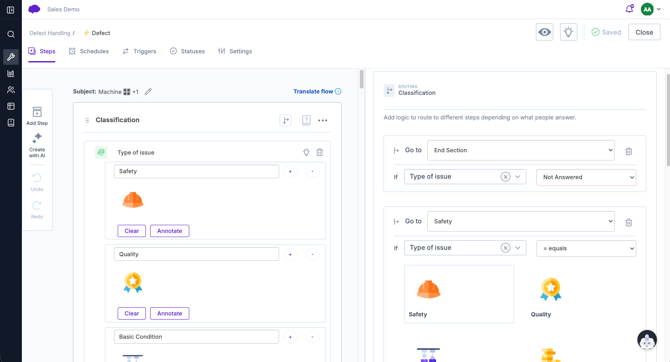
For example, a quality check may ask the user to select a result. If the result is Pass, the user can continue to completion. If the result is Fail, they can be routed to a failure details step where they add more information and capture evidence.
Routing helps keep the Task relevant because users only see the path that applies to the situation they are in.
2. Conditional Elements
Routing and conditional visibility are related, but they should be used for different situations.
Use routing when the user needs to move to a different step or path in the flow.
Use conditional visibility when you only need to show or hide an element within the same step.
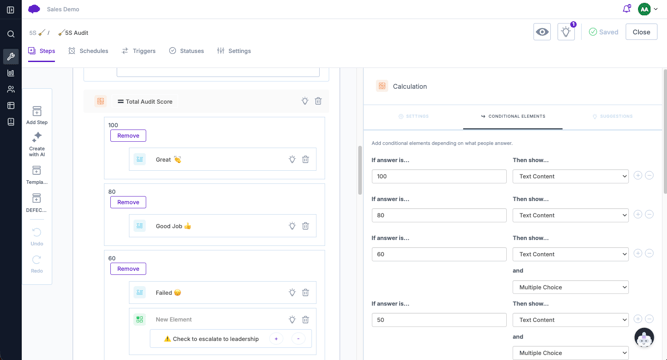
For example, if a safety question only needs an extra comment field when the answer is No, conditional visibility may be enough. If the answer No means the user must complete a separate escalation step, routing is more appropriate.
As a general rule, use the simplest logic that supports the process clearly.
3. Step guides
A step guide is guidance linked to a step.
It acts as optional help for the user. The user can open it when they need more information, but it is not always displayed directly in the flow.
Use step guides when the information is helpful but does not need to be visible at all times.
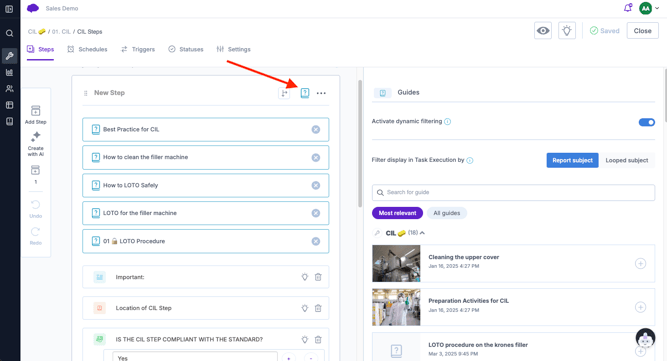
For example, a quality inspection step may have a guide attached showing the inspection standard. An experienced operator may not need to open it every time, but a newer operator can open the guide for support when needed.
Step guides are useful for reference material, supporting instructions, standards, or examples that should be available without making the Task longer.
4. Step Templates
If you create a step that needs to be reused, you can save it as a template.
This is useful when the same structure is needed in multiple Tasks, such as a standard defect capture step, failure evidence step, confirmation step, or escalation step.
From the step options menu, usually shown as the three dots on a step, you can save the step as a template.
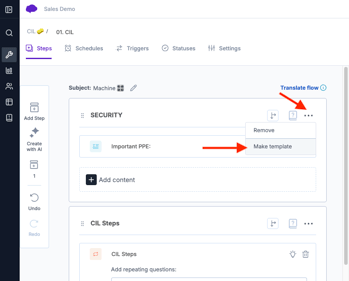
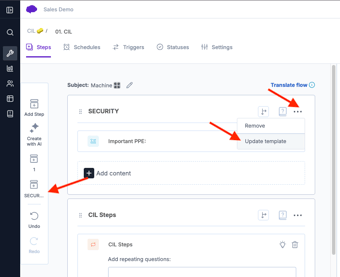
Once saved, the template becomes available in Flow Builder and can be reused in other flows.
For example, a Super User may create a standard Capture Defect Details step that asks the user to describe the issue, select a reason, add a photo, and confirm whether follow-up is required. Instead of rebuilding this step in every Task, they can save it as a template and reuse it where needed.
Reusable templates help reduce rebuild effort and support consistency across Tasks.
5. Translating flows
Tasks, Training, and Guides can be translated so users can complete content in their preferred language.
This is useful when the same flow is used across multiple sites, countries, or teams.
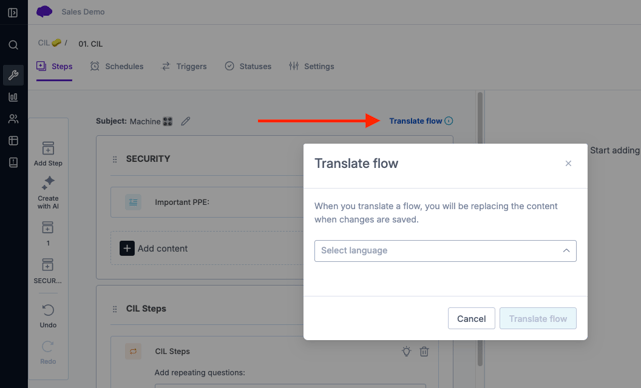
For example, a global quality inspection Task may be built in English and translated into Spanish so operators in different sites can complete the same standard process in their local language.
After translating a flow, it is good practice to preview and review the translated version to confirm that instructions, answer options, labels, and guidance still make sense in context.
Translation supports standardisation because the same core process can be reused across locations while still being accessible to local users.
Advanced elements
Advanced elements are used when the Task needs more than simple questions and instructions.
They can help display guidance, link users to supporting resources, organise content, launch related Tasks, or repeat content dynamically.
This section introduces these elements at a high level. Some advanced elements, such as content loops, are covered in more detail in their own dedicated articles.
1. Dynamic Guides
A guide element displays guidance directly inside the flow.
Unlike a step guide, which the user opens when needed, a guide element is visible as part of the Task execution experience.
Use guide elements when the user should see the guidance while completing the step.
Guide elements are useful when the guidance is essential to completing the work correctly. Guide elements can also be used dynamically.
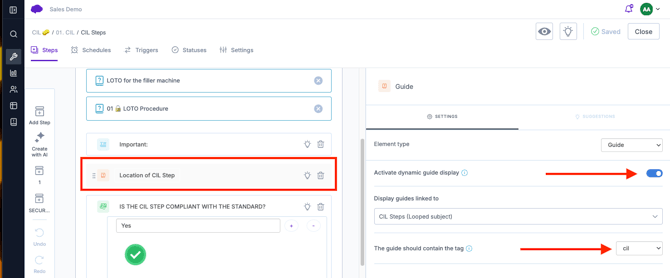
A guide can be linked to specific steps and tags so that the relevant guidance appears automatically when the step and tag match during Task execution.
This is useful when different guidance should appear depending on the item being checked or the part of the Task being completed.
For example, a Task may repeat the same check structure for several checks. Each check can have a different guide linked to it. As the operator moves through the Task, the relevant guide appears automatically for the current check.
This allows one Task structure to show different guidance depending on the context.
2. Links to external resources
Tasks can include links to external resources where users need to access supporting information outside Intellect.
This may include SharePoint documents, external SOPs, reference files, intranet pages, or other approved resources.
For example, a site may store detailed work instructions in SharePoint. The Task can include a link to the relevant SharePoint document so the operator can open it while completing the flow.
This is useful when the source document needs to remain managed outside Intellect, but users still need easy access to it from the Task.
When using external links, make sure users have the correct access to open the resource.
3. Sections
A section is used to organise content within a flow.
Sections help group related questions or instructions together so the Task is easier to complete and maintain.
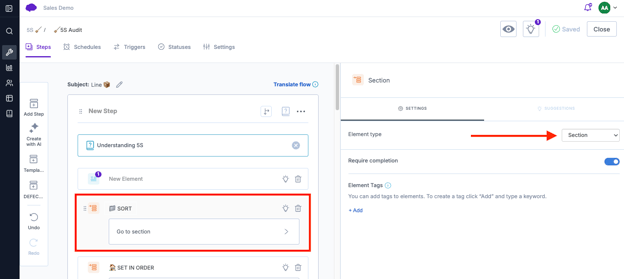
For example, a start-up check may include sections for machine condition, safety checks, cleaning checks, and readiness confirmation. Sections are most useful when they improve clarity.
4. Subtasks
A subtask is an internal link to another existing Task.
Subtasks are useful when a user may need to start a related Task while completing the current Task, without building the full related process into the same flow.
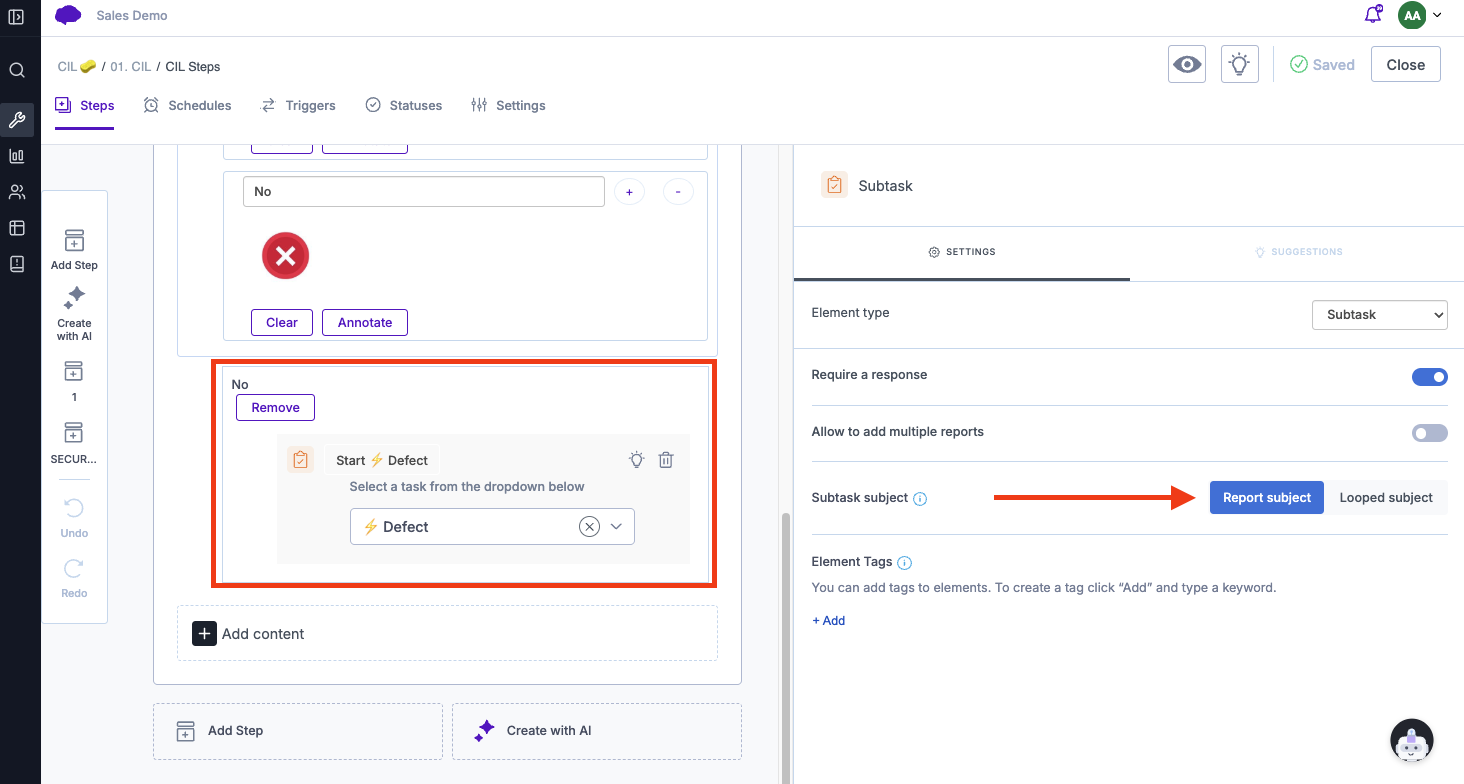
For example, an operator may be completing a CIL Task and identify an abnormal condition. Instead of adding the full defect reporting process into the CIL itself, the CIL can include a subtask that links to the existing Report a Defect Task.
The operator can then raise the defect using the standard defect process, while the original CIL remains focused on the routine check.
Use subtasks when the related process already exists as a separate Task or should be reported and managed separately.
5. Content loops
A content loop allows a set of elements to repeat for multiple items.
This is useful when the user needs to complete the same structure of questions for several Units or data items.
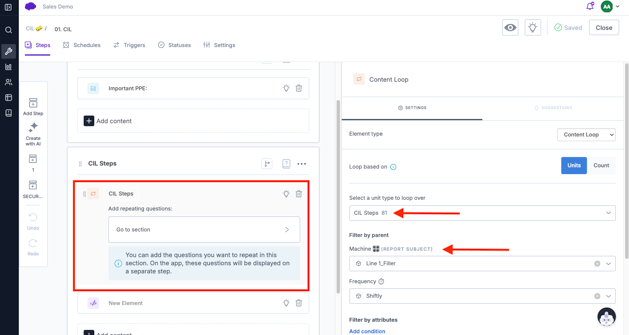
For example, a Centerline Task may need the operator to complete the same check structure for several Centerline items. A content loop can repeat the relevant questions for each item, rather than requiring the admin to build each check manually.
Content loops are especially useful when working with Data Management, data attributes, and dynamic guide behaviour.
This article introduces content loops only at a high level. Content loops are covered in more detail in a separate article.
Element settings
Element settings control how individual elements behave.
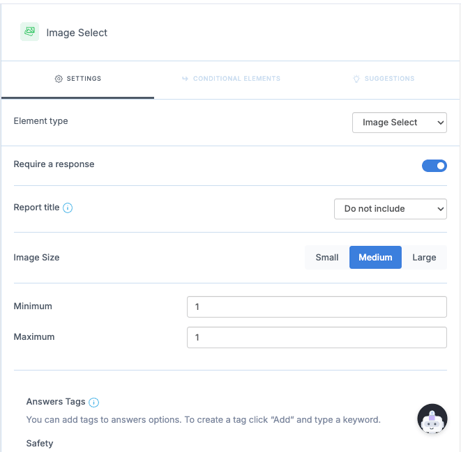
The available settings depend on the element type. For example, a Number element has different settings from a Dropdown, Multiple Choice, Image Capture, Link, Guide, Unit Select, or Content Loop element.
Element settings can affect:
-
- whether an answer is required
- which answer options are available
- how numerical values are captured
- whether previous answers are visible
- whether an answer updates the Report Title
- when an element is shown or hidden
Use element settings to improve user experience, data quality, reporting, and follow-up.
1. Required responses
Some elements can be made required.

This means the user cannot continue or submit the Task until the answer is completed.
2. Number settings
Number elements are useful when users need to capture readings, measurements, counts, or values.
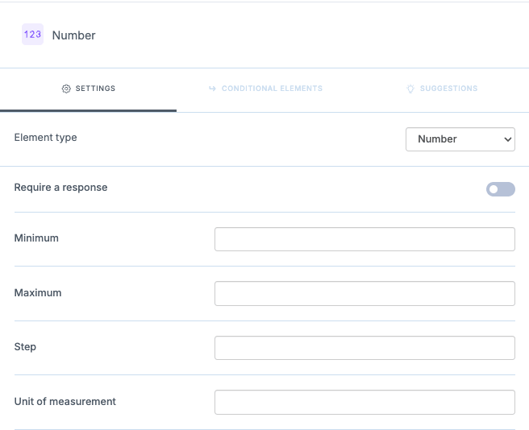
They help make numerical data easier to report on and compare later.
For example, a Centerline check may ask the operator to enter a pressure reading. The Number element captures the value in a consistent format, which supports reporting and trend review.
Where limits, targets, or expected values are needed, these should be configured clearly so the user understands what value is expected.
3. Using answers in Report Titles
The Task name is the name of the workflow the user starts.
The Report Title is the name shown for an individual submitted Report.
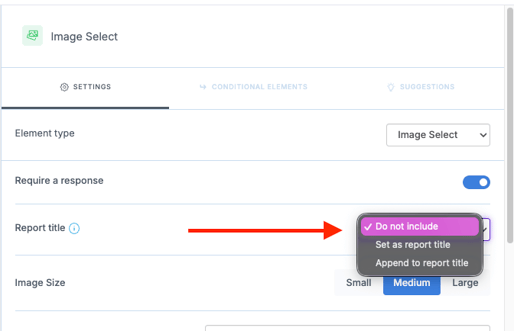
Flow authors can configure selected answers to set or append information to the Report Title.
For example, the Task name may be Report a Defect. If the user selects Filler 1 as the machine and High as the priority, the submitted Report Title could become Report a Defect – Filler 1 – High.
The Task is still called Report a Defect, but the submitted Report has a more specific title.
Helpful Report Titles make submissions easier to search and review. Titles that include too much information can become long and difficult to read.
4. Answer History
Answer History allows users to see recent previous answers while completing a Task, where this has been enabled.

This can help users compare the current response with previous submissions.
For example, an operator recording a temperature reading may be able to see previous readings for the same question. This helps them notice whether the value has been increasing or decreasing over time.
Answer History is useful when previous answers provide helpful context during completion. It should not replace reviewing the full submitted Reports where deeper investigation is needed.
5. Conditional Elements
Conditions control when an element is shown or hidden.
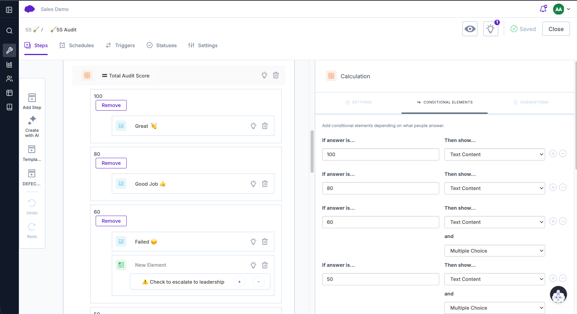
They are useful when an element should only appear after a specific answer has been given.
For example, a Task may ask: Was a defect found?
If the user answers Yes, an additional field appears asking them to describe the defect. If the user answers No, the field stays hidden.
Conditions help keep Tasks shorter and more relevant by only showing users the content they need.