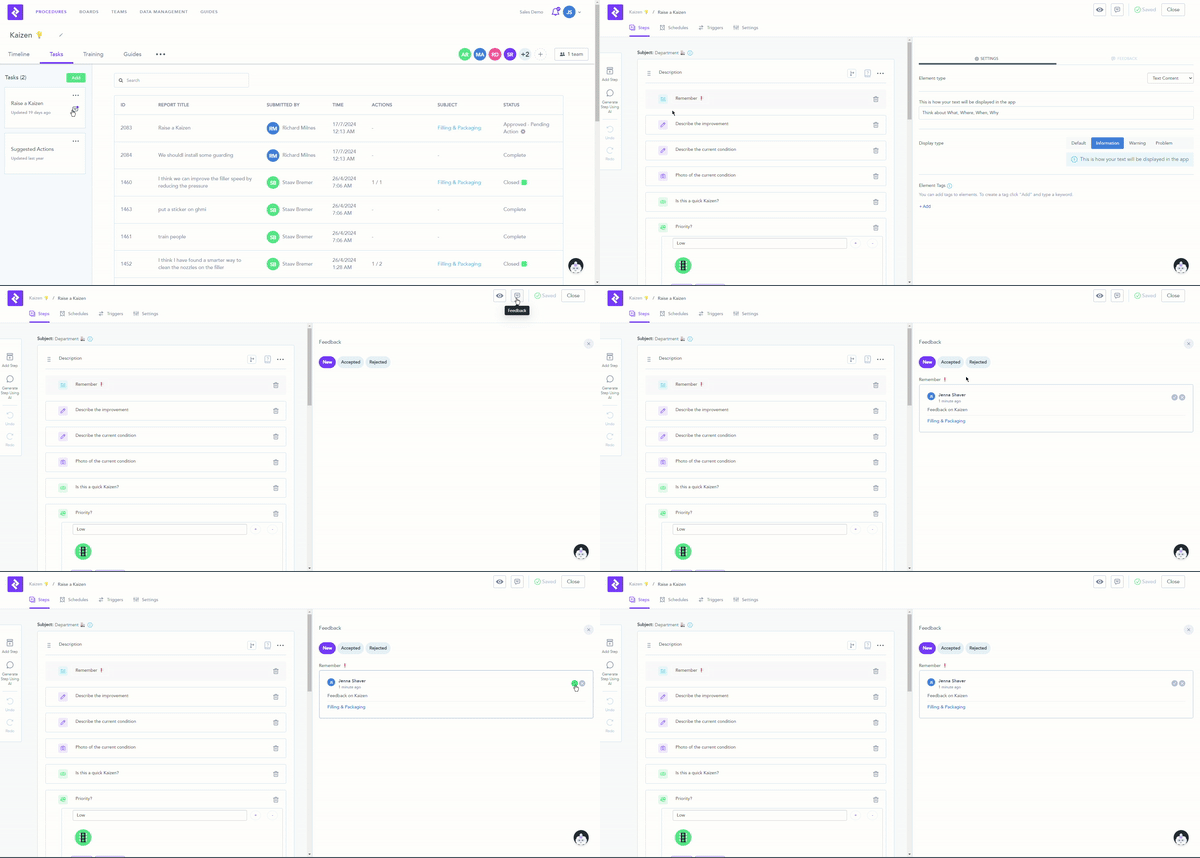
Video released on 21/06/2024
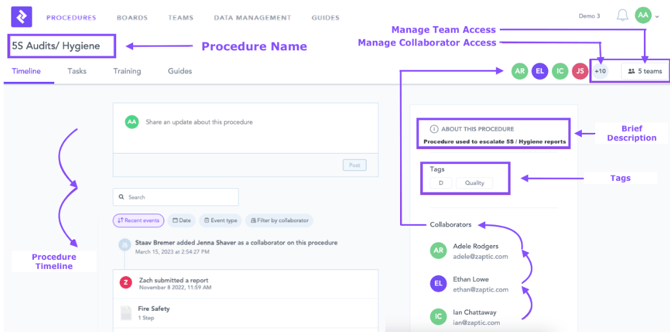
Procedure Timeline
The timeline allows you to see at a glance the status of the Procedure you’re reviewing. Here you can update your colleagues who are working on this Procedure, even if you’re working on different shifts.
Find more about Procedure Timeline here.
Create or Edit Tasks
Using the three dots (…) next to a task, you can:
-
- Edit the procedure task name
- Duplicate the task within the current procedure
- Duplicate the task to another procedure
- Delete the task
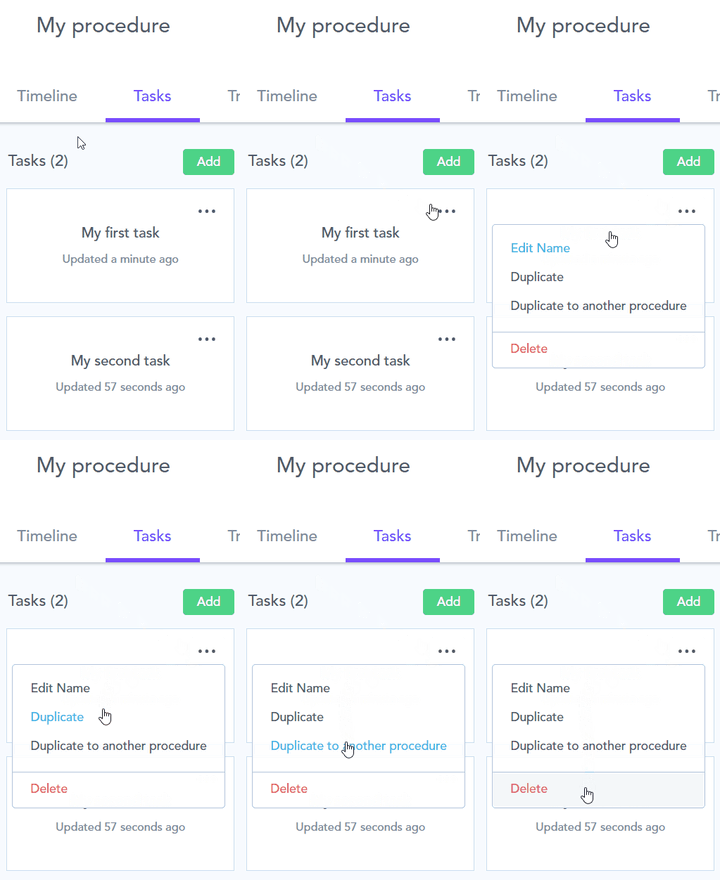
Example: if you have a sandbox procedure for experimenting with task setup, duplicate it into your live procedure once finished, then rename it appropriately before assigning teams to make it live.
Note: duplicating a task does not carry over its triggers, statuses, or schedules - these need to be reconfigured on the duplicate.
Procedure Permissions
1. Collaborator access
As a Collaborator, you can:
-
- Add a new task and edit existing tasks (open a task, rename it, duplicate it within the procedure or to another procedure)
- Access previously created tasks and submitted reports, including comments
- Search previously submitted reports by ID or report title
- View who has Collaborator or Team access to the procedure, and invite additional Collaborators
- Review and act on feedback submitted on flows via the app
- View and assign actions from a report
2. Team member access
As a Team member, you can:
-
- View existing tasks
- Access previously submitted reports and see comments on them
- Search previously submitted reports by ID or report title
- View who has Collaborator or Team access to the procedure
You cannot: edit or access previously created tasks, upgrade your own access to Collaborator, or invite additional Collaborators.
Note: anyone with Procedure Admin or System Admin permission automatically has Collaborator-level access to every procedure on the instance, even if they haven't been added as a named Collaborator. Collaborator access, by contrast, is scoped to the individual procedure it's assigned on.
How to assign Collaborators
Assigning a Collaborator gives them full visibility and editing rights on the procedure, plus the ability to add further Collaborators. Search by name or email, the user must already exist in Intellect to be added. Click "Add Collaborators" to confirm; they'll receive an email notification.

To change Collaborators later, use "Edit" at the top right of the Collaborators list, which opens the Manage Collaborators screen.
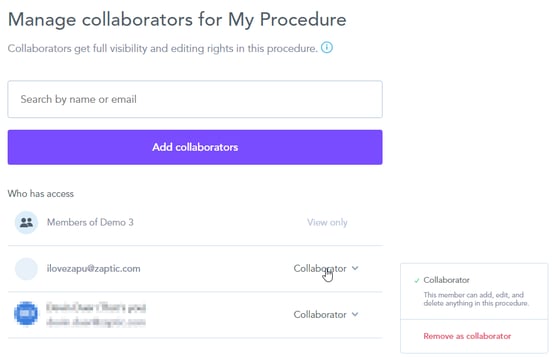
Note: removing someone as a Collaborator doesn't remove their access completely if they're also a member of a Team assigned to the procedure ,they'll still see the task in the app.
How to assign Teams
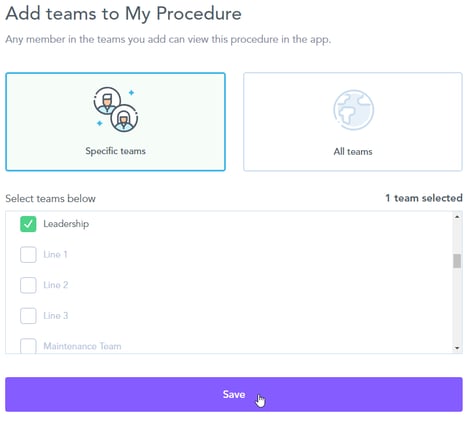
Assigning a Team is how end users see a procedure in the Intellect app. Once assigned, every member of that team can use the procedure. You can assign specific teams, or "All teams" which includes any teams added later. Clicking Save makes the procedure live in the app.
Task Reports & Actions
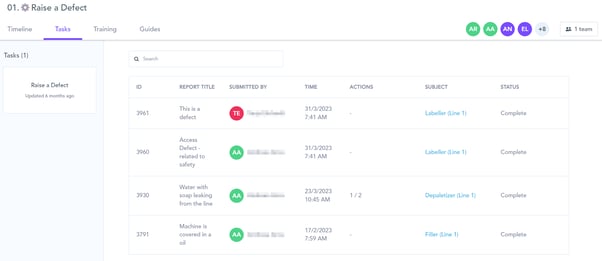
Every completed task generates a report, viewable and manageable from the app or portal. For how to view, filter, and manage reports (including confidential reports), see Reports in Zaptic. For how to raise, assign, and complete an action from a report, see Assigning an Action and the Actions Page.
Feedback on Flows
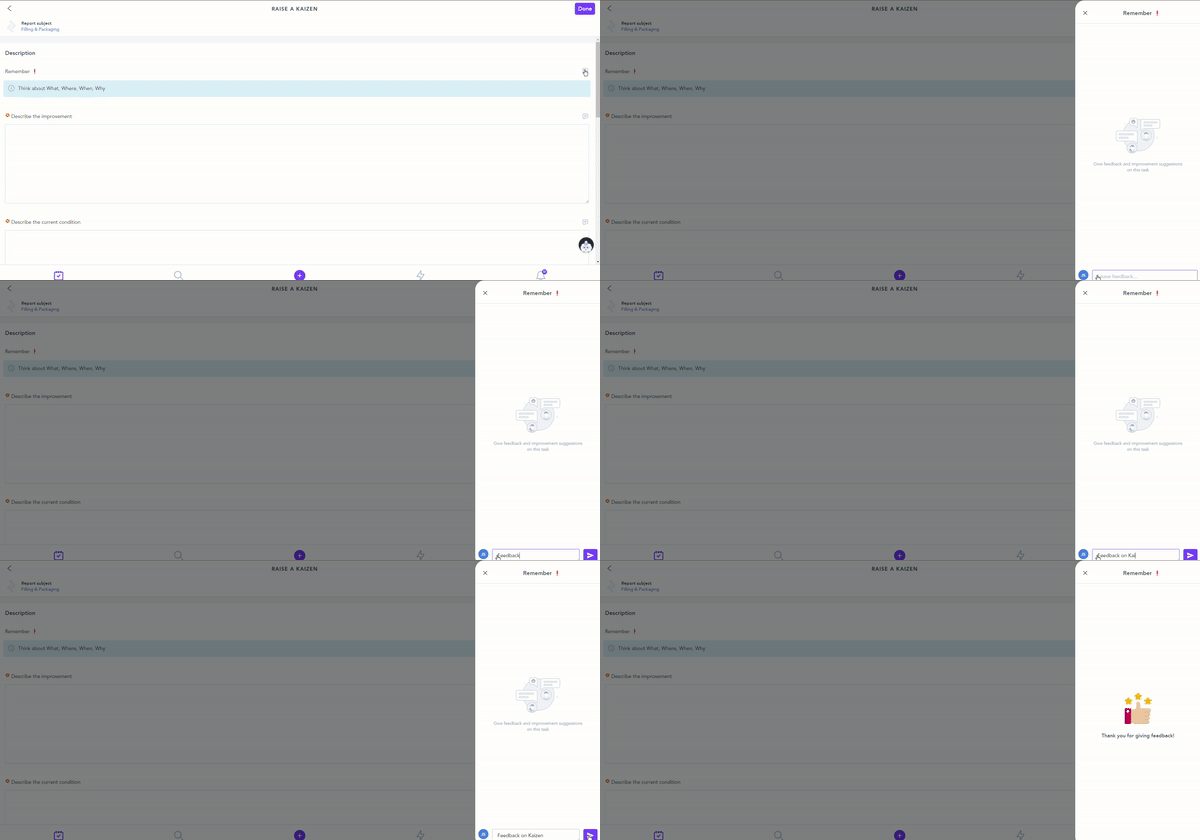
Authors and Collaborators can leave improvement suggestions directly within flow authoring; shop floor users can flag suggestions on specific sections via the app, and all listed Collaborators are notified in both the portal and the app so ideas don't get lost between shifts.
Top Tip: use test teams to validate procedure content before assigning real teams, so you're not testing in front of live users.