<img src="https://ws.zoominfo.com/pixel/jVEeXSuAdJGwt07GfOBW" width="1" height="1" style="display: none;">
Skip to content
English
  • There are no suggestions because the search field is empty.

Task Scheduling, Triggers, Statuses and Settings

Video released on 07/10/2024

Schedules

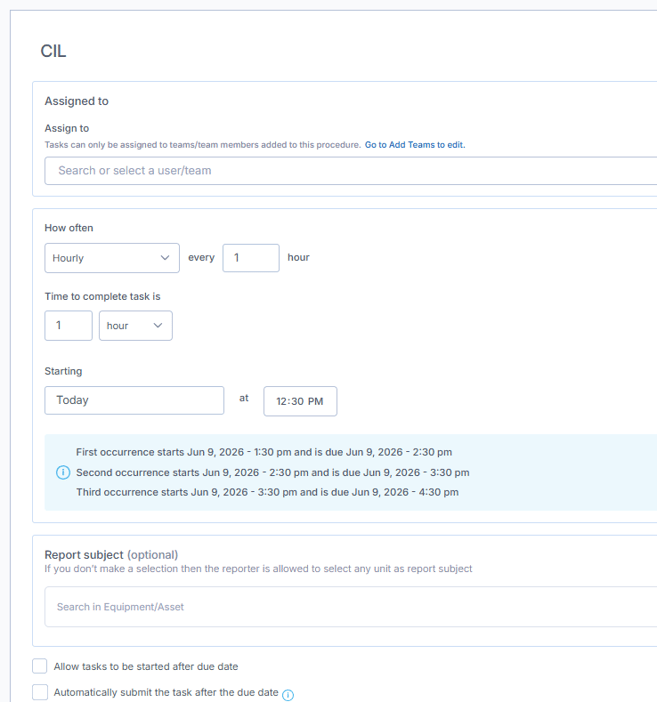
Schedules allow you to repeatedly show a Task on a scheduled basis to your end users. This will ensure it appears in their To Do list.

    • You will need to assign the task to a User or a Team.
    • When setting up Schedules for more than "Only Once" you will be given the option to "Add time to complete". Use this option to give operators a specific amount of time (e.g. 6 hours / the length of a shift) to complete the Procedure. This is more often used for Training rather than Tasks.
    • The Scheduler will give you examples of the first three occurrences of the schedule.
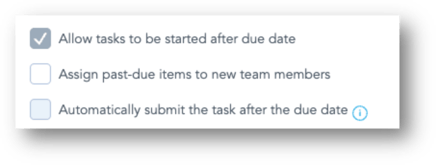
    • When choosing "Allow tasks to be started after due date" this will add the task to your user's task list, even if they have been away from the shopfloor (such as on holiday or off sick). Ticking this option can lead to long To Do lists!
    • When choosing "Automatically submit the task after the due date" this will remove the task from your end user's To Do list, leaving a cleaner Task List.


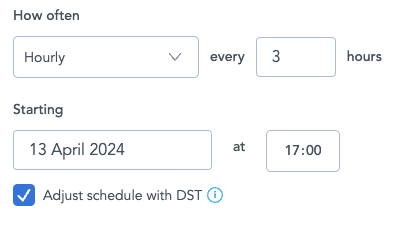
Daylight Saving Time Adjustment

This option can be enabled on hourly schedules which are set to recur between 2-23 hours, to ensure the clock changes do not impact the scheduled tasks. 
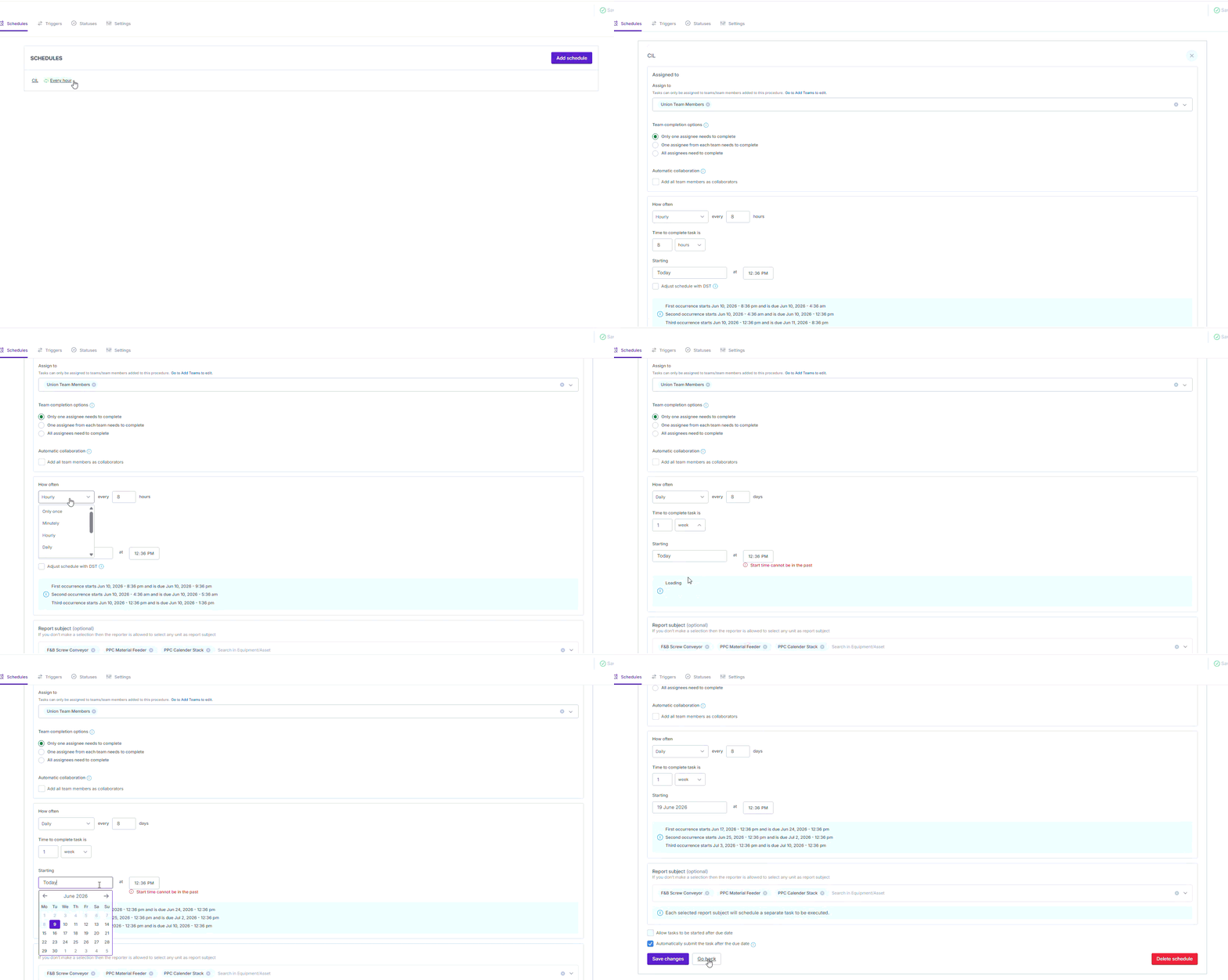
Edit an existing Schedule:
- You can now edit an already created schedule to re-assign a team/person, schedule for a different time or modify the schedule conditions.
ScreenRecording2024-01-25at10.25.27-ezgif.com-video-to-gif-converter.gif

Schedule tasks or training for multiple units at once

- You can now distribute tasks even faster by scheduling for multiple units at once.
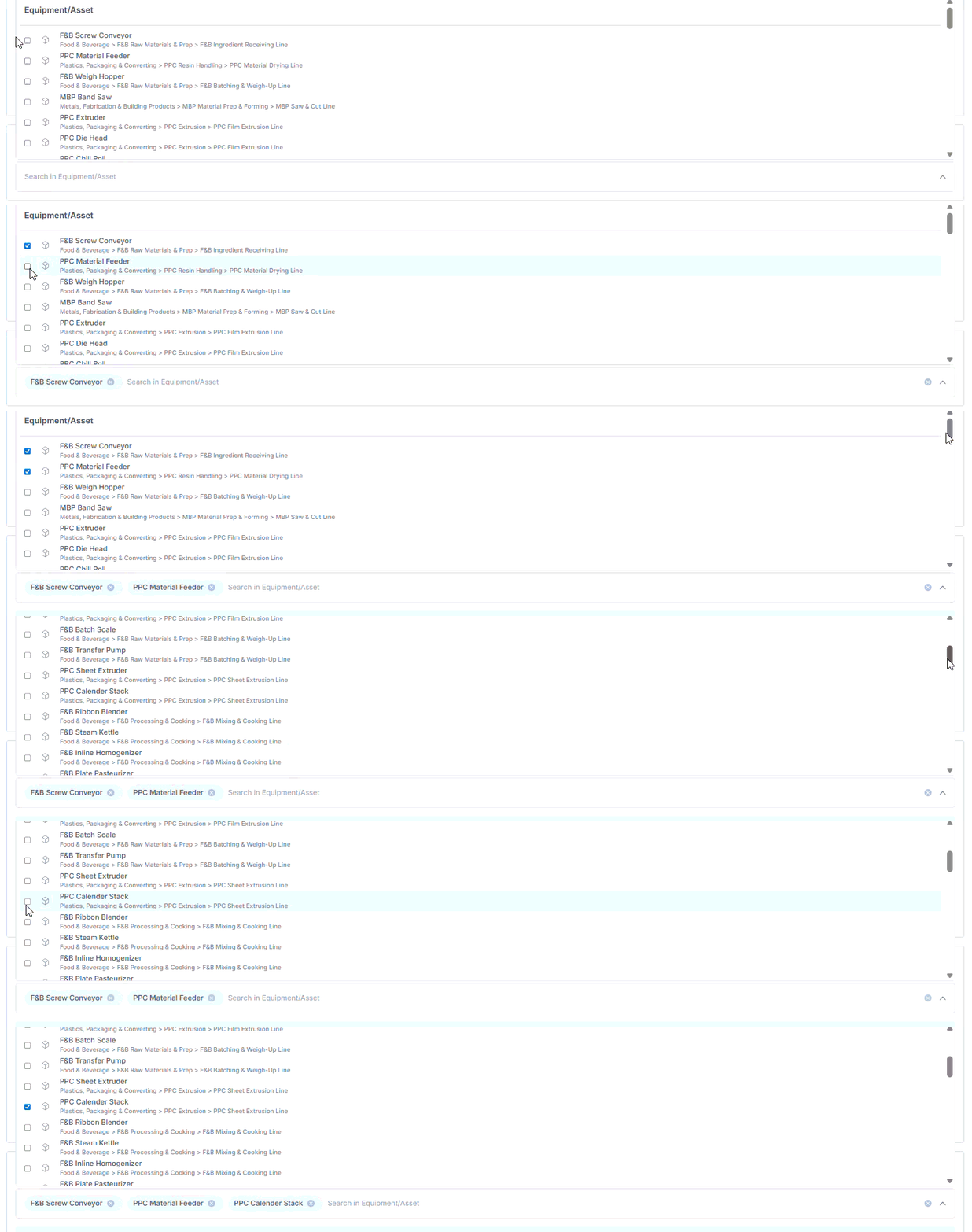
Schedule for multiple units_1.gif


Triggers

Setting up Triggers will allow the completion of a task to trigger another event:

    • Triggers are automated events that happen based on a combination of defined criteria being met. 
    • Click into Triggers>Add Triggers to add a new Trigger.
    • You will need to name the Trigger with something relevant to it's behaviour. 
    • Triggers can have conditions such as escalate to Safety team when it's a high priority safety issue.
    • Using the 'Add Trigger' button you can add multiple triggers as needed. 
    • The behaviour of the triggers can be one of:
      • Notify (email) teams or users
      • Set actions
      • Set status
      • Mark as Confidential
      • Promote to guide.

Statuses

    • The Statuses tab, allow you to create custom statuses to allow you to organise and control your report submission statuses.
    • Sign-off training, guides created by the shop floor or kaizen using approval statuses. Define flow transitions and set who can change which statuses. 
      • Where required, specific status change notificiations can be configured directly from this page. They will send to the specific team/users who are permitted to change the status. In the scenario that the status can be changed by anyone, these notificiations can be set up in the triggers page.
    • All completed reports will be automatically labeled with your default status.
    • Each added status can be restricted so that it would only be updated by specific teams or individuals.


Settings

    • You can request double authentication - the user will have already authenticated upon initial log in and this requires them to enter their password details again so it’s good for use cases that need an additional level of compliance or sign off (e.g. Quality Checks).
    • Recommended training can be assigned here for the respective task you are creating.
    • This is where you can add flow tags which can be used further for Boards logic or integrations.


 Confidential Reports

This feature is a great way to restrict the visibility of reports containing sensitive information (safety incidents for example) to certain individuals. It can also be used to keep training records or knowledge checks confidential to the trainee and certain nominated people.

Setting up access - who can see confidential reports

The permission called "Confidential Reports" gives you access to view, and mark/unmark reports as being confidential. This permission can be granted to anyone, provided that the user giving access has a "Super User" permission.

The Confidential Reports permission will give you access to:

    1. Be able to see confidential reports
    2. Mark reports as confidential
    3. Unmark reports as confidential

How to mark reports as confidential

Reports can be marked as confidential manually or automatically, both in the portal and in the Zaptic app:

1. Automatically, using a trigger

This is a great way to mark reports with a certain answer, or all reports from a task automatically as confidential using the new option “Mark as confidential”. A new option has been introduced in triggers:

image 1 (2).png

2. Manually, in the Portal

When viewing the report, click the “Options” button and “Mark as confidential”.

Group 1 (3).gif

3. Manually, in the app

When viewing the report, click the “Options” button and “Mark as confidential”.

Group 1 (14).gif


For more info on the Confidential Reports permission, please check our FAQ article here.