
Triggers
Setting up Triggers will allow the completion of a task to trigger another event:
-
- Triggers are automated events that happen based on a combination of defined criteria being met.
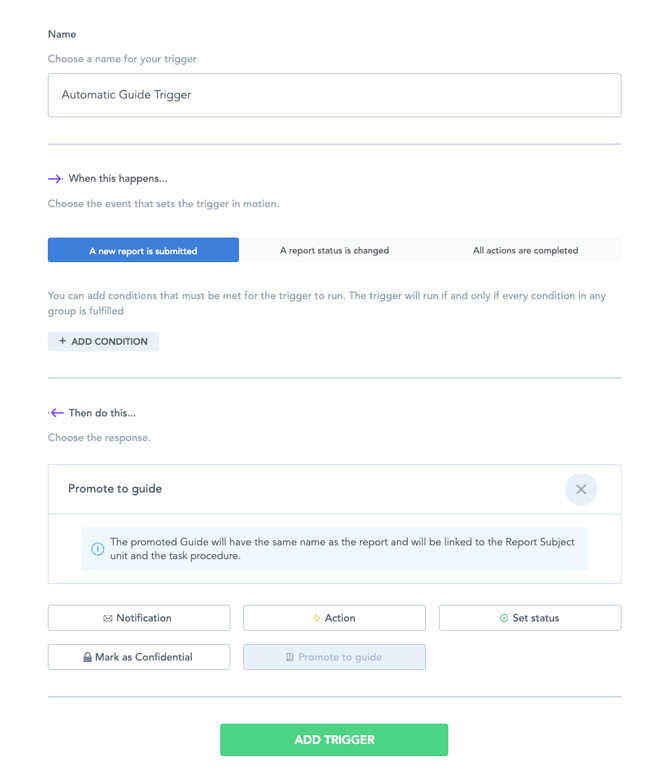
- Click into Triggers>Add Triggers to add a new Trigger.
- You will need to name the Trigger with something relevant to it's behaviour.
- Triggers can have conditions such as escalate to Safety team when it's a high priority safety issue.
- Using the 'Add Trigger' button you can add multiple triggers as needed.
- The behaviour of the triggers can be one of:
- Notify (email) teams or users - Emails set set of users or teams
- Set actions - Assigns an action or workflow to users or teams
- Set status - Changes the status of the current workflow
- Mark as Confidential - Marks the current workflow as confidential
- Promote to guide - Promotes the current workflow to a guide
Confidential Reports
This feature is a great way to restrict the visibility of reports containing sensitive information (safety incidents for example) to certain individuals. It can also be used to keep training records or knowledge checks confidential to the trainee and certain nominated people.
Setting up access - who can see confidential reports
The permission called "Confidential Reports" gives you access to view, and mark/unmark reports as being confidential. This permission can be granted to anyone, provided that the user giving access has a "Super User" permission.
The Confidential Reports permission will give you access to:
-
- Be able to see confidential reports
- Mark reports as confidential
- Unmark reports as confidential
How to mark reports as confidential
Reports can be marked as confidential manually or automatically, both in the portal and in the Zaptic app:
1. Automatically, using a trigger
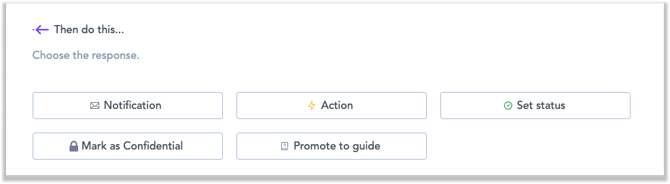
This is a great way to mark reports with a certain answer, or all reports from a task automatically as confidential using the new option “Mark as confidential”. A new option has been introduced in triggers:
2. Manually, in the Portal
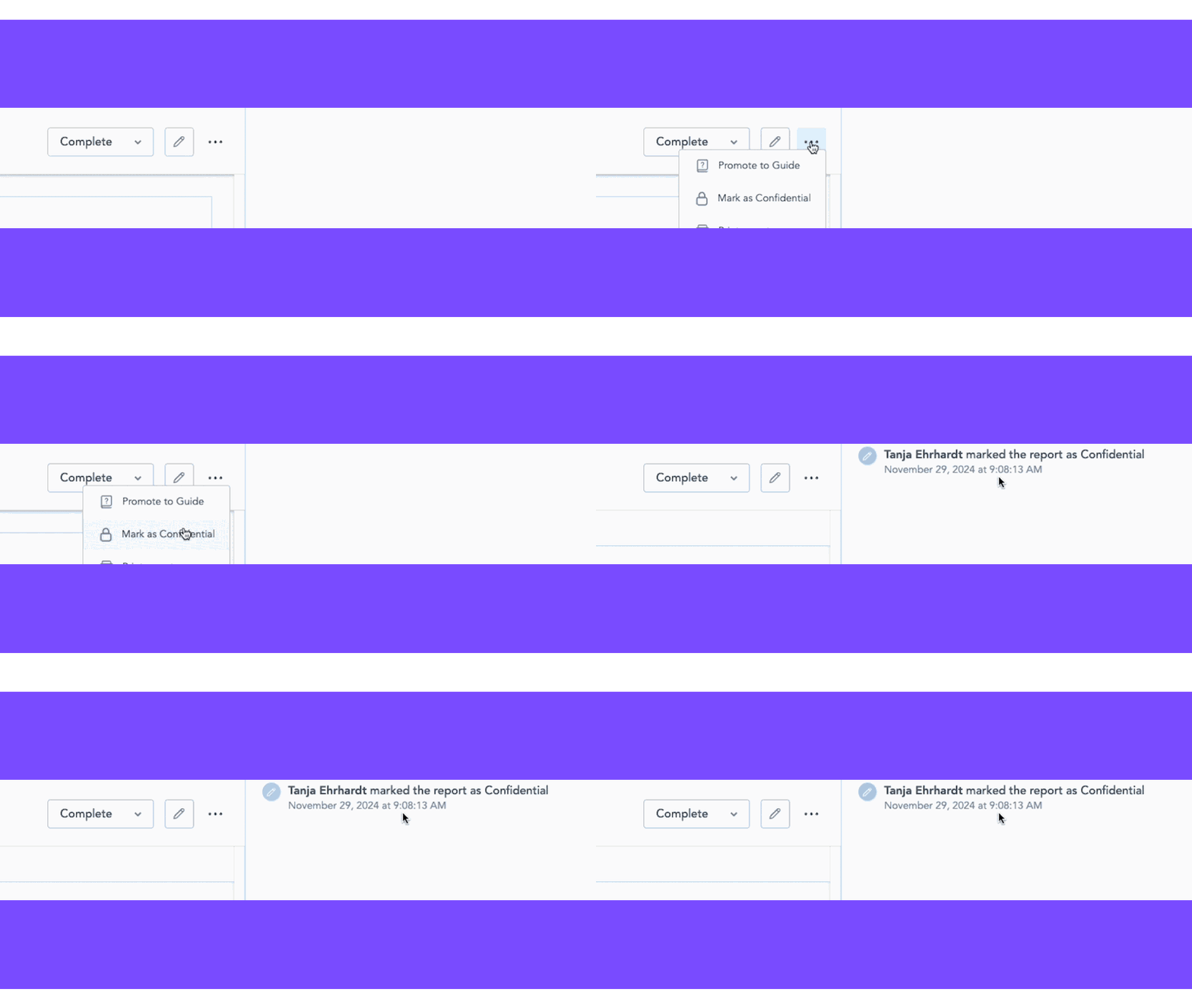
When viewing the report, click the “Options” button and “Mark as confidential”.
3. Manually, in the app
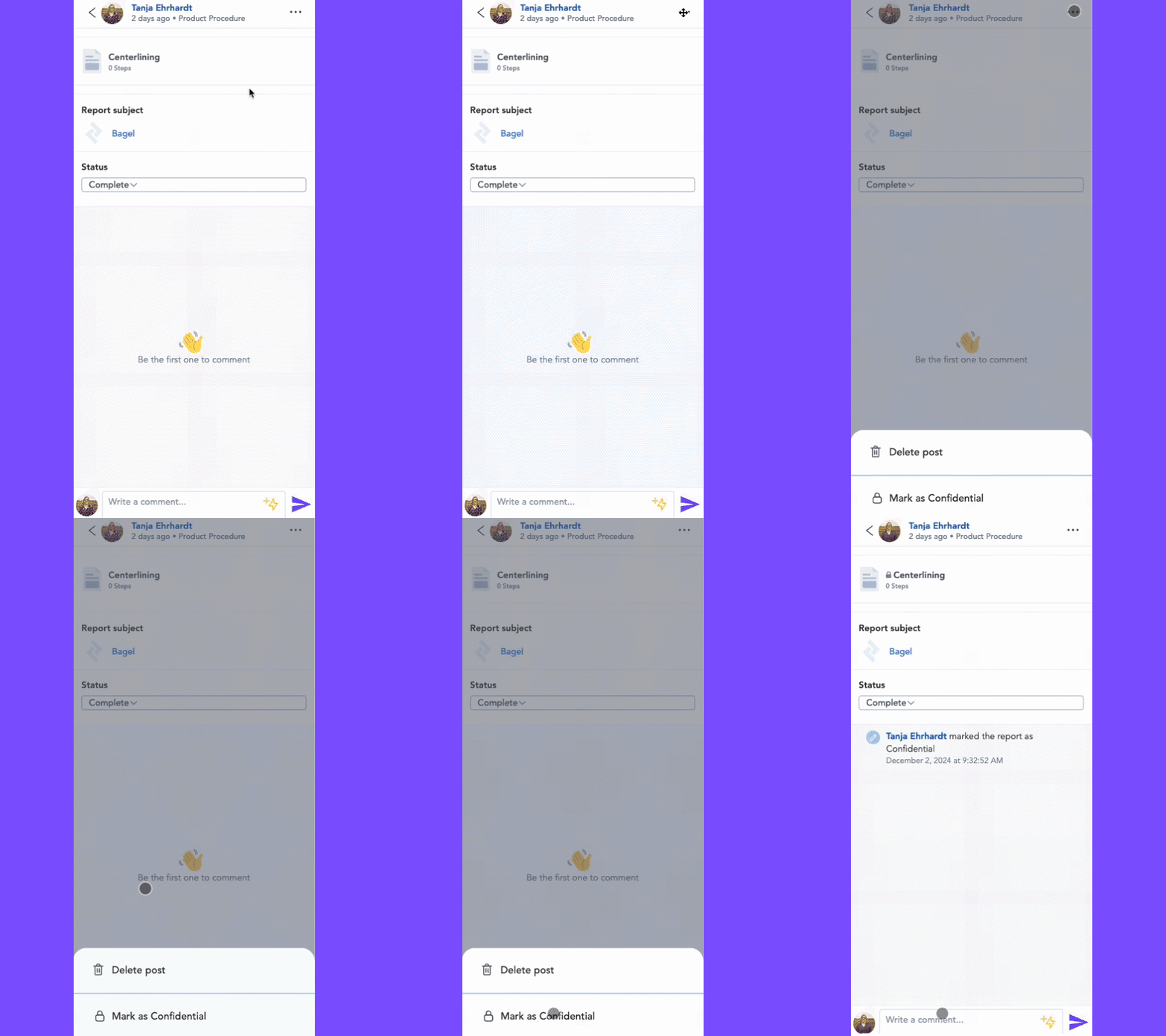
When viewing the report, click the “Options” button and “Mark as confidential”.
For more info on the Confidential Reports permission, please check our FAQ article here.