Video released on 07/10/2024
Schedules
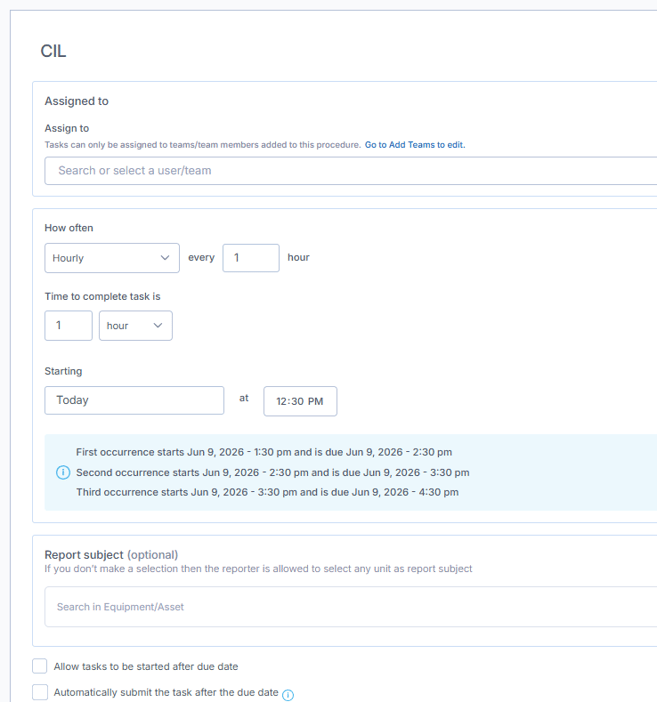
Schedules allow you to show a Task on a scheduled basis to your end users. This will ensure it appears in their To Do list.
-
- Schedules can be assigned to a User or a Team.
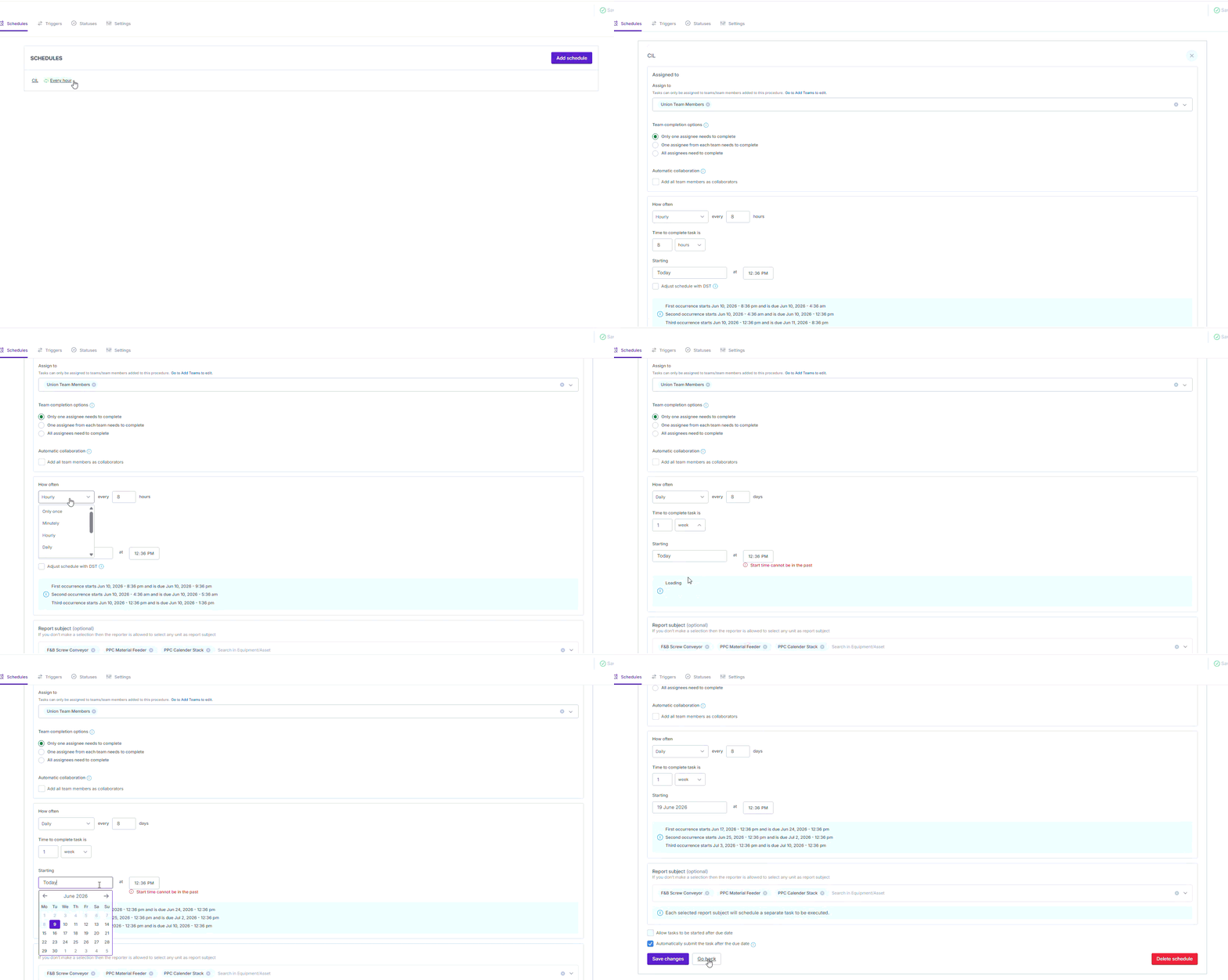
- When setting up Schedules for more than "Only Once" you will be asked to "Add time to complete". Use this option to give operators a specific amount of time (e.g. 6 hours / the length of a shift) to complete the task. This sets the Due Date.
- The Scheduler will give you examples of the first three occurrences of the schedule.
- When Allow tasks to be started after due date is selected, tasks will remain on the user’s To Do list after the due date has passed. The task will stay visible until it is completed.
- Note: This option is typically used for training tasks only. If used for general scheduled tasks, missed tasks will continue to appear on the To Do list, which can make the list difficult to manage.
-
When Automatically submit the task after the due date is selected, the task will be removed from the end user’s To Do list once the due date has passed. This helps keep the task list clean and prevents overdue tasks from continuing to appear. If the task was already in progress when the due date passed, any questions that had been answered up to that point will be submitted automatically.
-
The schedule name can be set by selecting the header directly above the Assigned To section. The schedule name can only be edited when the schedule is first created. Once the schedule has been created, the name cannot be changed.
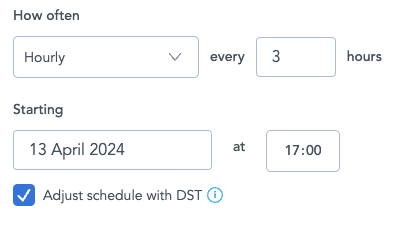
Daylight Saving Time Adjustment
This option can be enabled on hourly schedules which are set to recur between 2-23 hours, to ensure the clock changes do not impact the scheduled tasks.
Assign Past-Due Items
When adding a new team member to a task schedule, the Assign past-due items to new team members checkbox controls whether they receive overdue tasks from before they were added. If selected, the new team member will be assigned the latest past-due task with a new completion window. If left unselected, the new team member will not receive past-due tasks and will instead start with the next upcoming scheduled task. 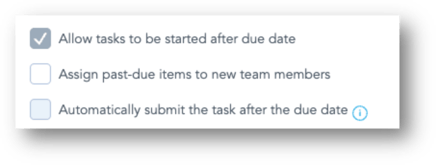
Edit an existing Schedule:
- You can edit an already created schedule to re-assign a team/person, schedule for a different time or modify the schedule conditions.
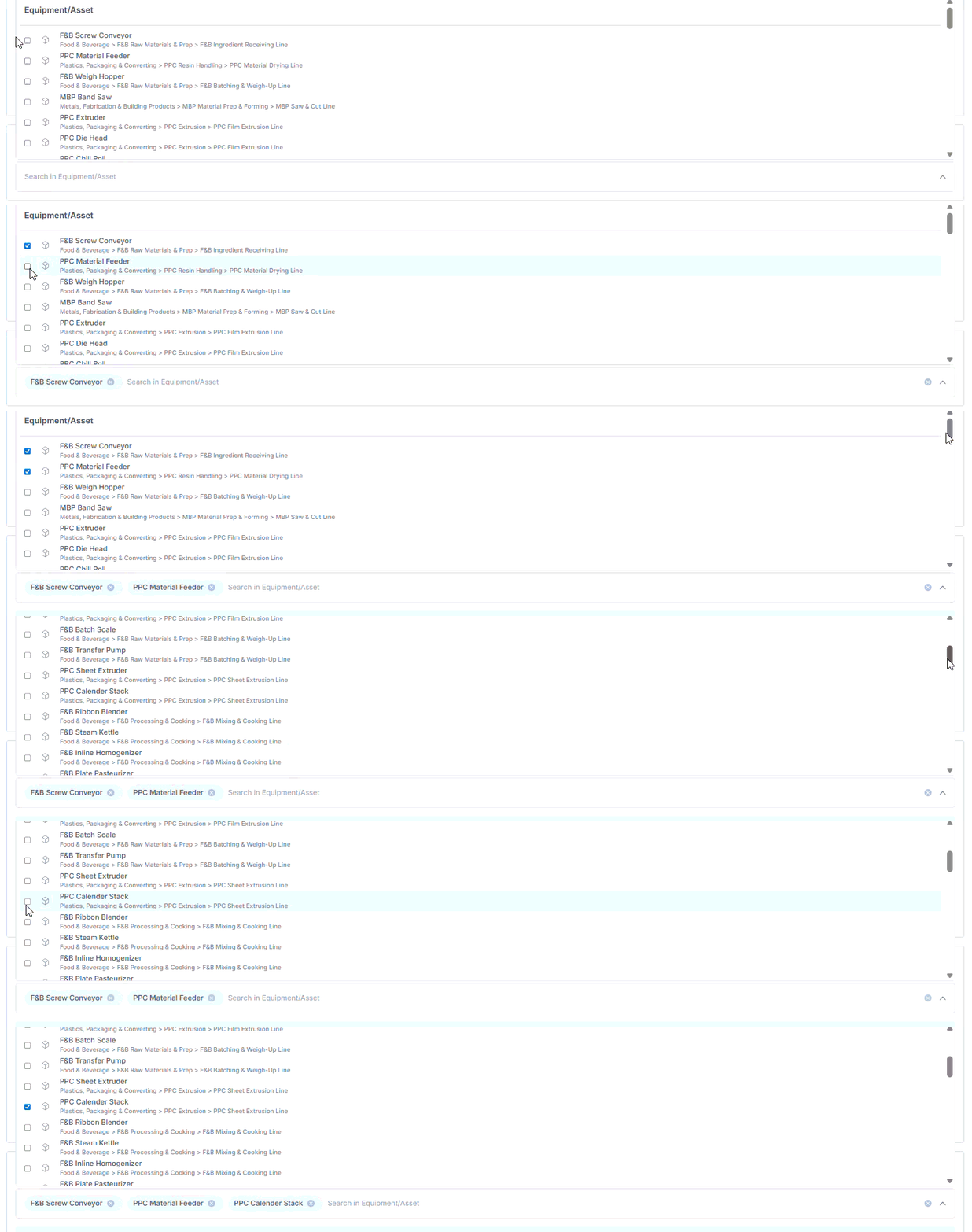
Schedule tasks or training for multiple units at once
- You can now distribute tasks even faster by scheduling for multiple units at once.