
How to build Centerline workflows using the Content Loop Element
- Many customers are using Zaptic for centerline (CL) checks (both shiftly and changeover). This is a powerful use case to drive OEE however it was time consuming to configure. This was because each centerline would need to be added one by one into the check.
- This lead us to develop a new element type that can be used when creating tasks. This is something called a Content Loop Element, which will allow you to repeat the same set of questions for each item in a list, such as for each equipment.
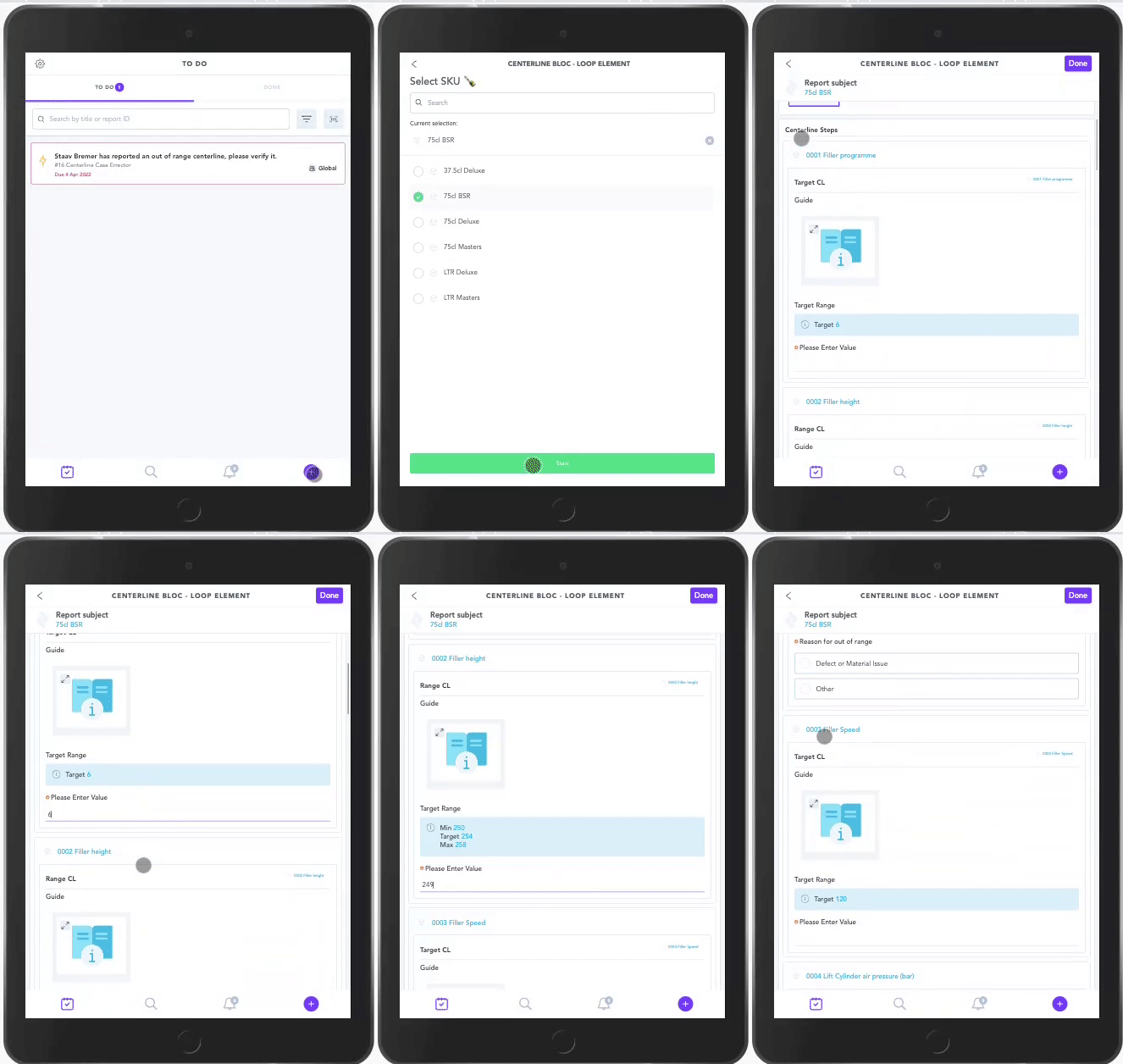
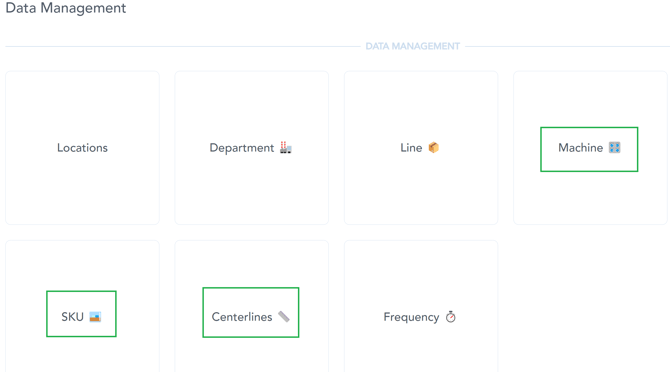
Data Management Preparation:
For a Centerline workflow we will need at least 3 unit types: the SKUs, the Machines they are running through and the Centerline Steps.
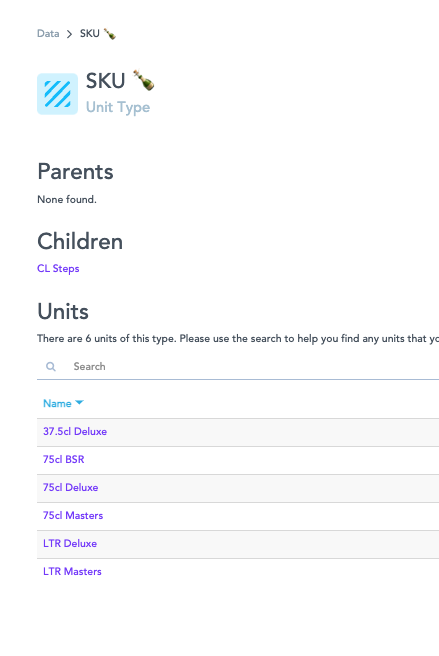
Data Management Preparation - SKU List:
We will now create a list of SKUs for which we are doing the Centerline workflow.
- For a Centerline workflow, the SKU list will not need to have parent units.
- This can be a complete list of SKUs, for all machines/assets they are running through.
Data Management Preparation - Machine List:
We will now create a list of Machines/Reporting Zones for which we are doing the Centerline workflow.
- For a Centerline workflow, the Machine list will not need to have parent units.
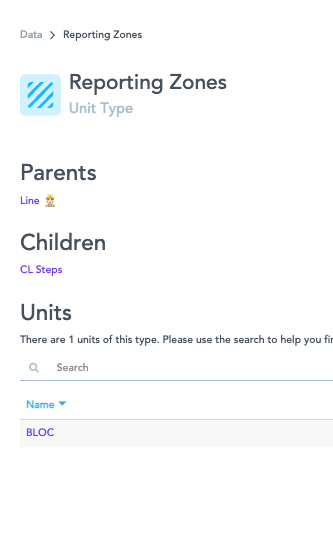
- Reporting Zones are a recommendation, which you use against the machines.
Data Management Preparation - Centerline Steps List:
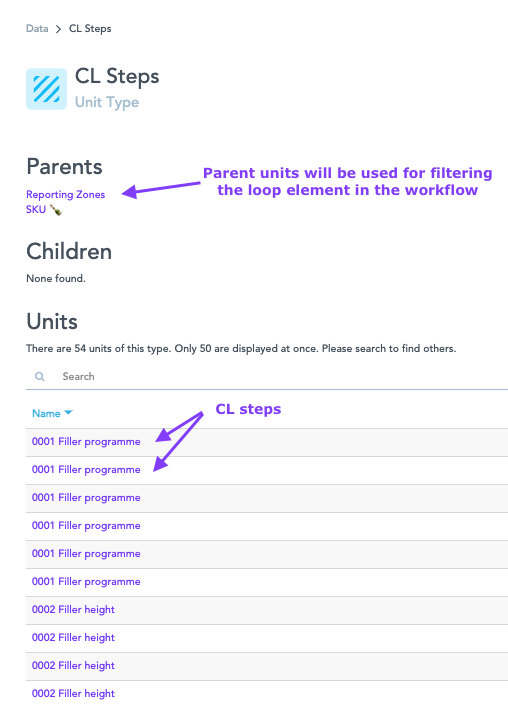
- When creating your Centerline Steps unit folder, pay attention to it’s hierarchy as these can be used later in workflow building to filter your loop element.
If following this example: The Centerline Step Unit must have parents in SKUs and Machine/Reporting Zones.
- Using the bulk upload template, we will create the Centerline list of steps.
- You might have the same Centerline Step displayed multiple times, one per SKU and Reporting Zone/Machine combination.
- If you need your loop to go through the list in a specific order, add numbers in front of your Centerline Step names in this format xxxx. i.e.: 0001 Filler programme as it is in "alphabetical ordering"
Data Management Preparation - Data Attributes:
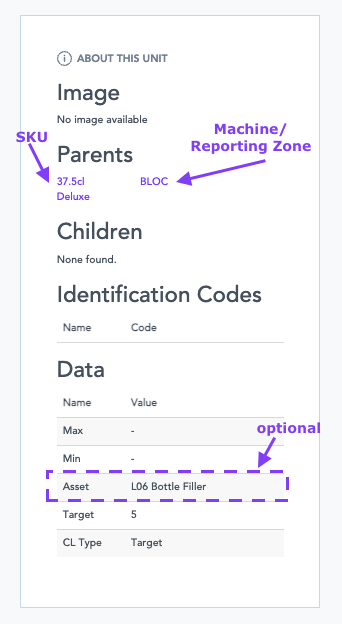
- Each Centerline Step will have a SKU and Machine/Reporting Zone parent.
- Each Centerline Step will have specific Data Attributes inside which will include the Centerline targets and information.
- To keep the format clear and clean, we suggest having the same data attribute columns for all Centerline Steps, adding a ‘-’ where a value is missing.
- The data attributes should contain Min, Max and Target columns, as well as a Centerline Type column.
- The Centerline type is a field we will use in the workflow building for routing (we will display specific set of steps depending on what type of Centerline step we have). Below a few examples:
- Range - the Centerline has a Min and a Max and we want the user to input the value.
- Confirmation - the Centerline has a text/picture/colour based Target and we want the user to confirm it.
- Target - the Centerline has a fixed Target and we want the user to input the value.
Adding the Content Loop Element:
- Create a new Centerline workflow in your Centerline procedure folder. The workflow subject should be the SKUs.
- We will have 1 Centerline workflow per Machine/Reporting zone.
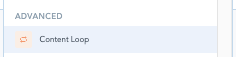
- In the workflow, we will add a new step and then press on the + button to open the list of elements and select the Content Loop.
- Insert a title for your loop element (This will not be displayed in the App when completing the workflow).
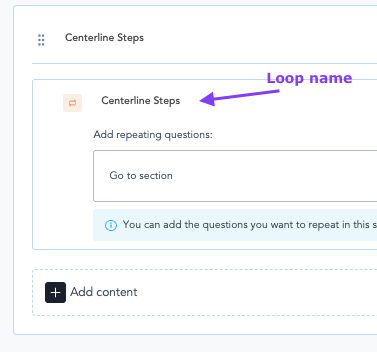
Content Loop Settings:
** When selecting the Content loop element, the settings pane will appear on the right side of your screen.
- First you will need to select the Centerline Steps list you created for the content loop to circle through.
- This selection will open below a list of filters for your loop, represented by the Centerline Steps list’s Parent units.
- Current best approach is to select the workflow subject filter (SKU) to be predefined on task execution by the operator.
- Select the Machine/Reporting zone the current workflow if built for.
- When your filters are left empty, the loop will circle through all units in your Centerline Steps.
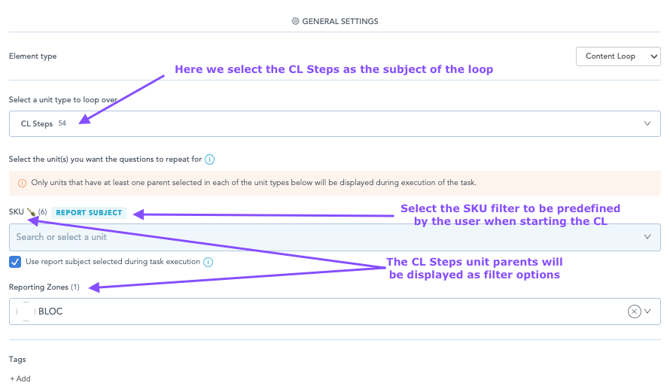
Content Loop Settings
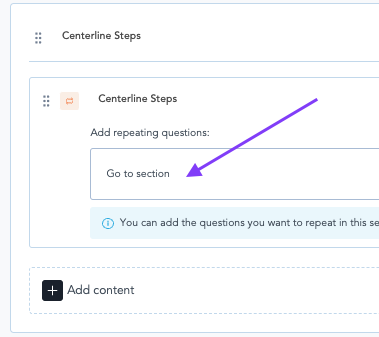
- Back on your Content Loop Element, if you click on the Go to Section link, it will open the Loop Element Content.
- The new workflow will inherit the subject of your Loop Element - Centerline Steps.
- Here is where you can build the Centerline steps the loop element will display whilst circling through the units from the Centerline Steps list.
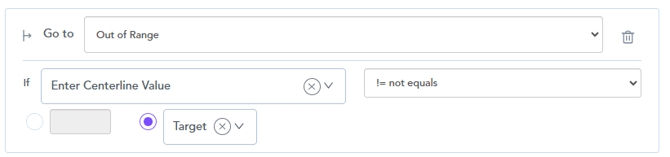
- Current best approach for a Centerline workflow is to contain a guide, display the Centerline target, and ask the user to input/confirm that target, as well as an out of range step in case the input value is different than the target or not confirmed.
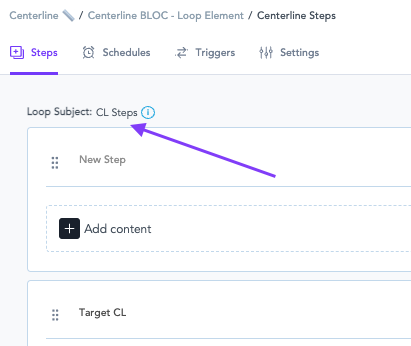
- Add a Centerline set of steps for each type of Centerlines (Range, Target, Confirmation) - followed by the Out of Range step and add the conditional routing.
Routing based on Centerline Type:
- First we will add a new Step at the beginning of our workflow - This step will be blank, aside from routing.
- We will add a new routing option for each Centerline Type variant we have in data attributes in Centerline Steps, i.e. Target, Confirmation, Range.
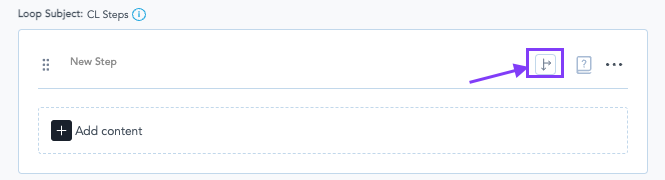
- We will route based on the Centerline Type attribute to the specific Centerline set of steps in the workflow.
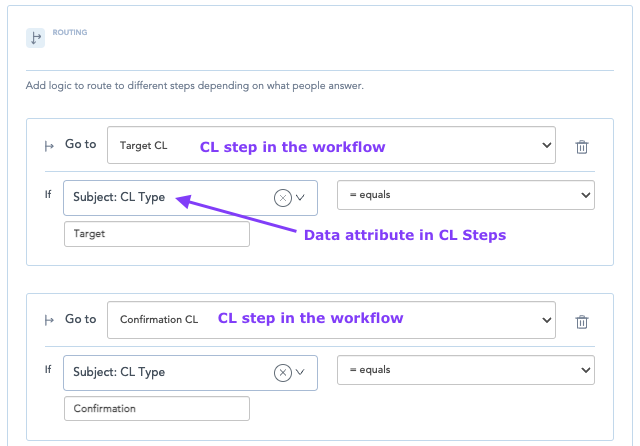

i.e. if the CenterlineL Type is Target, we will route to the Target Centerline step in the workflow.
** The Centerline Type should match exactly with the attribute in Data Management.
** After each Centerline set of steps, please route to end section.