Terminology:
- CIL
- Clean - Inspect - Lubricate - to return and maintain equipment at base condition, for optimum performance.
There's a few areas to consider when setting up a new CIL flow in Zaptic. Here's some Top Tips:
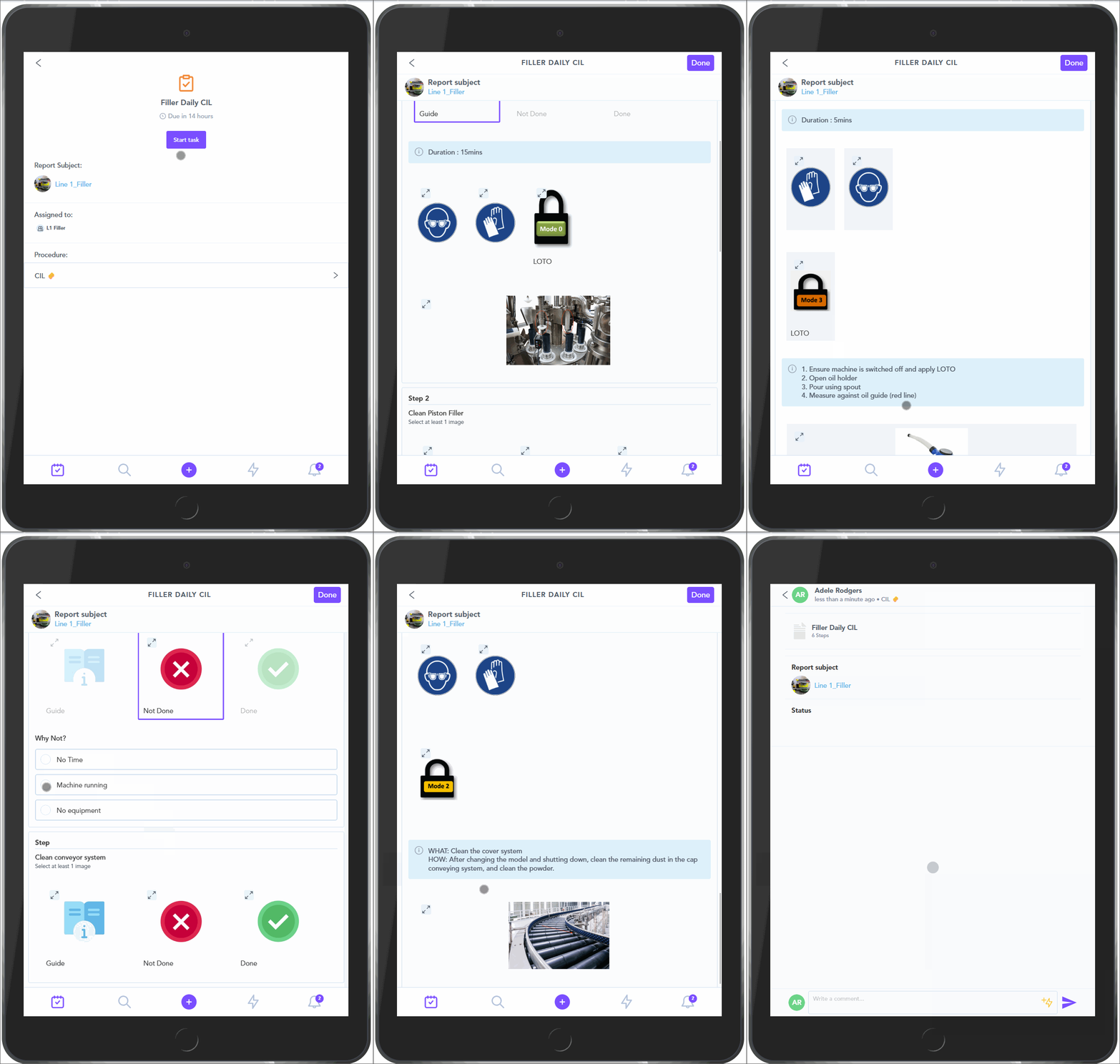
- Zaptic is very flexible and customisable, so the creation of any flow, for any use case can be achieved in many different ways
- Using the theory you have learnt from the ZapU modules for building Tasks and Steps. You can begin to build out or modify your CIL Flow
How to build a new CIL flow:
Open Zaptic & Go To Procedures:
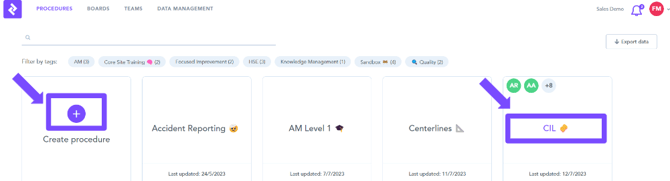
- Either create a New Procedure or open an Existing Procedure
- If you are creating a new CIL Procedure, select “Create procedure”
- If you are creating a new CIL TASK within an existing CIL Procedure, select the existing CIL procedure.
Add a new CIL Task:
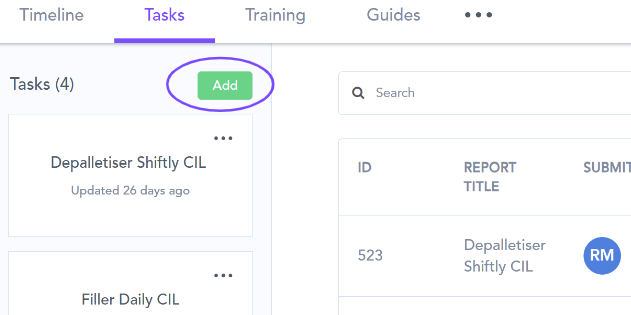
- You can either Add a new Task or you can access an existing Task.
- If you do not have access to an existing Task, an existing collaborator will need to give you access.
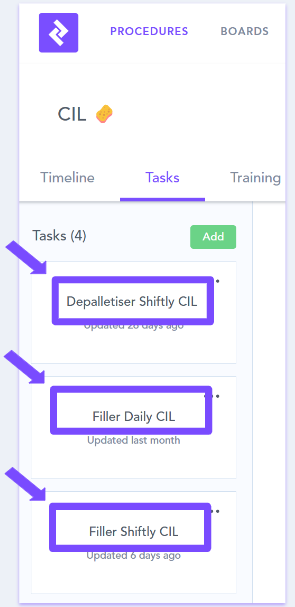
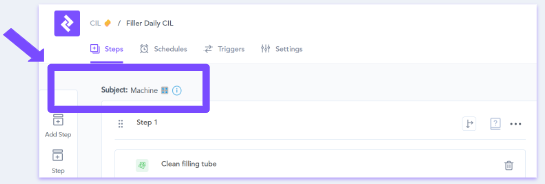
How to build a new CIL flow - Basic Flow:
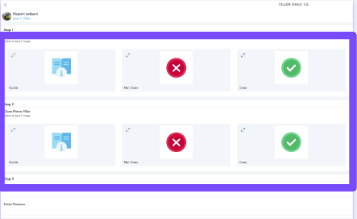
- By using image selects you can give the user simple choices at each step.
- Add Conditional Elements to move the User to another part of the flow based on their selection.
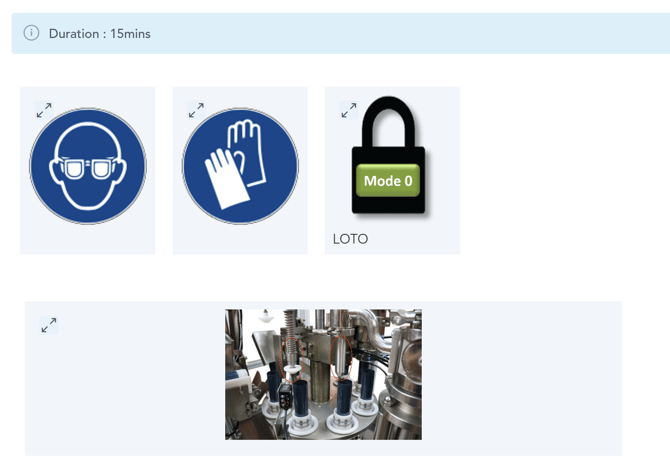
- You can include Task Content and Images as guidance like Duration, Tools, Safety and Tips on how to complete a task.
How to build a new CIL flow - with Sections & Links
- By adding sections it makes the task easier to navigate for the user and can be used to group steps like Clean, Inspect & Lubricate.
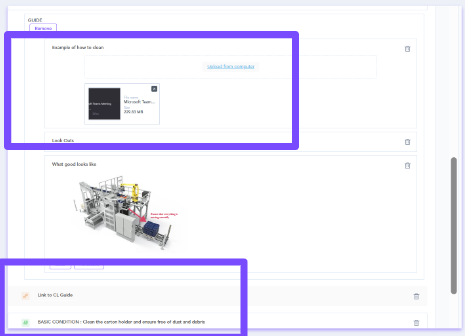
- Links to Videos and URL’s can be included for more guidance.
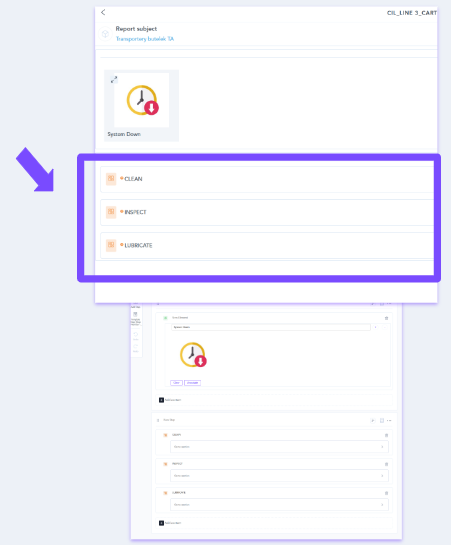
How to build a new CIL flow - including Subtasks & Guides
- You can link the steps to pre-built Guides.
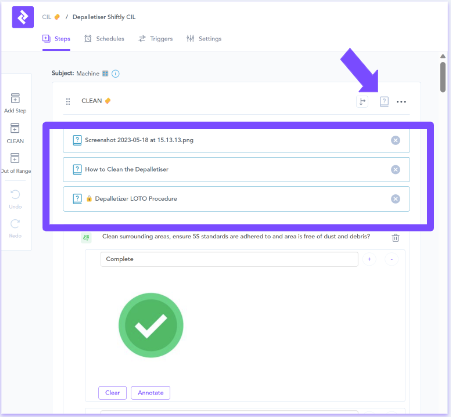
- To simplify the flow build, you can include Subtasks (Tasks that are created as standalones and can be added to multiple flows)
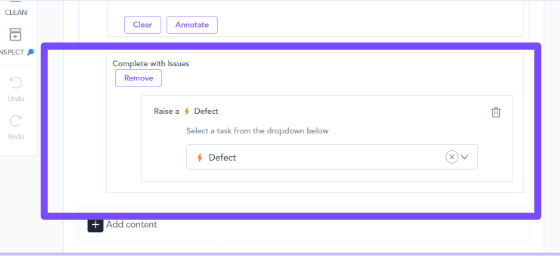
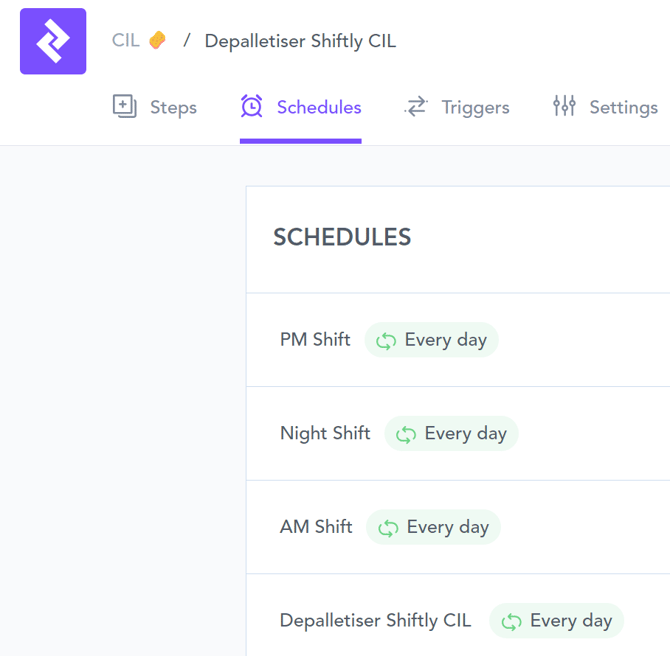
Scheduling & Triggers- for CILs
- You can create Triggers for tasks. This will ensure that users are notified of conditions, changes and actions.
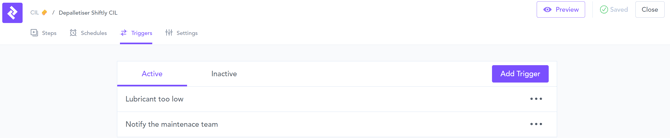
- You can assign Schedules to ensure that the users are notified of when the task should be completed on their App To Do List.