
Video released on 30/08/2024
The Content Loop Overview
The content loop is used to simplify the creation of a repeating workflow where the same set of questions are asked per list item; for example a list of SKUs. Based on a single list of units in data management, the content loop will automatically pull and the display the same set of questions for all units that match the relevant filtered criteria using only a single task/training flow in Zaptic.
The Content Loop is often used for the following use cases/DMSs: CIL, Centerline, Quality Checks, Learning & Development.
Data Management Preparation
The first mandatory step before creating any content loop is to prepare the data behind it, in other words, the list of items/units which will be observed by the content loop.
- Within Data Management, prepare a new unit type folder which you will use as the subject of your content loop.
- For example, if your repeating question is the completion state of a CIL check, your file may look like this:
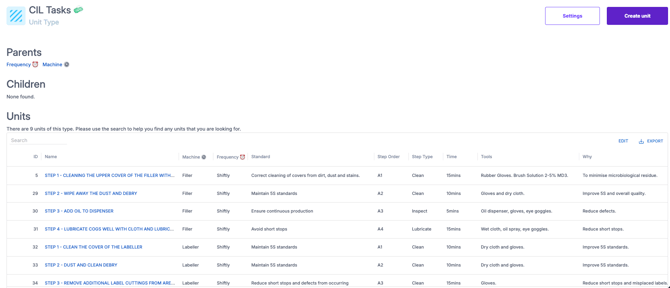
- When creating your unit list, think about the parents and data attributes that will be attached. Both of these can act as filters within the content loop.
- The list of units can be created manually (one by one) or by using the bulk upload template.
- Each unit on the list can contain further details and data attributes as per your use case needs.
- By default, the units in a content loop will be displayed in alphabetical order. Columns such as "Step Order" above can be used to define a different and custom order in which the steps should appear. It's recommended to use alphanumeric ordering such as A001, A002, A003 etc.
For more information on units in data management, please refer to the Data Management article.
Creating a Content Loop:
-
Create a new task/training flow in your chosen Procedure folder.
Note: If your flow has a subject, it should also be referenced as a parent of the content loop units. Otherwise, your flow can be subjectless.
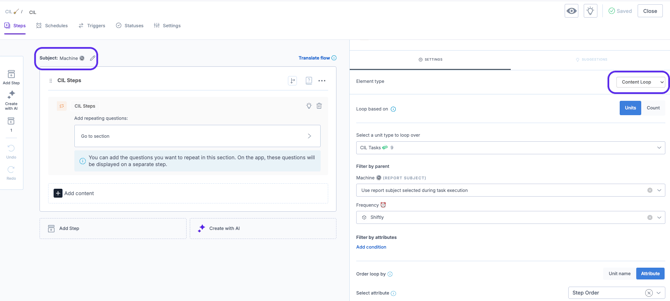
- In the workflow, press on the + button to open the list of elements and select the Content Loop.
- Insert a title for your content loop
- Select anywhere within the Content Loop element (other than "Go to Section") to bring up it's settings.
- Note: It is recommended to set up the settings before configuring the content inside the loop itself.
Content Loop Settings:
Select the content loop to show the settings on the right hand pane.
- First you will need to select the Loop Unit List you created for the loop to circle through.
- Select between looping through units or a count
If looping through units:
- Upon selection, the filters will appear according to the unit type's parents
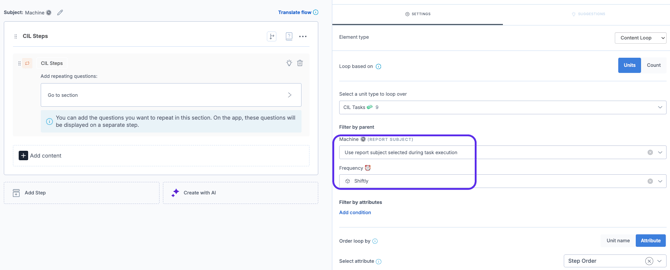
- The first filters are per parent. If your list has multiple parent units you will be able to either;
- Predefine the selection
- Use the report subject as per task execution
- Use a parameter
- A parameter will enable you to set discrete units into a schedule meaning that, depending on the schedule being executed, the unit being represented by the parameter, can be specified. Parameters are set up in the Settings page of the flow.
- If your filters are left empty, the loop will circle through all units in your Loop Unit List.
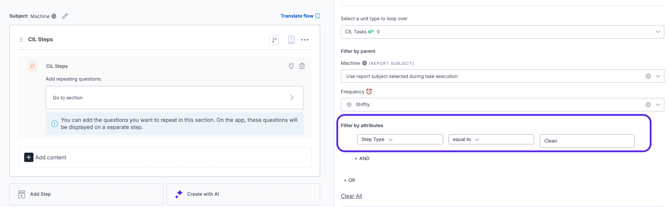
- The next set of filters you can apply are based on Unit Data Attributes from the unit type you are looping through.
- Here you can use Boolean and/or logic to create rules for your content loop.
- For example: you could set up the filter to show you only the steps which in the master data table in data management have the step tye "Clean"
- Here you can use Boolean and/or logic to create rules for your content loop.
- By default, the content loop will order units within in alphabetical order. You can change this and set your own order by selecting your order column as the order by which to display content.

If looping through count:
- This can be used to run the same check N number of times where the check does need need to loop through a selection of units
- For example, a quality check which is done at the product level (subject). Within the check you may need to check the weight every hour during the shift. This can be done using the count function.
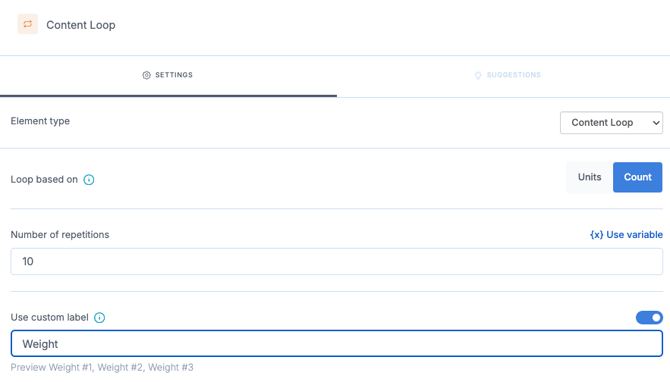
- Set the number of repetitions expected via:
- Manual entry
- Based on a numeric answer to a previous question
-
- Based on a unit data attribute
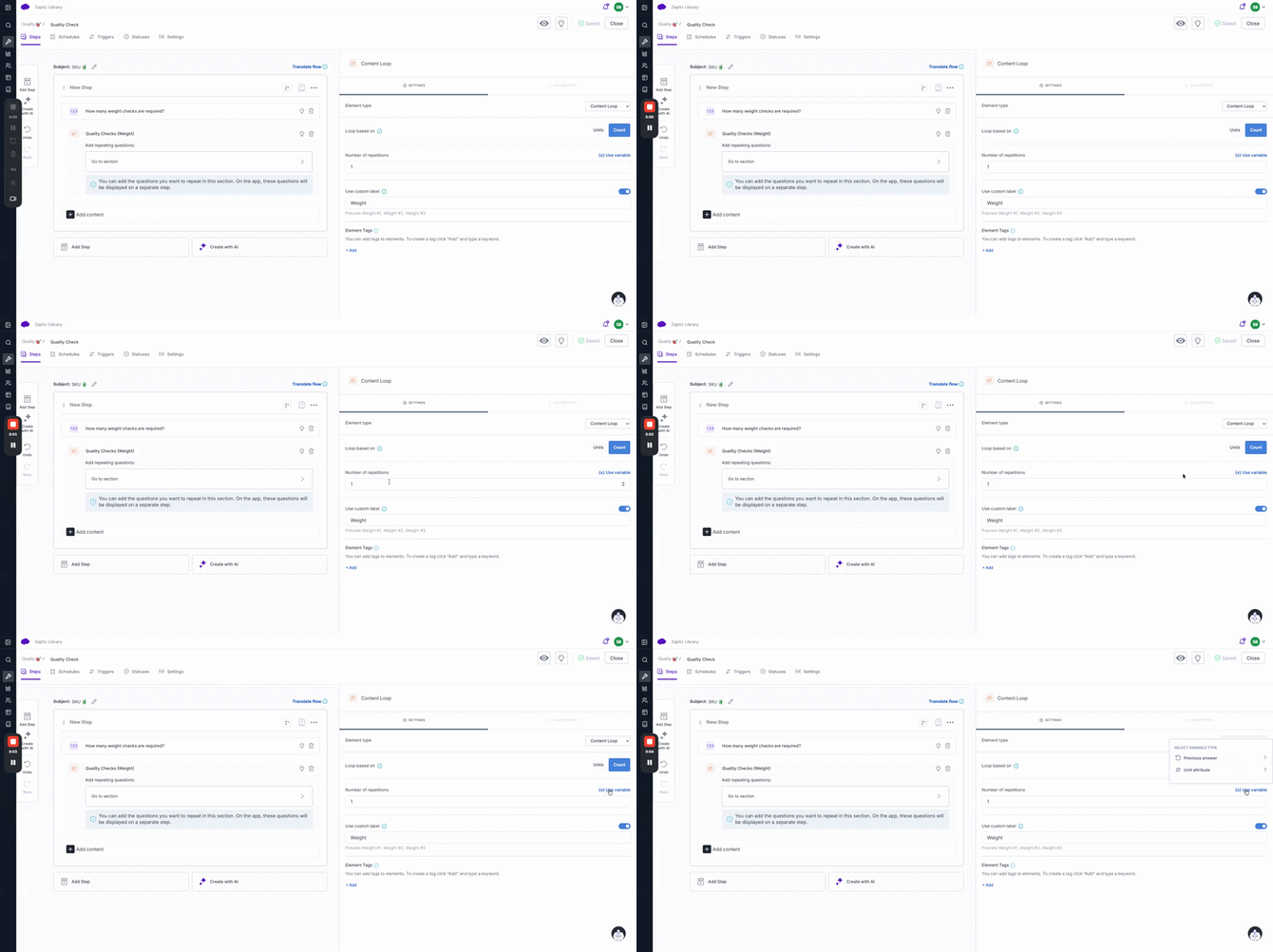
- Set a custom label for your repetition if desired e.g. weight
Loop Element Content:
Configuring the content within the content loop is exactly like anywhere else in Zaptic - click on Go to Section to begin configuring.- Set up the question(s) you want to loop through for each of the units from your list or for each iteration of the total count.
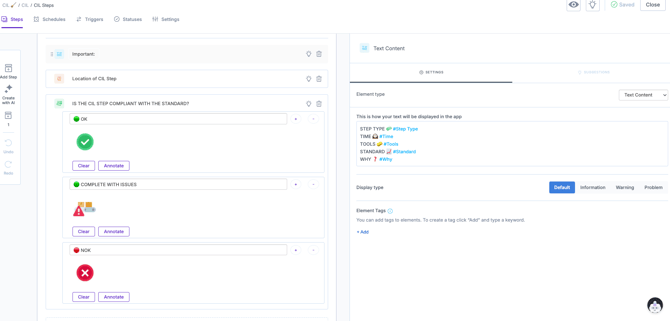
- Based on the loop subject, you can pull in unit data attributes using the text content element and the # symbol.
- The below is an example of the configuration within the content loop for a CIL.
- Whatever you configure here will be shown identically for each of the loop iterations therefore using unit data attributes and guides that are linked to the looped units will help ensure the desired variability between the different CIL steps.
For more information on Guides please refer to the Home For Guides article.
For more information on unit data attribute routing, please refer to the Data Attribute Routing article.
Using the Preview/Eye icon to review the content loop configuration can be difficult. It is recommended to test via the app for the best user experience
Advanced Content Loop filtering based on Integration data:
A feature which will allow the content loop to filter based on a integrated data attribute. This is custom made and built to fit the customer use case requirements.
An example Use case: Centerlines
Unit data attribute:
Delta (representing where a centerline adjustment point has been updated between any 2 production runs)
Use case:
The integration toggles between a TRUE/FALSE state for the delta of each of the centerline units. The configuration within the content loop ensure that where Delta is TRUE (i.e. value has changed between runs), the operator should execute the normal centerline workflow. When Delta is FALSE (i.e. no change in specific centerline value between 2 production runs on a machine), the operator simply reviews and confirms that everything is OK.