Video released on 30/08/2024
Terminology
Training
- An area within Zaptic’s Portal (within Procedures) where you can configure training modules and report on their completion with an inbuilt training matrix.
Building a new Training flow
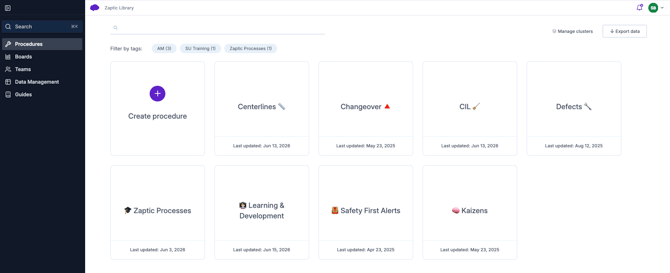
- Within the Zaptic Portal, go to Procedures
- Either create a new procedure or click into an existing one on which you are a collaborator.
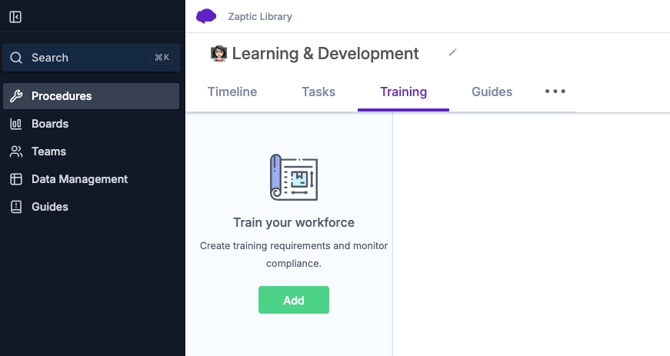
- Navigate to the training tab and click the green 'Add' button to create a new training module.
- The training flow builder is identical to the task flow builder so please reference other related articles such as:
Using the Content Loop for Training
Many customers will evaluate their workers on their skillsets using criteria that is unique to their role, machine and skill. Once this criteria is defined, the content loop allows customers to build repeating visuals for each of the sub-skills within any skill, linking work instruction and guidance throughout.
This Content Loop article may be a good place to start !
Data Management Organisation
-
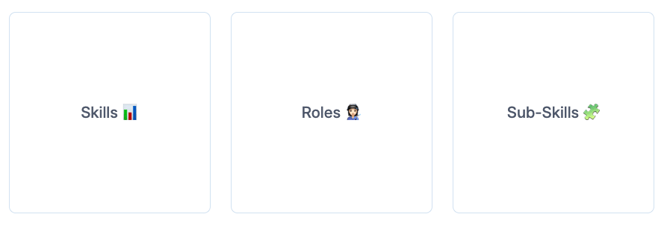
Master data should be organised into the following unit types
-
- Machines (Parent of Skills)
- Roles (Parent of Skills)
- Skills (Parent of Sub-Skills)
-
Sub-Skills
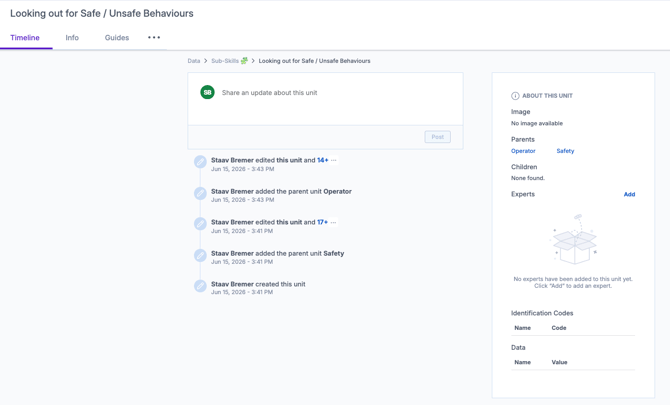
Linking Work Instruction & Guidance
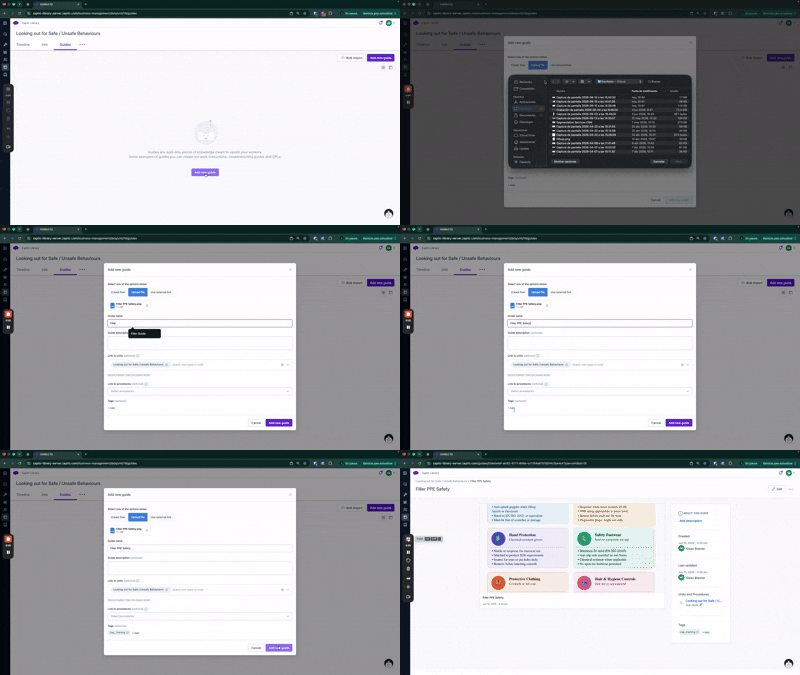
The ability to link work instruction directly to units in Zaptic means content that the operator will access content that is specific to each of the sub-skills.
This Home For Guides article may be a good place to start!
Either from the Guide page or directly from the unit, begin to add guides (videos, PPTs, Images, SOPs etc.) that are used to train and instruct the operator on how to carry out the sub-skill.
Creating Training with the Content Loop
The content loop should be configured to loop through the sub-skills, this is what will ensure that each of the necessary sub-skills per skill are visualised in one single training module.
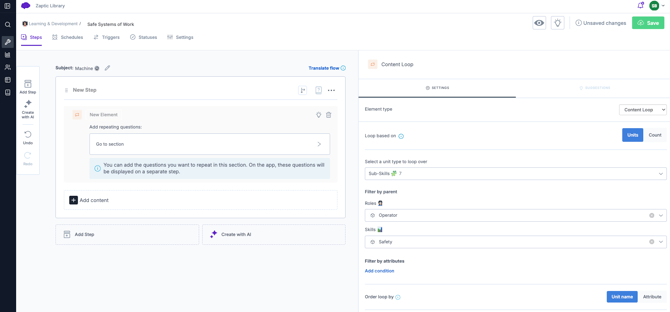
In the screenshot above, the content loop is filtered by "Roles 👩🏻🏭" using the Parameters concept. When a parameter is set, the content loop looks at the schedule to define which of the roles to filter the loop by. Therefore, a Safety training module can be created for all roles using one single workflow using the role parameter and defining the role in the schedule.
Additional filters can be added using unit data attributes where required.
For more information on data attributes, please refer to Data Attribute Routing
Within the loop itself, you may simply add a Guide element type to show the related work instruction(s) based on the step you're looping though and the associated tag, as per the below example.
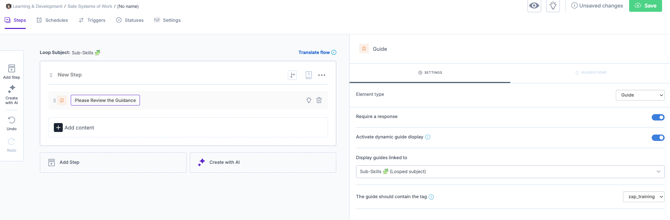
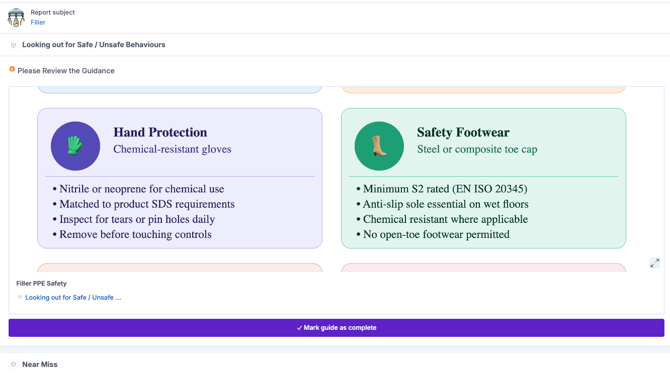
This would result in the following application visual. Within the app the operator would see all the sub-skills for the Safety module and their role. Each sub-skill would be linked to relevant work instruction that they would need to open and read/watch and acknowledge.
Creating Knowledge Checks:
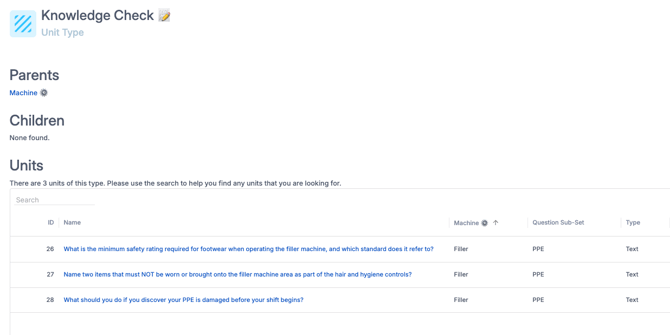
Using the content loop, knowledge checks can also be created for each sub-skill. The same concept applies i.e. start by adding the units in Data Management and then progress to edit/update your training flow from the procedures tab.
An example of how you may set up your knowledge check questions.
And how this may display when visualised via the app:
.gif?width=670&height=346&name=ezgif.com-video-to-gif-converter%20(1).gif)
Scheduling Training
Training schedules are created via the Schedule tab inside the training flow.
To set a schedule, enter the following [variables].
- People who will receive the schedule [User(s)/Team] - Mandatory
- Frequency of schedule [How Often] - Mandatory
- Length of schedule [Time to Complete] - Optional
- Machine to which the schedule is related [Subject] - Optional
- Job role to which schedule is related [Parameter] - Optional
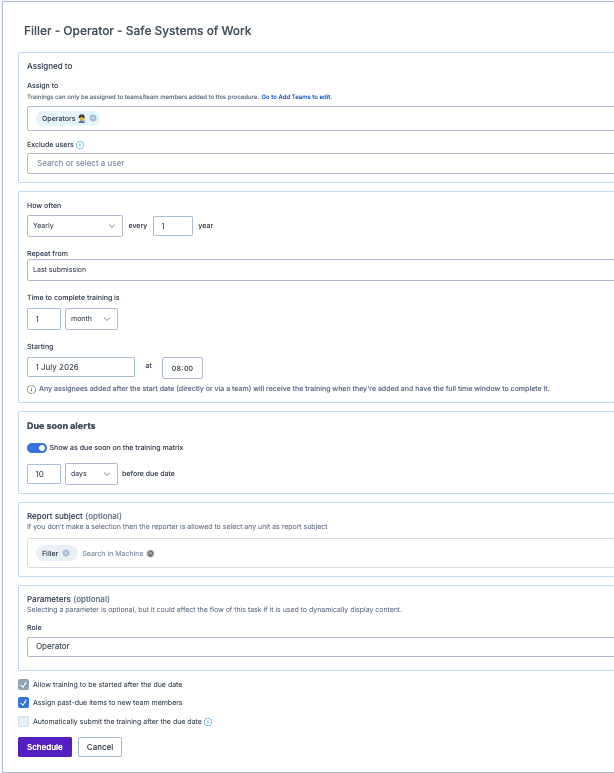
The below shows how to set up a schedule for the Safety training created above.
This training schedule:
- Is targeted at the Operator team
- Reoccurs yearly
- Has a completion of 1 month
- Uses the user's previous completion date to set the next due date (1 year from previous completion)
- Show's Due Soon on the training matrix 10 days before due date
- Is for the Filler machine
- Is for the Operator role
- Allows training to be started after the due date
- Assigns past-due items to new team members
Ideally, there will be one schedule per role with all machines where there is a Safety Module.
For detailed scheduling information, reference the Task Scheduling article.
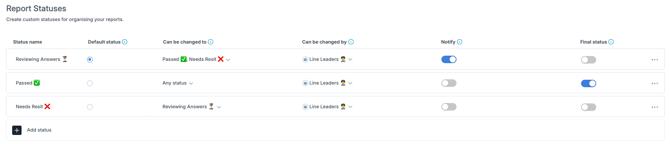
Training Status'
Status' can be used to represent a user's training compliance. When emoji's are used within the training Status', they will also feature on the Training Matrix to improve visualisation.
Setting up rules to define movement between status' and which teams/users are able to make this status update ensures that Operators are not able to Sign off their own training completion.
Notifications can be sent when a training enters a certain status. In the example below, the line leaders are notified that a new training requires their review. Upon review, only the can update the status to Passed or Needs Resit.
Training Settings
Parameters and Flow Tags can be set up in the Settings tab of your training.
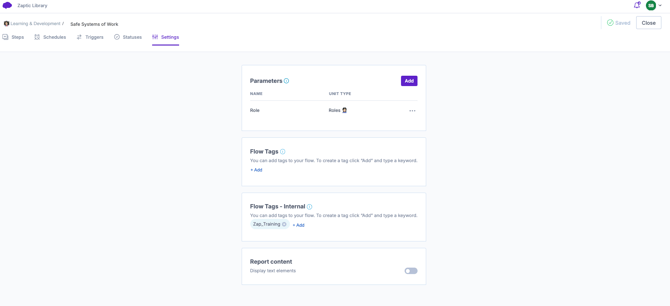
In this example, the role parameter is used to help us filter the content loop based on the schedule. This means we can have one single Safety training module for all roles and all machines that shows the right content based on the report subject and the parameters from the schedule.
Flow tags are often used to ensure that data pulls into specific boards. They can also be used to manage procedure clusters.
Click to read more about Tags and their usage!
The Training Matrix
- The training Admin feature ensures that a user can only see training completion within the training matrix or any custom built boards for teams that they are Training Admin.
-
As a training admin, the training matrix visualisation is enabled for all users that are part of at least 1 team you admin.
-
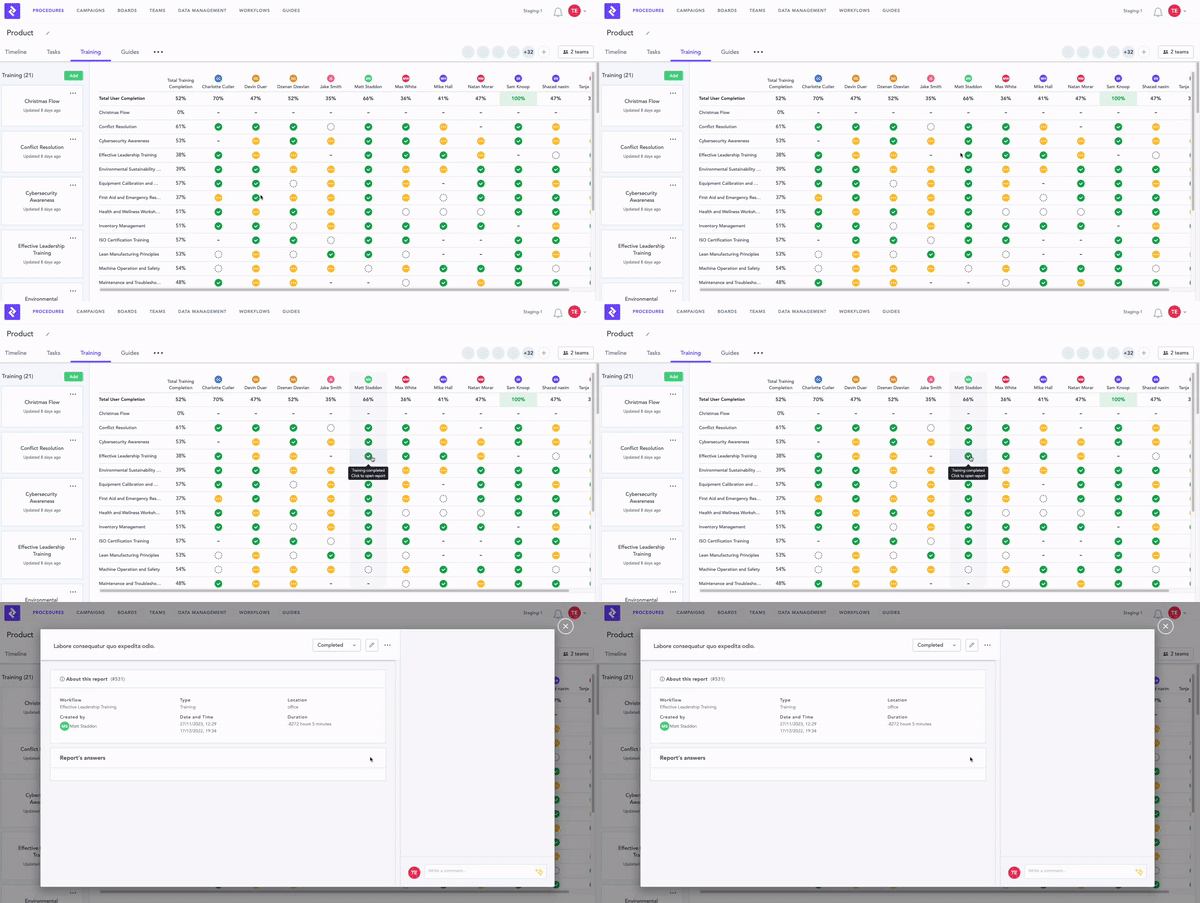
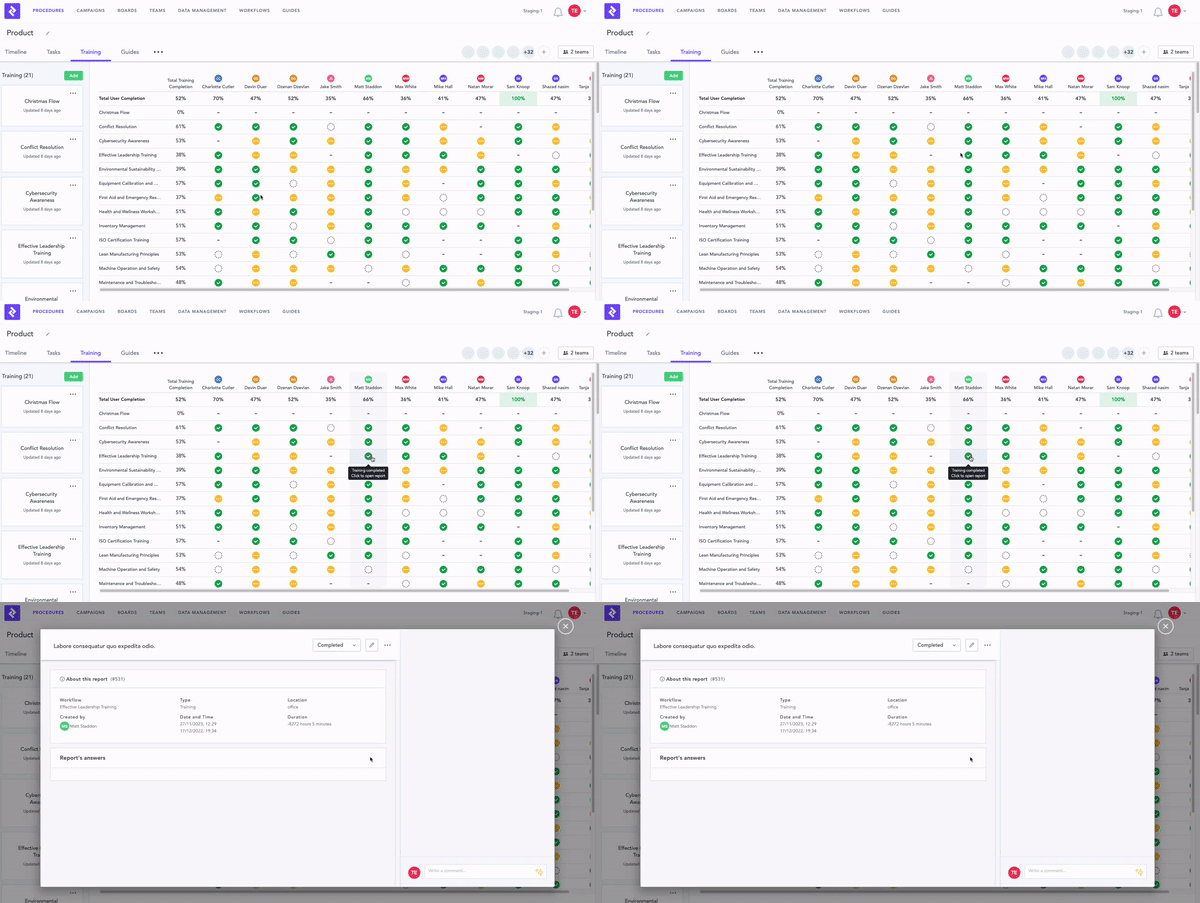
The % shows the total training completion comparing the total number of modules against the completed modules.
- For non Training Admins, the matrix will appear either completely greyed out or with an eye symbol for specific user's who's completion you don't have access to view.
Changing Status/Re-Scheduling a Training
When reviewing a users completion from the matrix, the approver can take one of 2 decisions (based on the above configuration):
- The user passes the training
- The user must resit the training
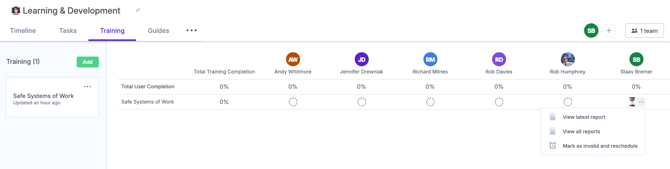
Click on the training status from the Matrix to open the menu and select "View latest report"
The teams/users authorised to update the training status can be viewed from this screen alongside the users knowledge check responses.
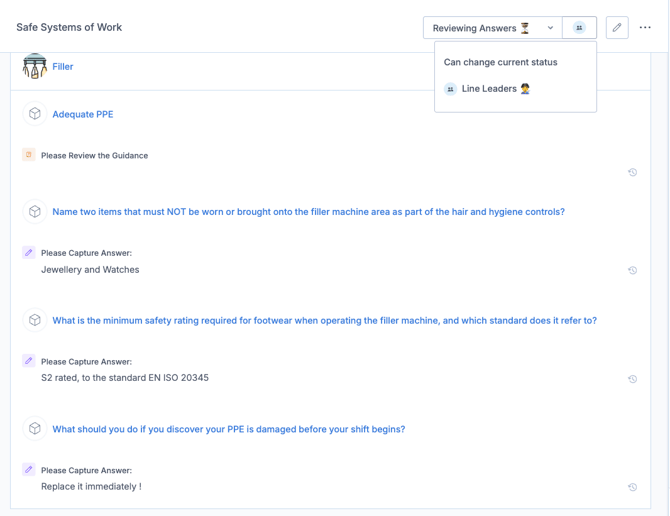
It is the line leader's responsibility to review the answers and take appropriate action.
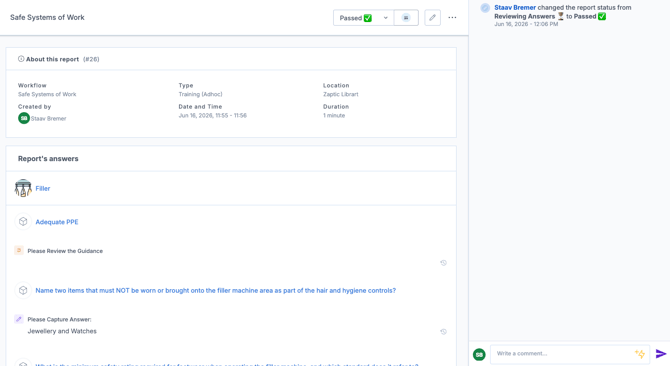
To pass the user, simply change the status to Passed. This will show on the audit trail of the training report with a date and time stamp, and will update the training matrix.
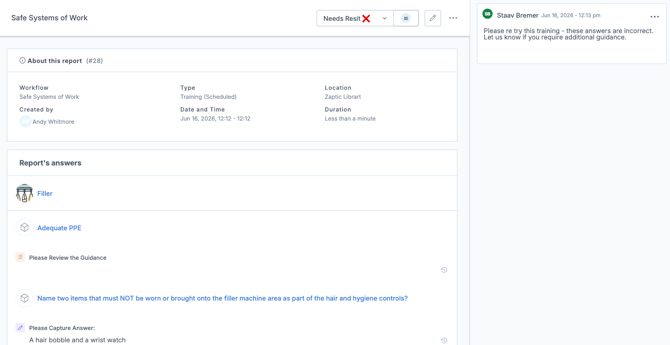
To fail the user, it is recommended that alongside the status change and resetting of the training schedule, the line leader writes the user a comment to explain why they must resit.
Once the status is updated, directly from the Matrix you can Mark as Invalid and Reschedule!
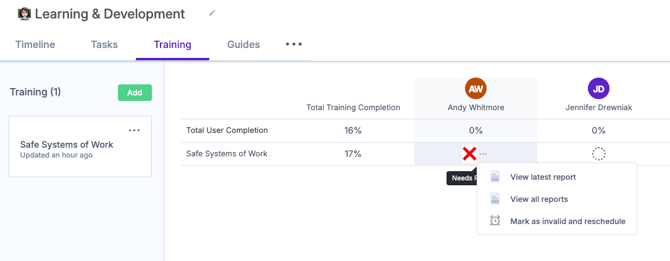
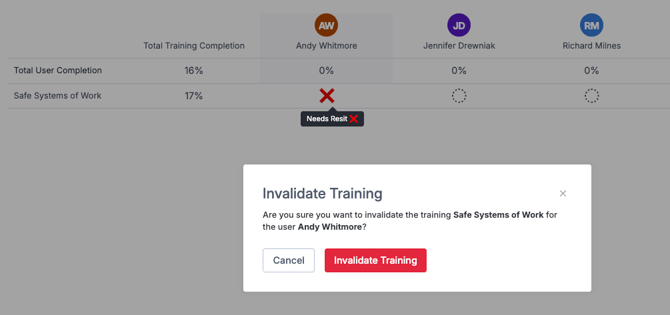
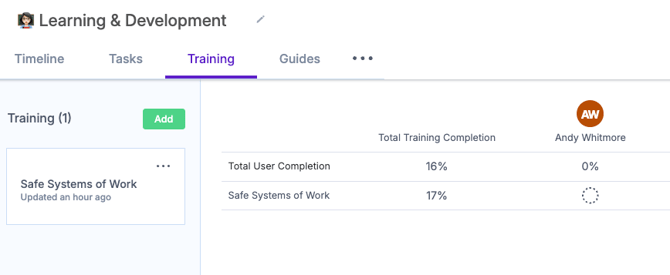
Status setting from the Matrix
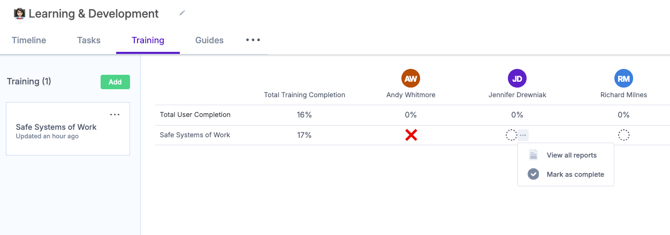
In the same way that you can invalidate someone's training from the Matrix, you can also Mark them as complete without them completing the training directly in Zaptic. This could be useful if you have recently changed your L&D Platform and want to show that a user is still compliant in a certain skill although their completion of that training was in a previous system.
Hover over the user in the Matrix and select "Mark as Complete". This will take the status that you have defined as "final" in the status set up.
Recommend Training for Existing Zaptic Tasks
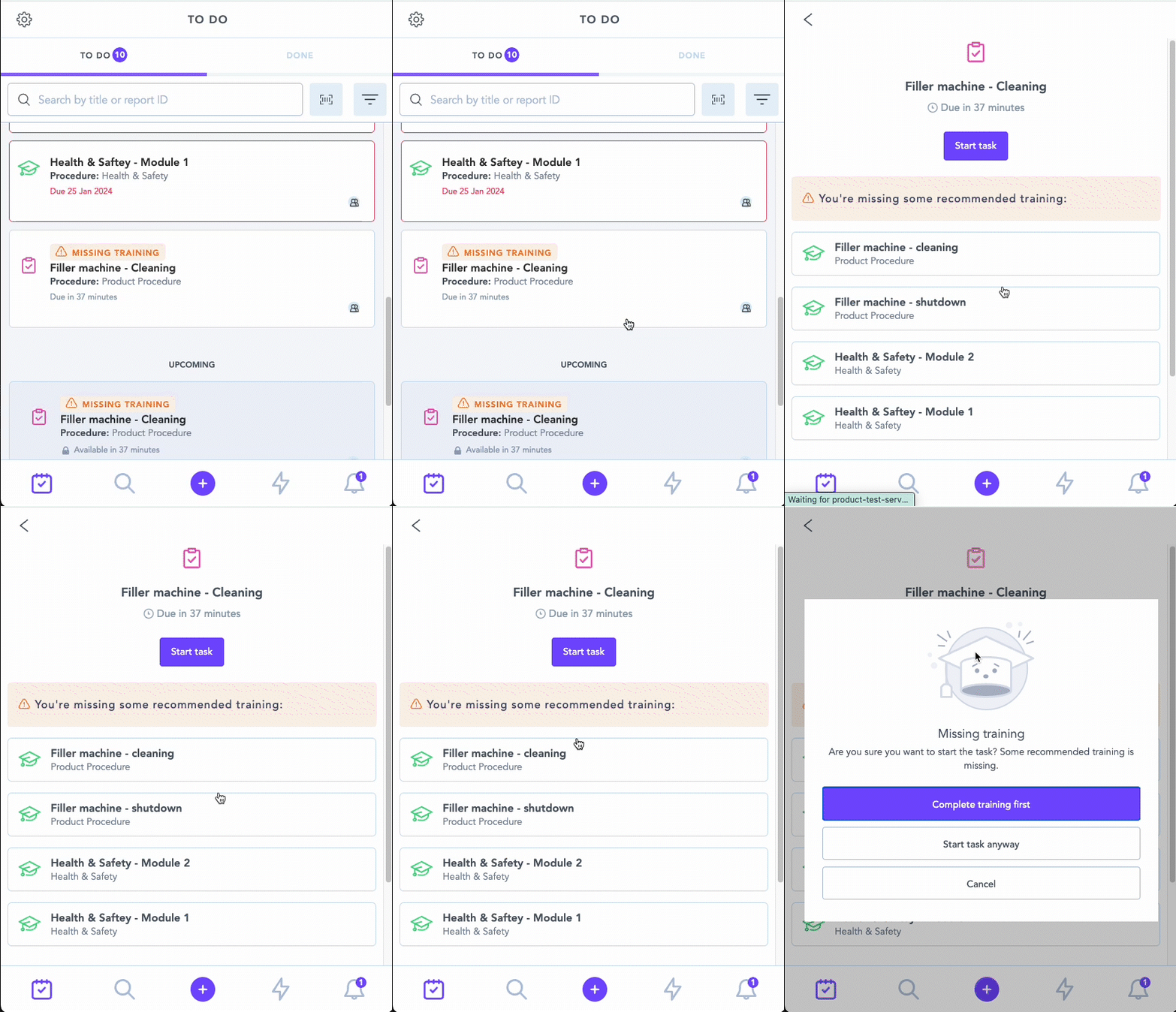
Navigate to the Settings tab of any task in Zaptic and select Recommended Training from all the training modules created in your instance.
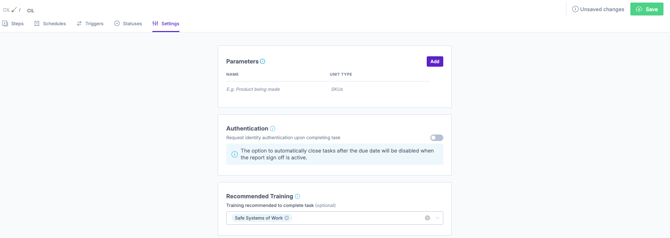
This setting ensures that before completing a CIL and when the recommended training is not already complete - the user will warned that there is training that should be completed.
Viewing Training Completion in the App
Individual Completion
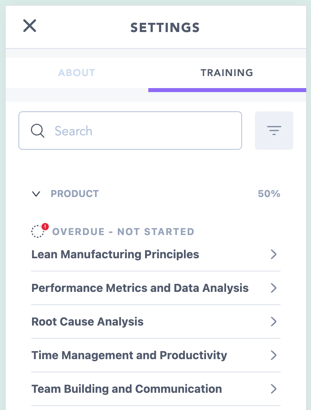
Individuals can view their training on their profile page in the app, enabling them to track progress and personal development as well as seeing what training is still pending.
Clicking on the initials in the top left corner of the app opens the settings pane.
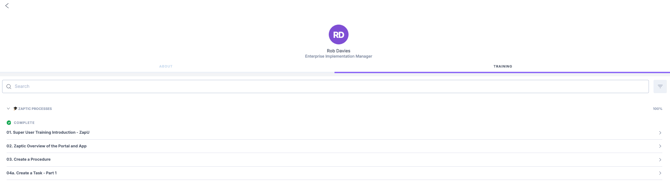
Navigate from "About" to "Training" to view the matrix.
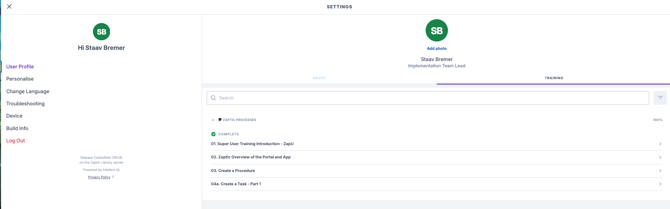
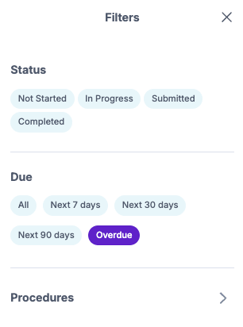
This training matrix is filterable using the 3 lines on the right-hand side - for example show only overdue training:
Reviewing Team's Completion
Training Admin's can view team members completion in the app.
The easiest way to do this is first Navigate to the training procedure from the Magnifying Glass icon.
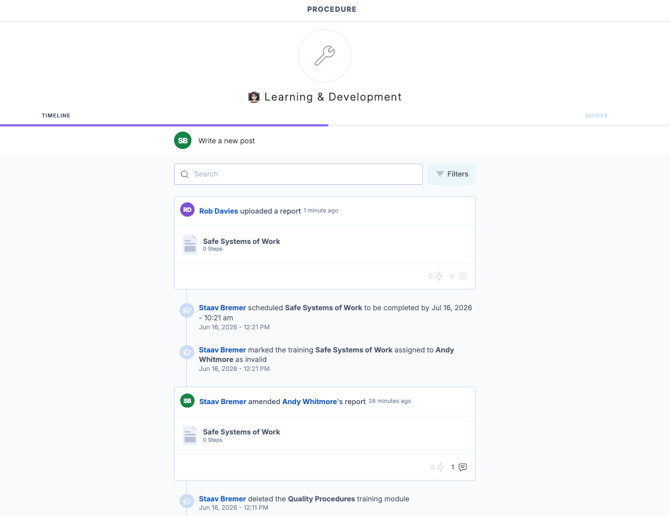
Once here, find or filter to the user in question and click on their name and go to the "Training" tab.